Which AI is best for making PNGTuber assets?
31 min read
From character design to main art and variant images, I prepare PNGTuber assets with several image AIs and work out which one is best for the job.
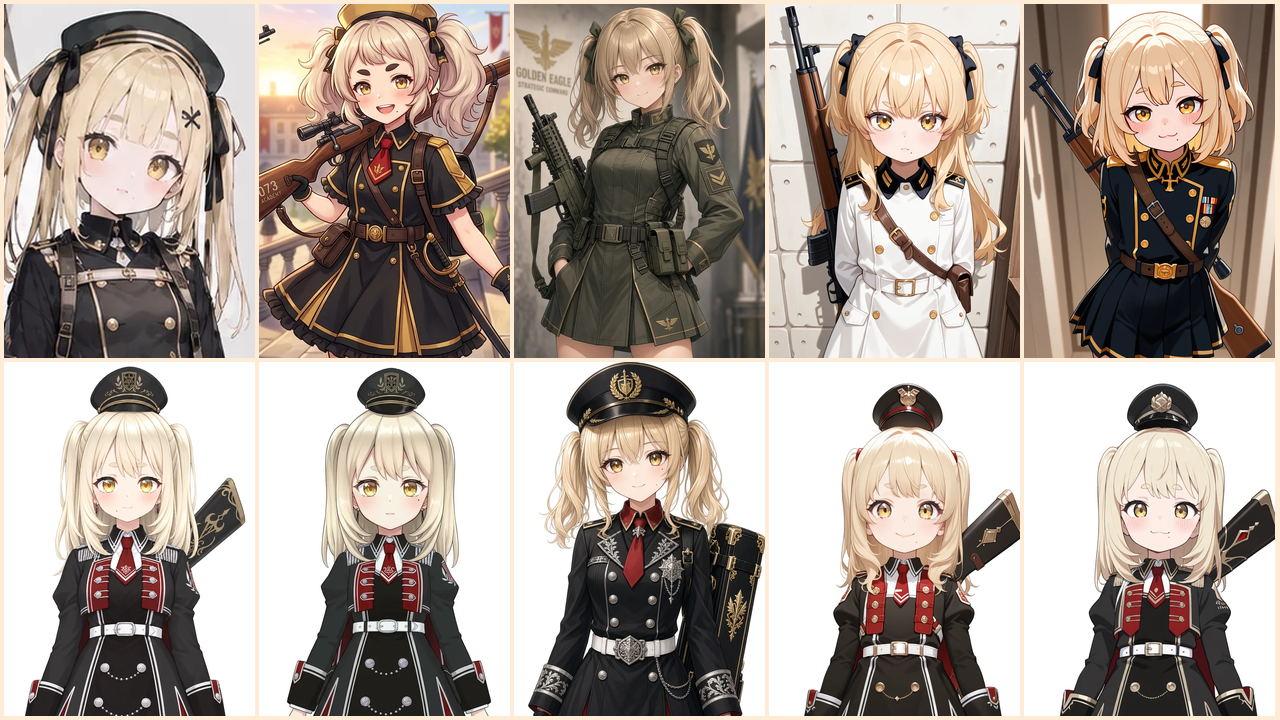
I’ve had all sorts of AIs generate images while making samples for Peraravatar+, but which one is actually best for a PNGTuber? I had a rough answer in my head, but I had never checked it, so I decided to have several image AIs output avatar images again and find out which AI is best for making PNGTuber assets.
As it happens, a streamer friend’s birthday is coming up, so I’ll use their REALITY avatar as the reference and try out different ways of generating while preparing PNGTuber avatar assets for Peraravatar+. REALITY is a streaming app for phones where an avatar moves along with your face on the front camera. Many people who move from REALITY to YouTube and other platforms make a new avatar based on the design they were using, so I’ll use that as the example.
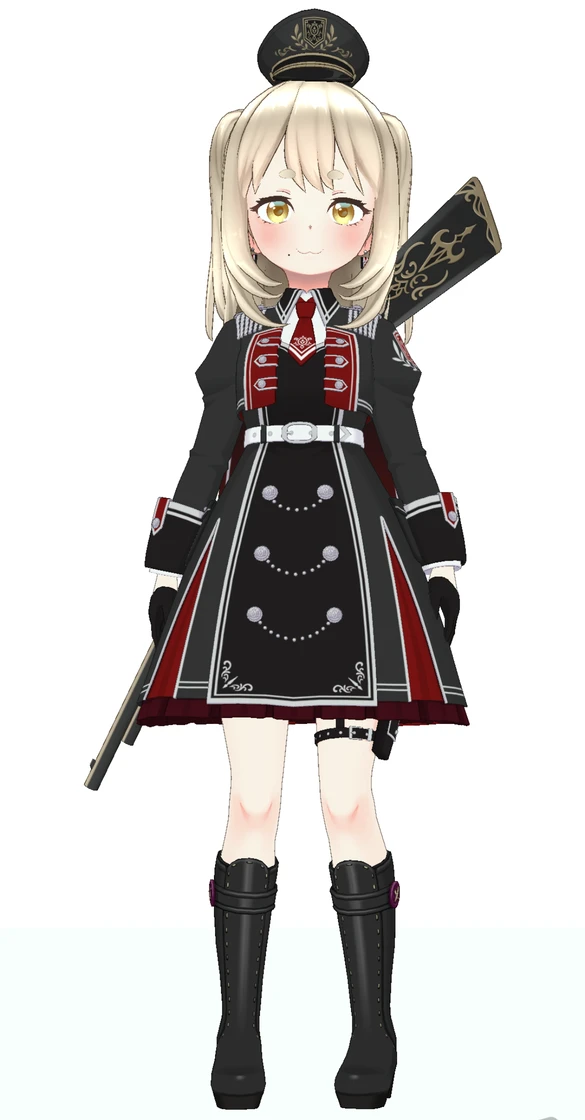
When I asked, “Can I use your REALITY avatar as a reference for a PNGTuber note?”, they happily said yes. Yet when I once suggested, “Let’s get a domain and do some SEO so your official page shows up in search!”, they turned it down because it was too embarrassing, so I won’t link to them directly. The official site I made for them is in Achievements.
What I compared
I had ChatGPT, Gemini, Grok, PixAI, and ComfyUI output images from similar prompts and compared them. Everything is a free service or tool, and I don’t use any paid-plan options. Here’s what I compared.
- Character design: With no concrete image in mind, does it output a nice character from just a rough description?
- Regenerating from an image: Given a reference image (or your favorite from the character design if you don’t have one), does it output main art for an avatar?
- Variant images: Given one image picked from the regenerated ones, does it output the same image with only the eyes closed and everything else unchanged?
Many AIs are bad at outputting images with a transparent background, so I use a white background for all the main art.
Turning off training on your data
By default, ChatGPT, Gemini, and Grok use your uploaded images and conversations to train their AI. This time I’m handing over someone else’s avatar, so I turn that off first.
ChatGPT
- Open “Settings” from your account name at the bottom left
- Open “Data controls”
- Turn off “Improve the model for everyone”
Gemini
Turning off “Keep Activity” under “Activity” in “Settings & help” stops your chats from being used for training, but your past chats also disappear from the list. So I leave Activity on and use a temporary chat only when I’m working with someone else’s images.
- Click “Temporary chat” (the pen icon in a dotted circle) at the top right
- Use the input box as usual
Grok
Grok and X have separate settings. Turning it off in one doesn’t carry over to the other, so set it in whichever you use.
- grok.com: Open “Settings” → “Data Controls” and turn off “Improve the Model”
- X: Open “Privacy and safety” in Settings, open “Grok & Third-party Collaborators” under “Data sharing and personalization”, and uncheck the box there
PixAI
PixAI’s privacy policy says it “does not use user-uploaded images to train or improve its foundational AI models without explicit user consent” (as of October 2026).
ComfyUI
ComfyUI generates images on your own PC, so the images and prompts you give it aren’t sent anywhere unless you use API nodes that generate on an outside service. No settings needed.
Character design
If you’re making your own avatar from nothing, you start by thinking about what kind of character it should be. You tell the AI what you’ve decided, such as gender, motif, age, hairstyle, eye color, and build, let the AI fill in the rest, and bounce ideas back and forth until you get a character you like. Here I roughly compare which AI makes the best partner for that.
This time I do have an image to start from, but I’ll use it in the next part, “Regenerating from an image”. Here I assume you’re listing the features of a character that’s only in your head. Since this is character design, I don’t specify a background and leave the pose to the AI.
I list these features: blonde hair, half-up twin tails, golden eyes, maro eyebrows (short, round eyebrows), a mole to the right of the mouth, teen, military-style dress, and a rifle on her back.
ChatGPT
I’m working on the design of an avatar for streaming. Please output an image of a character with these features: blonde hair, half-up twin tails, golden eyes, maro eyebrows, a mole to the right of the mouth, teen, military-style dress, and a rifle on her back.
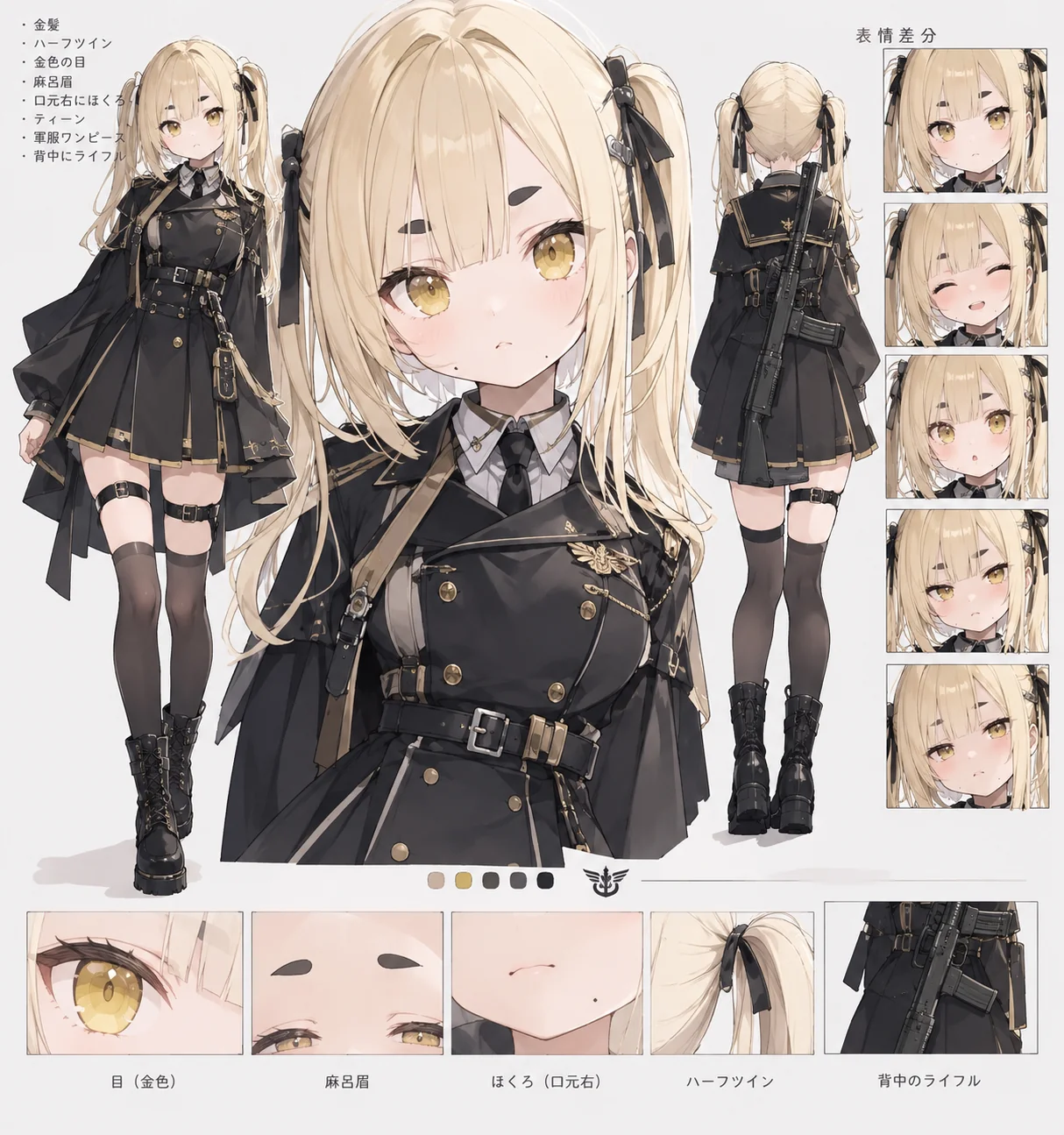
Maybe half-up twin tails is a hairstyle it can’t do reliably: you can just see some hair left down at the back in places, but at a glance they’re basically twin tails. It also seems better to specify the eyebrow color. The mole comes and goes and multiplies, so it isn’t stable.
The face looked grown-up, so I added “baby face” to the features and output another one, and it came out cute. You can ask for a baby face, but if you give an age, it tells you off: “We’re very sorry. Your prompt may violate our content policy. If you think this is a mistake, please try again or edit your prompt.” ChatGPT tends to say no to all sorts of things once children are involved. Still, it outputs cute images, so as long as you’re not making a character that shows a lot of skin, it passes.
ChatGPT hits its daily image generation limit fairly quickly, so if you want to generate lots of images, paying will make things more comfortable. I can just wait until the next day, so I personally don’t feel much need to pay.
Gemini
I output it with the same instructions as ChatGPT.
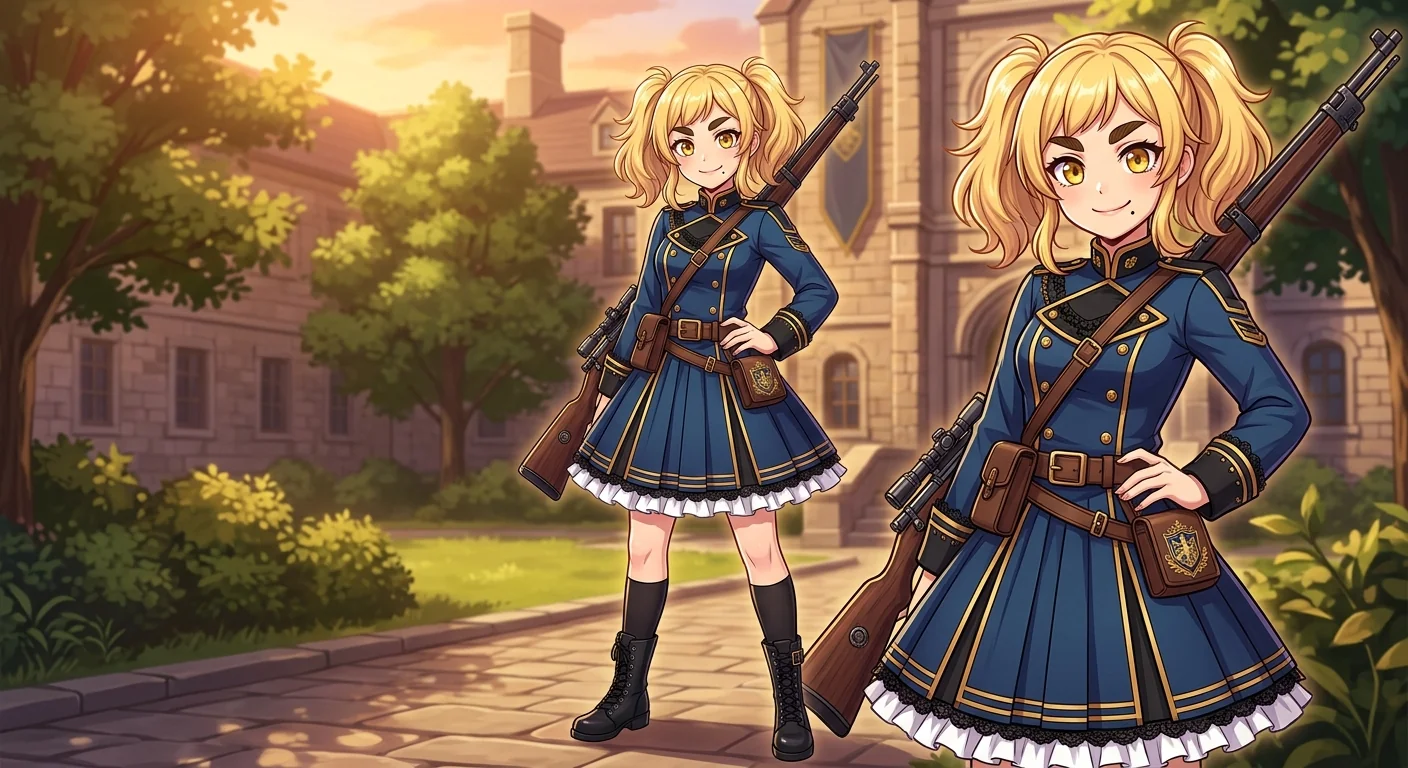
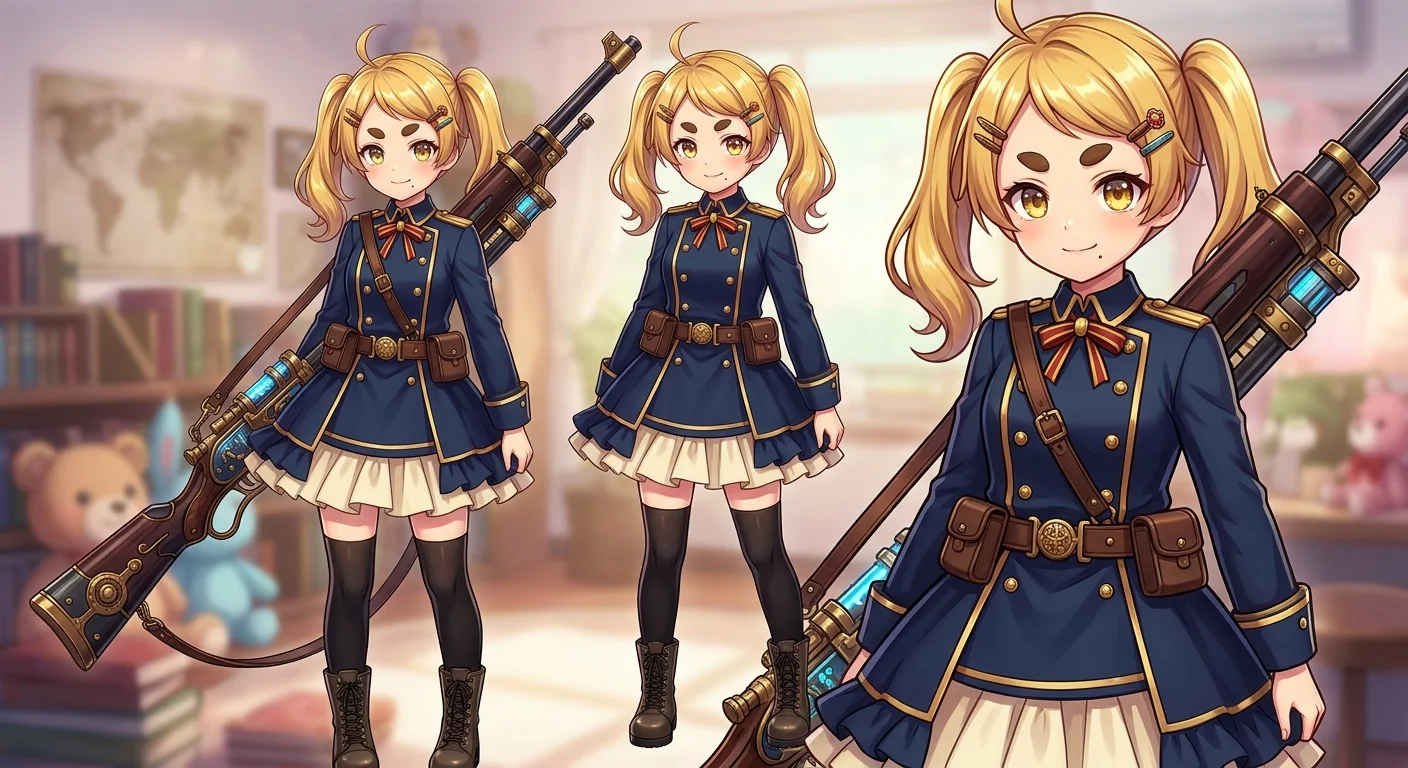
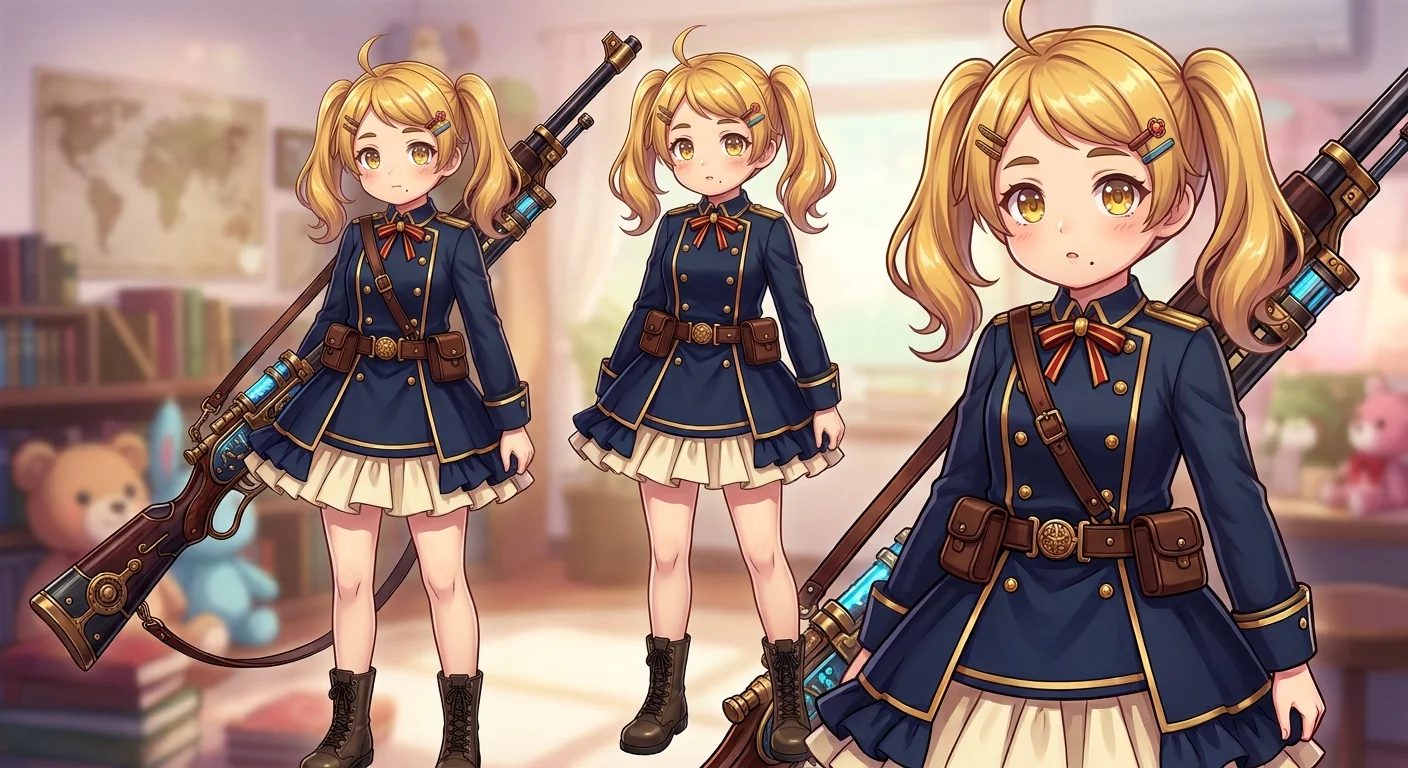
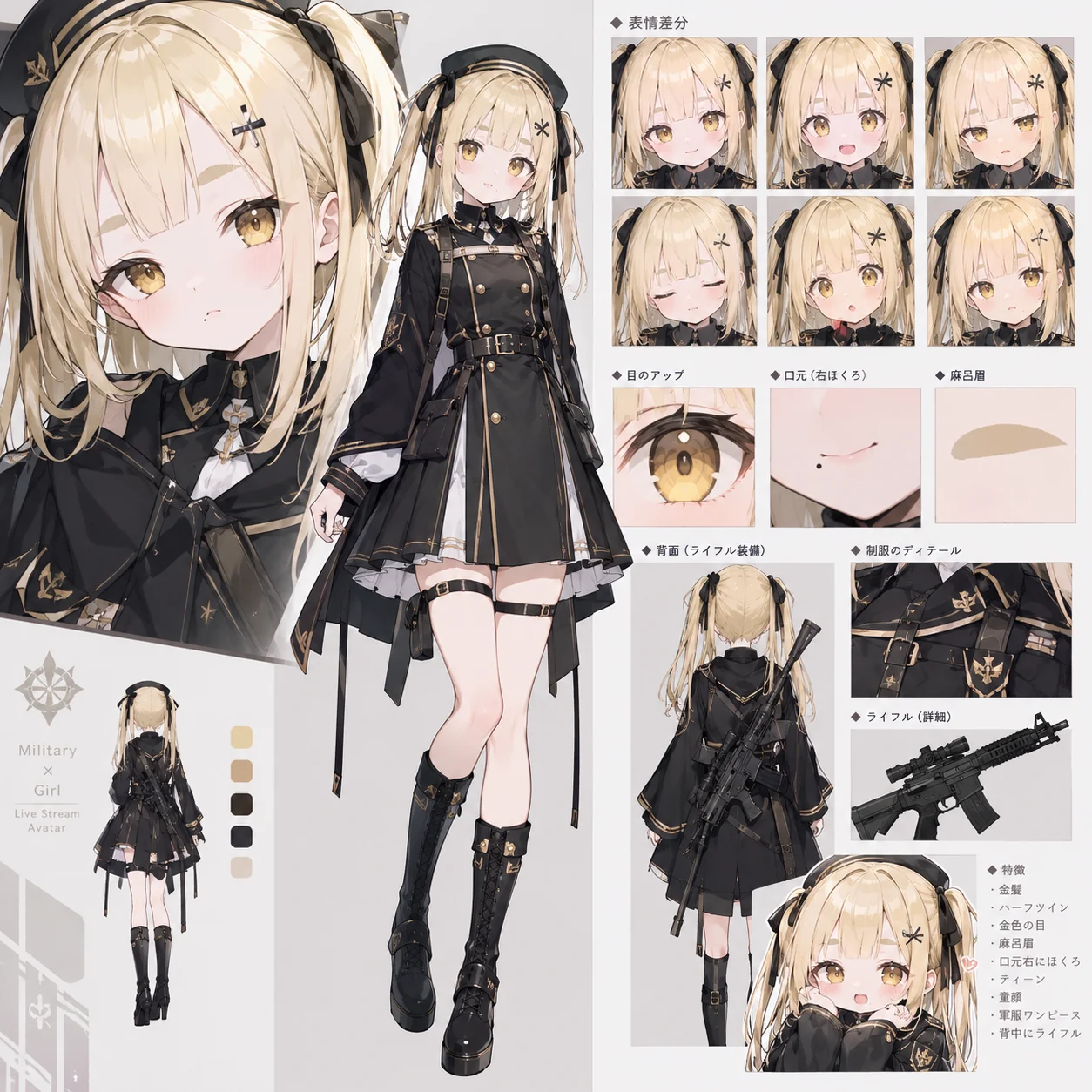
Not quite as cute as ChatGPT’s, is it… But this one doesn’t refuse when you give an age, so after the baby face instruction I added “make her about 7 years old”, and it output a much younger face. The mole stays in the same place too. I asked for the right of the mouth, and it seems to read that as the right side from the viewer’s point of view. And half-up twin tails don’t seem to get through here either. They’re all twin tails.
I felt it could do better, so I had ChatGPT write a prompt for Gemini.
Please draw an original character in an anime and manga style.
- Hairstyle and hair color: Blonde. Half-up twin tails, with the hair on each side tied. Soft, fluffy hair.
- Eyes: Bright, shining golden eyes.
- Eyebrows: Maro eyebrows. Short, separate eyebrows near the inner ends, with no tails.
- Facial features: A baby face that still looks young. A small mole on the right side of the mouth.
- Age and feel: A teenage girl. Small and cute.
- Outfit: A dress based on a military uniform. Mainly black or dark gray, with gold trim, buttons, and a belt. Balance the sharpness of a military uniform with a girl’s cuteness.
- Weapon: A rifle on her back.
Make it an appealing character design with a personality that meets these features. Feel free to come up with the details, colors, hair accessories, and the silhouette of the outfit so that everything fits together naturally.
I won’t specify the pose, expression, composition, background, or art style. Keep the character’s features and finish it as a single illustration with your own ideas.
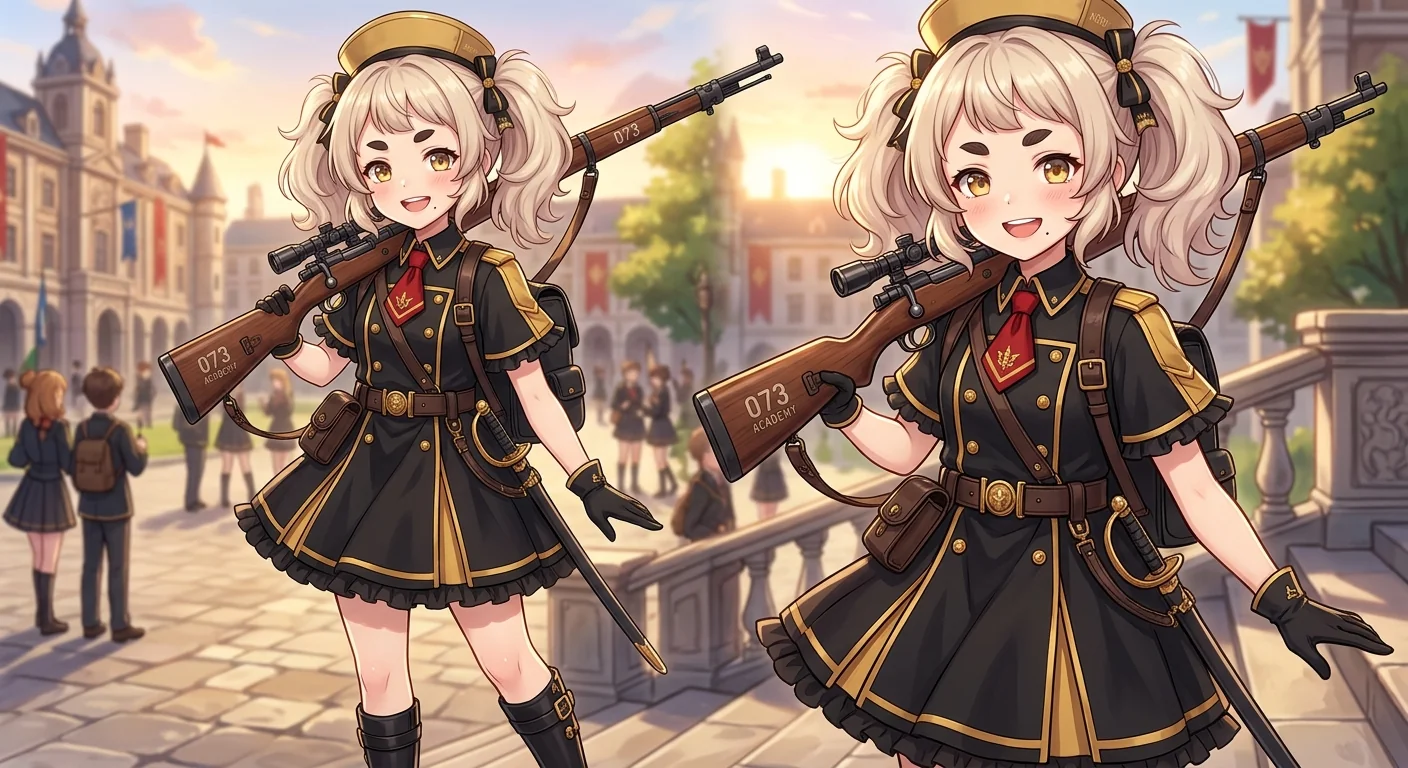
Not much different. If you like this art style, this might be fine…
Gemini also outputs JPG, so compared with PNG, the rough image quality when you zoom in bothers me too.
Grok
I output it with the same instructions as ChatGPT. Truth be told, I’ve hardly ever used Grok. It was in the news for the wrong reasons for a while, so I just kind of avoided it.
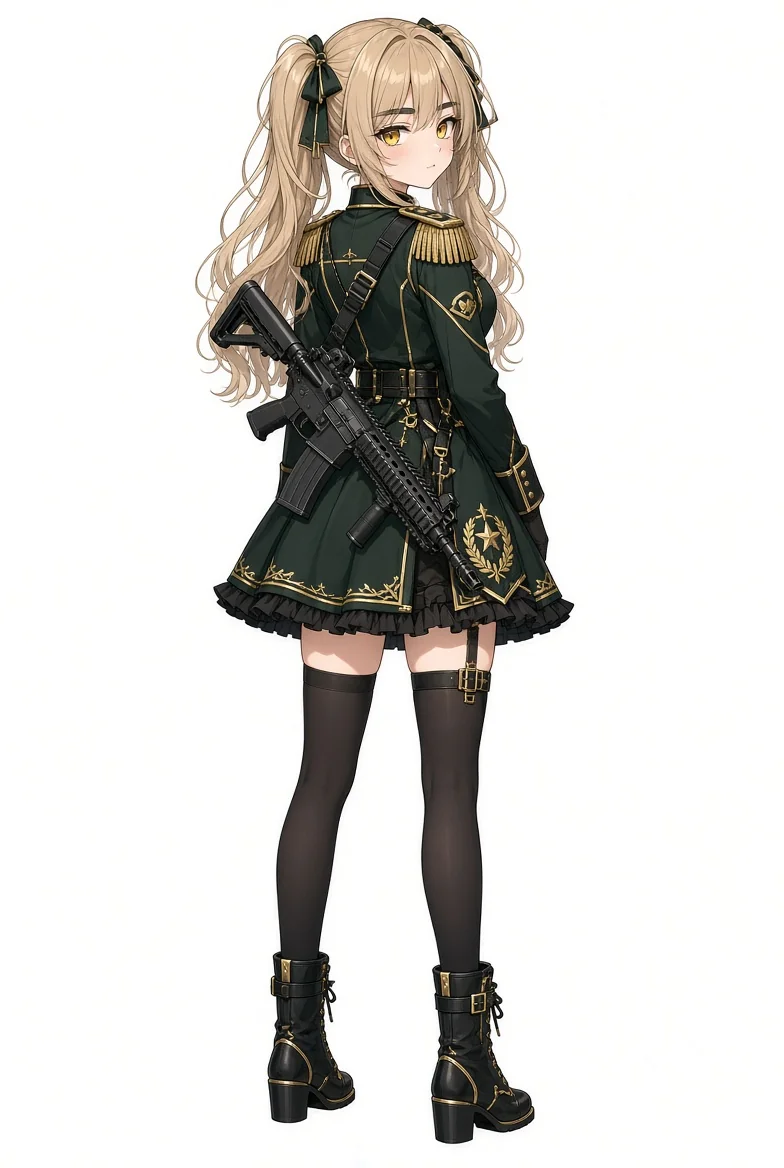
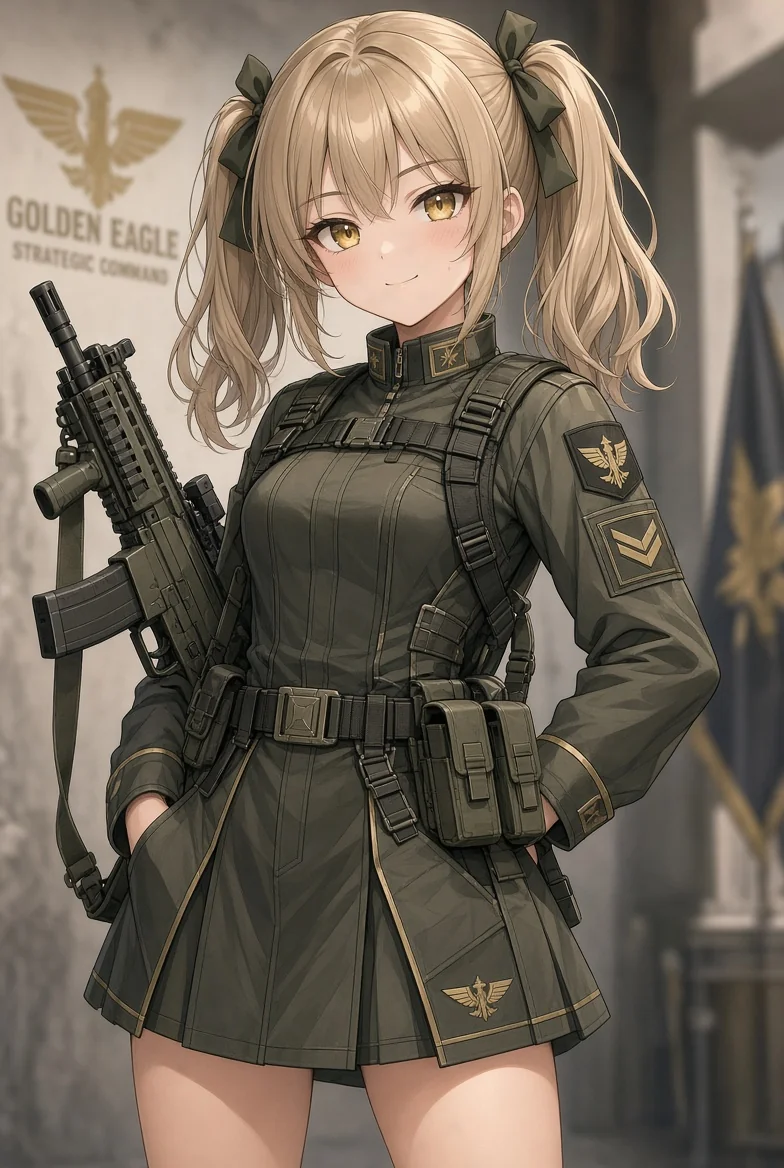
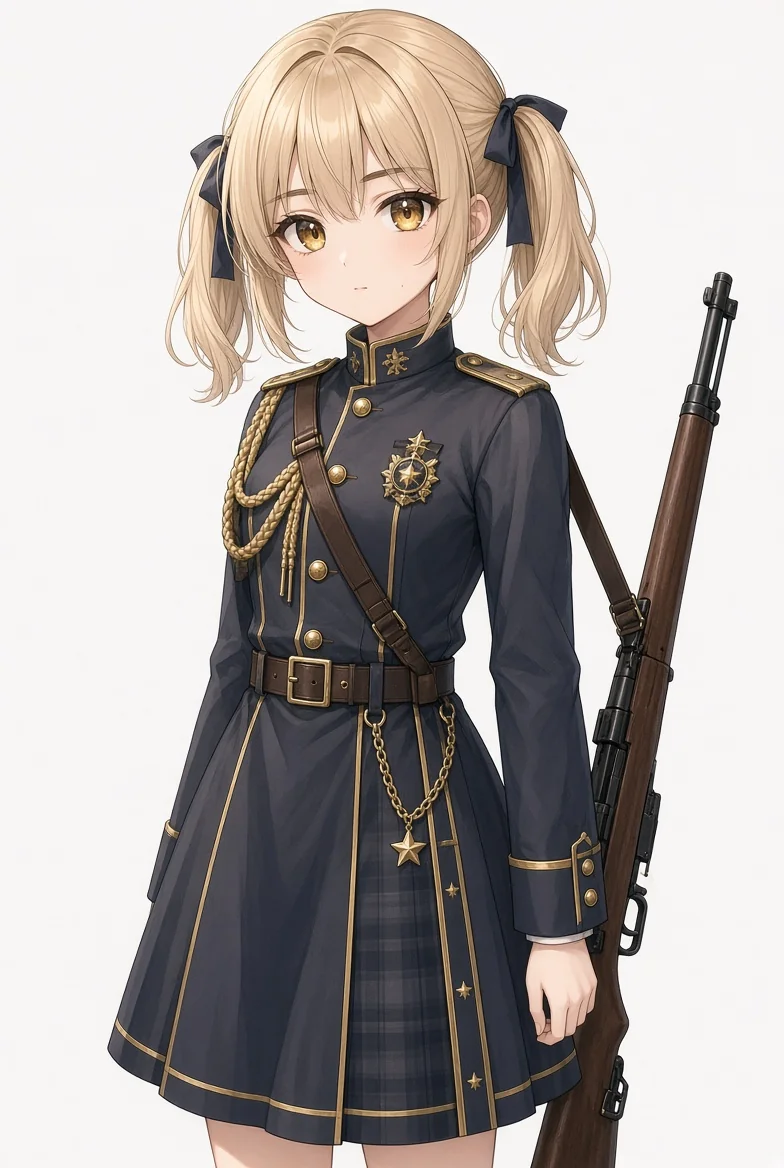
Even with the same instructions, the feel of the outfit changed every time. Half-up twin tails don’t come through here either. It doesn’t seem to understand maro eyebrows either. Those are just thick eyebrows. The baby face instruction barely seems to do anything. The art style is close to ChatGPT’s, I’d say. I’d heard Grok is better at photorealistic images, so I think it output cuter images than I expected.
As with Gemini, I had ChatGPT write a prompt for Grok. I run it on grok.com.
Please draw an original anime-style character.
Character features
- Blonde hair.
- Half-up twin tails. The hair near each side of the head is tied, and the rest hangs down naturally.
- Bright, shining golden eyes.
- Maro eyebrows. Short, separate eyebrows near the inner ends, with no tails.
- A small mole on the right side of the mouth.
- A teenager. A baby face with a cute, young look.
- A dress based on a military uniform. Mainly black or dark gray, with gold buttons, trim, and a belt. A design that combines the sharpness of a military uniform with a girl’s cuteness.
- A rifle on her back.
Design direction
Be sure to include all the features above and finish it as a unified, appealing character. Feel free to design the hair accessories, outfit details, decorations, and color balance.
I won’t specify the pose, expression, composition, background, camera angle, or art style. Keep the character’s features and generate a single, polished illustration with your own ideas.
Draw it as a regular character illustration, not a character reference sheet or design sheet.
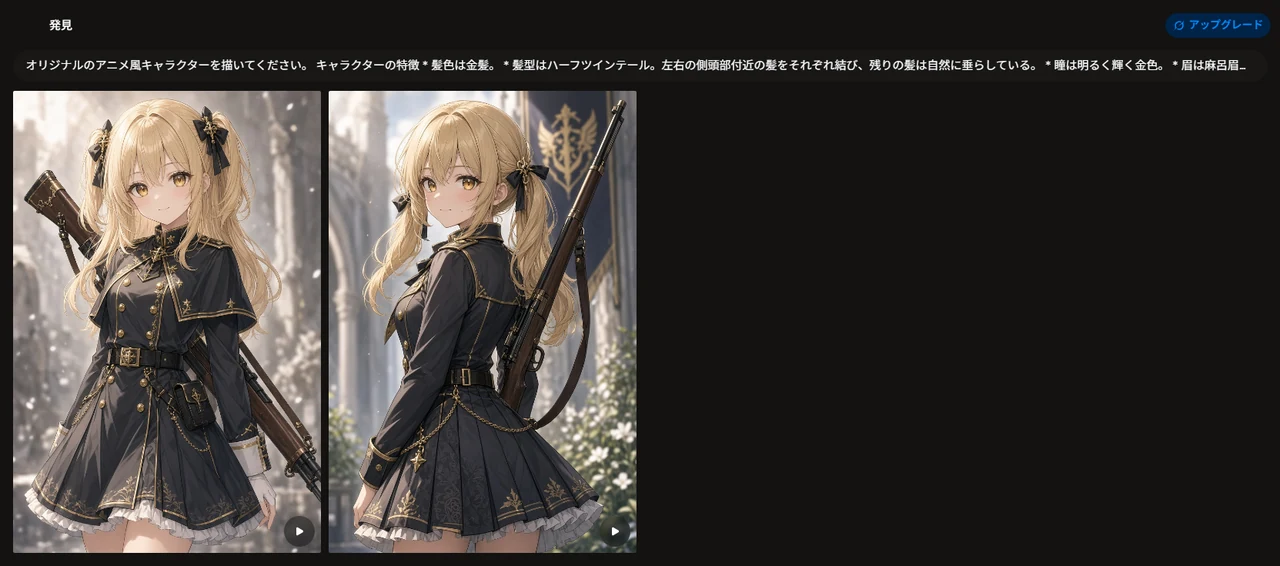
That’s a sudden jump in quality. Part of it is probably that I chose quality over speed when generating. One of them actually has half-up twin tails.
But at this point it showed an image generation limit error, and I couldn’t generate any more. If I hadn’t chosen quality, I might have gotten one more try.
PixAI
PixAI uses points to generate, so if you want to enjoy it for free, collect the daily login bonus and save up points. Just looking at other people’s images on the top page is fun, so I find myself opening it at least once a day without thinking. Some people share the prompts and LoRAs they used, so you can also see how an art style you like was made.
From here on I can’t use the same prompts, so I prepare prompts written for image generation. The output probably varies a lot depending on the model, so this may not be a perfect comparison.
Since I’ll be passing a reference image later, I use the Haruka v2 model. The model PixAI is pushing right now is the Tsubaki series, but Tsubaki has no field for a reference image. I don’t use any LoRA, pass only the positive and negative prompts, and leave everything else at the defaults.
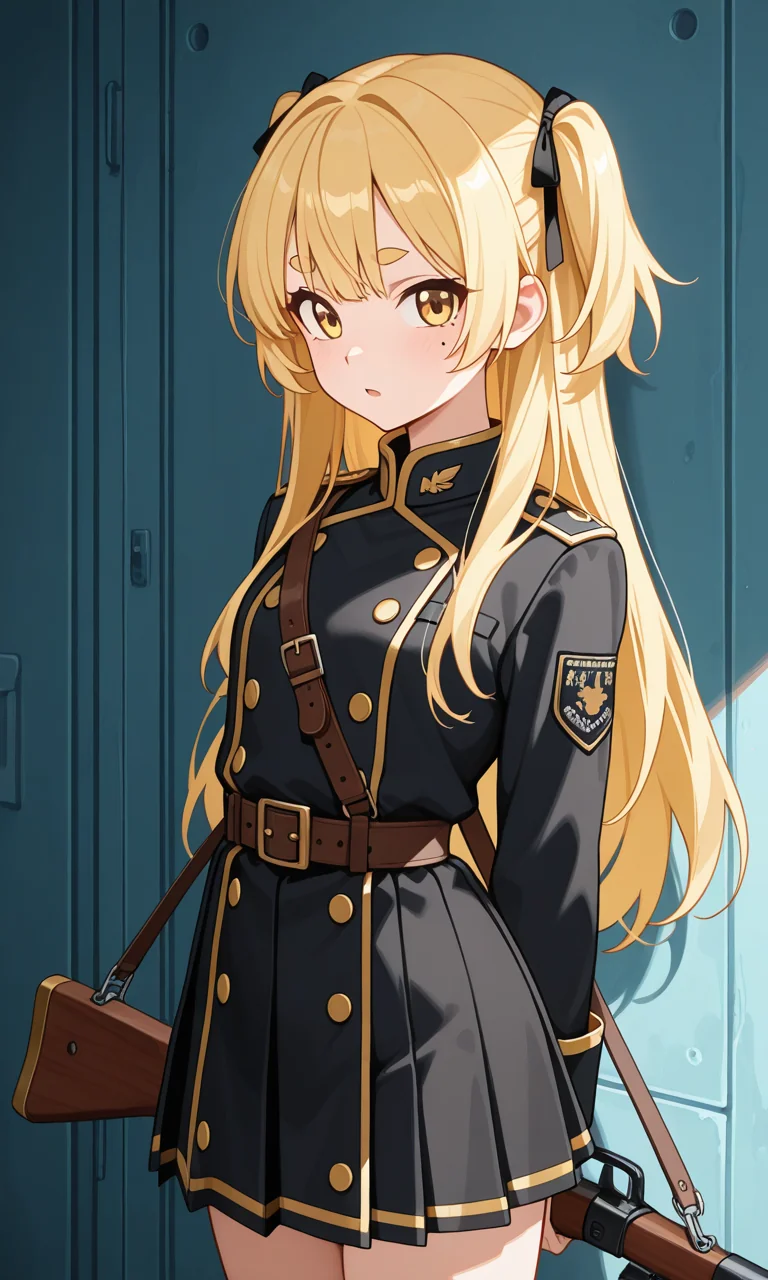
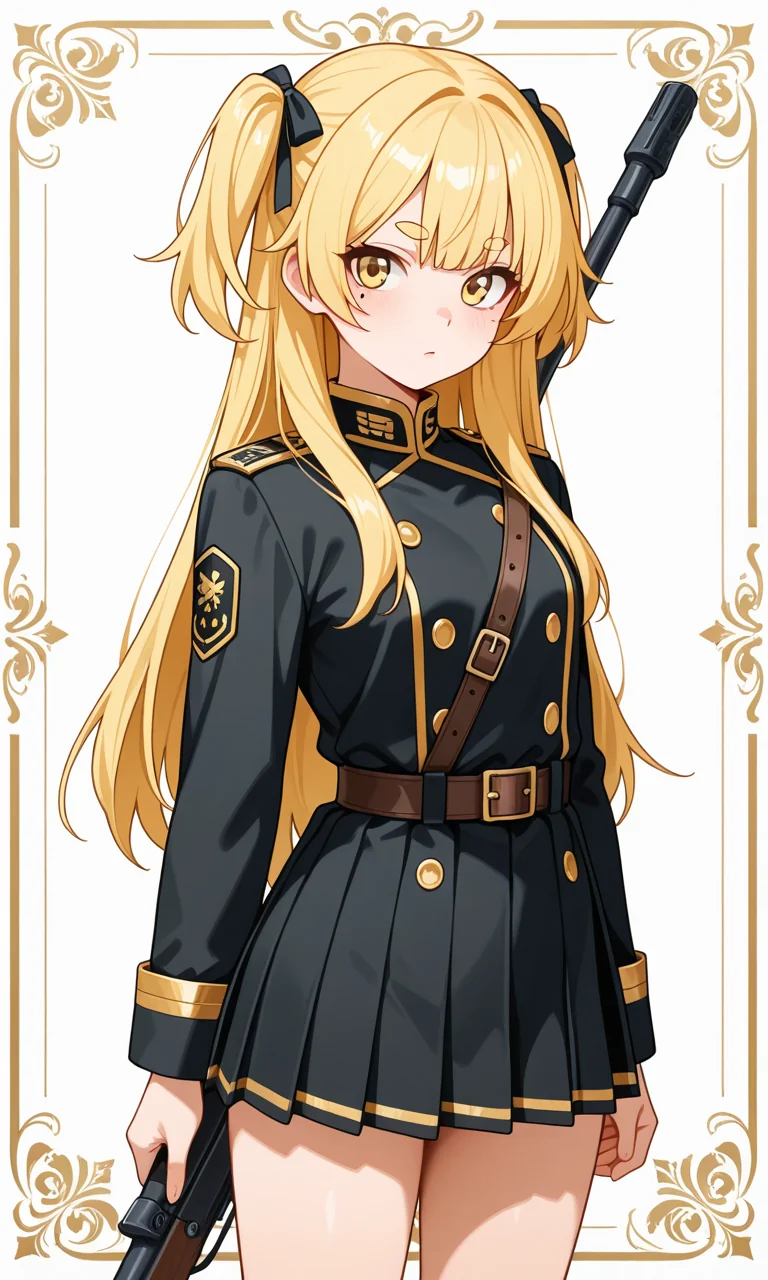
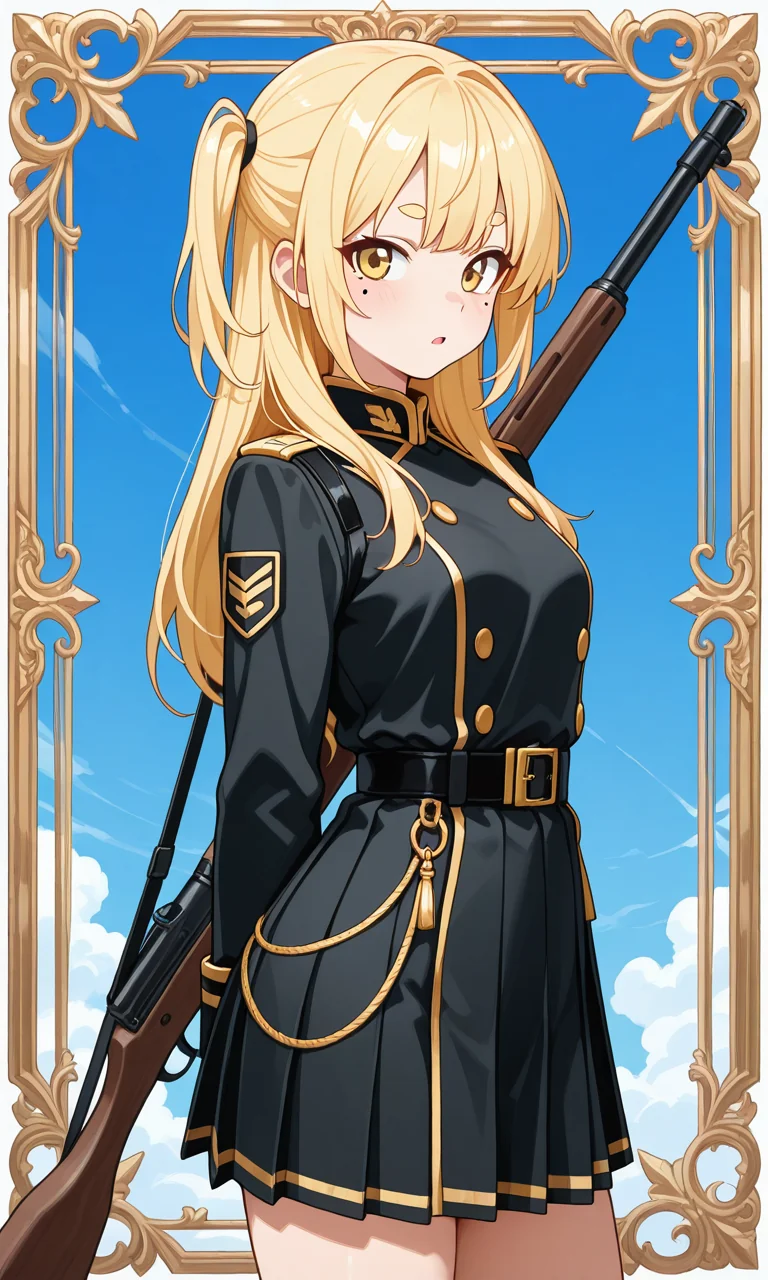
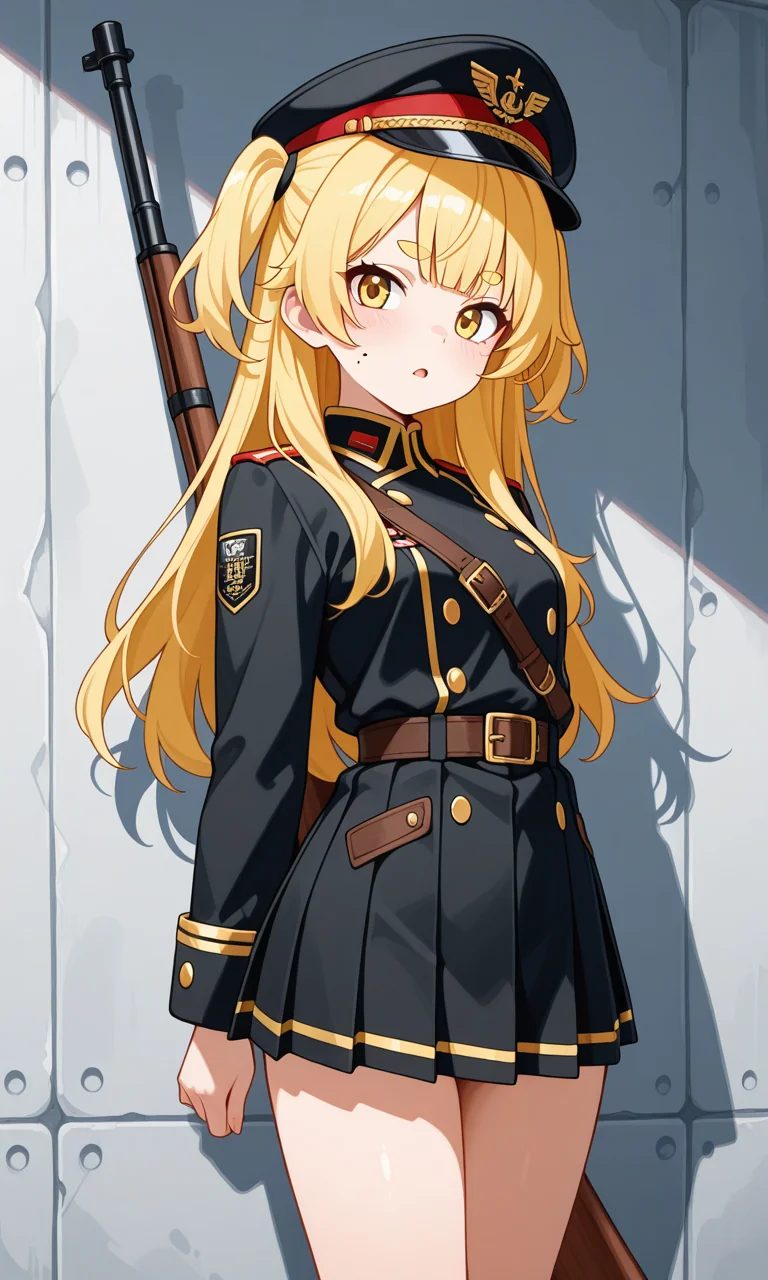
The mole position isn’t under control, but the half-up twin tails and maro eyebrows, which tend to get ignored, come out consistently. Then again, I rewrote the prompt several times to get them, so I can’t really call it consistent… So, just to see, I’ll try a prompt in Japanese.
With “half twin tails” in Japanese it seemed to think I meant pigtails and added braids, so I changed it to “two side up”. Writing “baby face” made her hold a baby, so I dropped baby face and teen and used “child” instead.
子ども、金髪、ツーサイドアップ、金色の目、麻呂眉、口元右にほくろ、軍服ワンピース、背中にライフル
In English: child, blonde hair, two side up, golden eyes, maro eyebrows, a mole to the right of the mouth, military-style dress, a rifle on her back. No negative prompt.
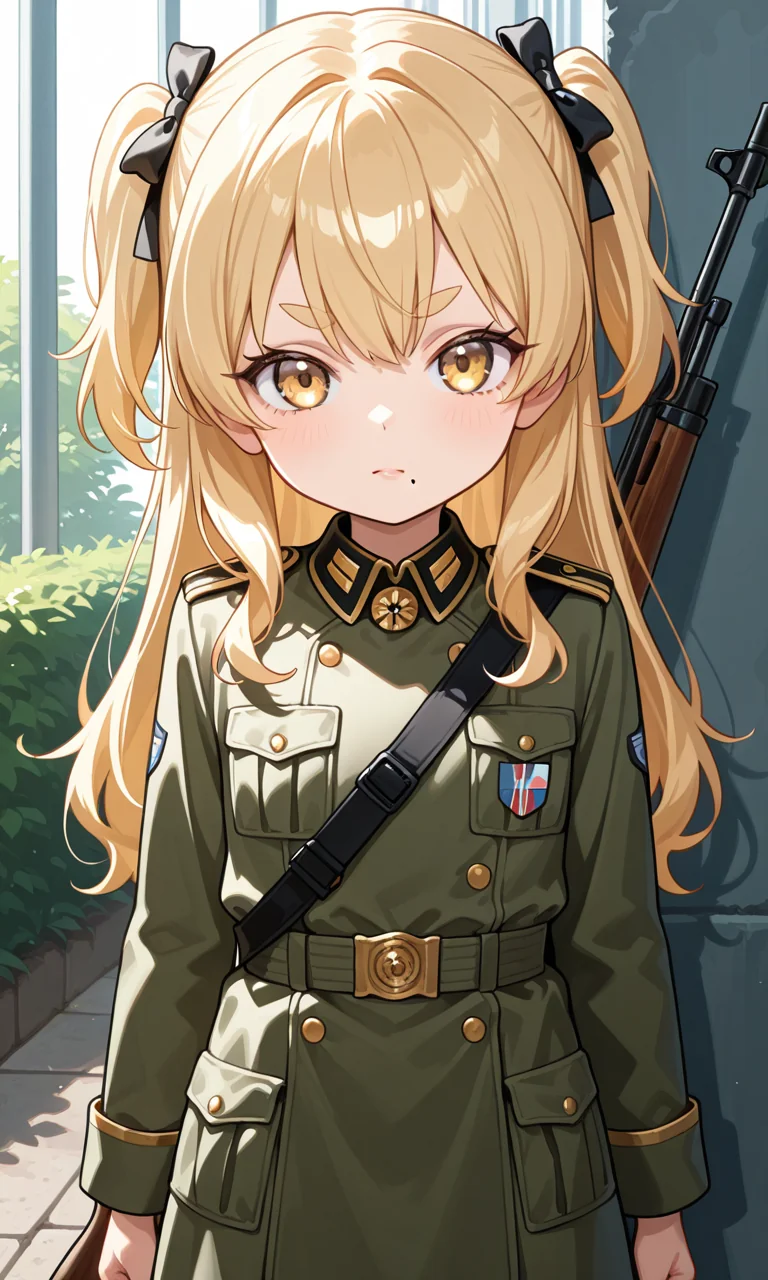
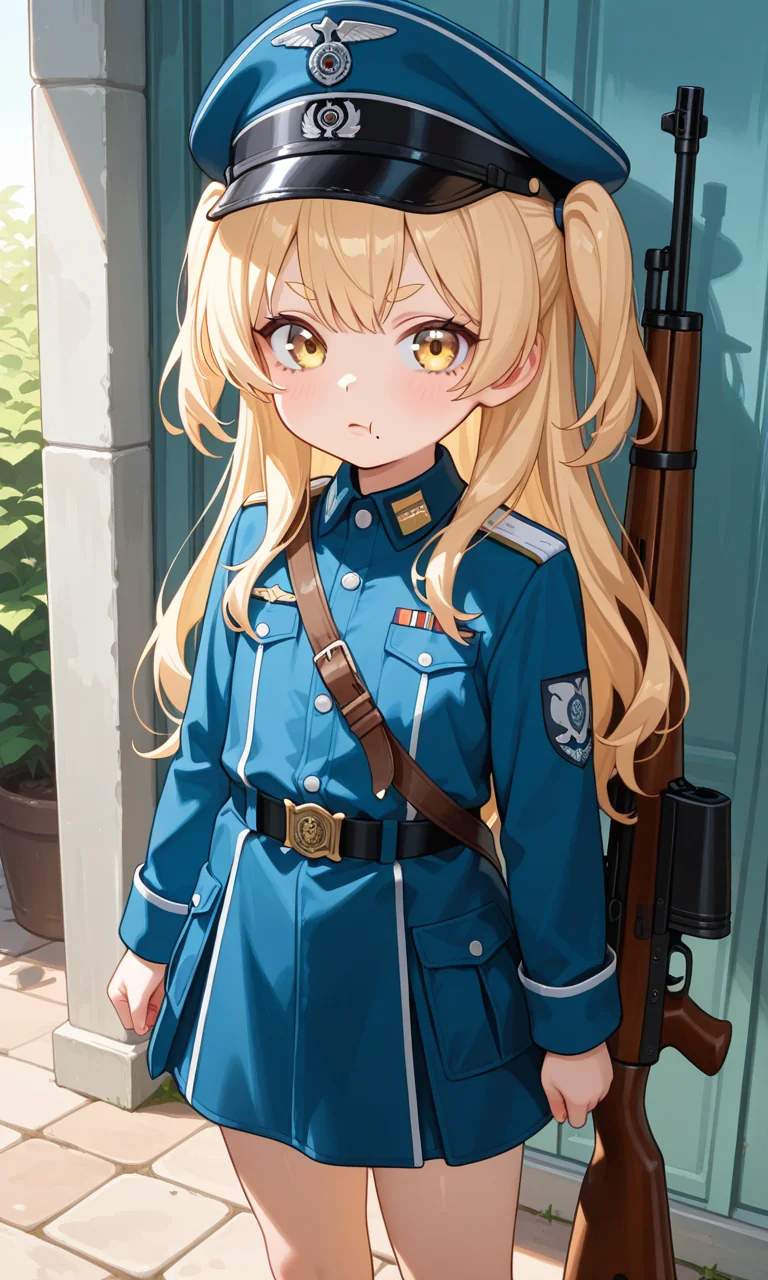
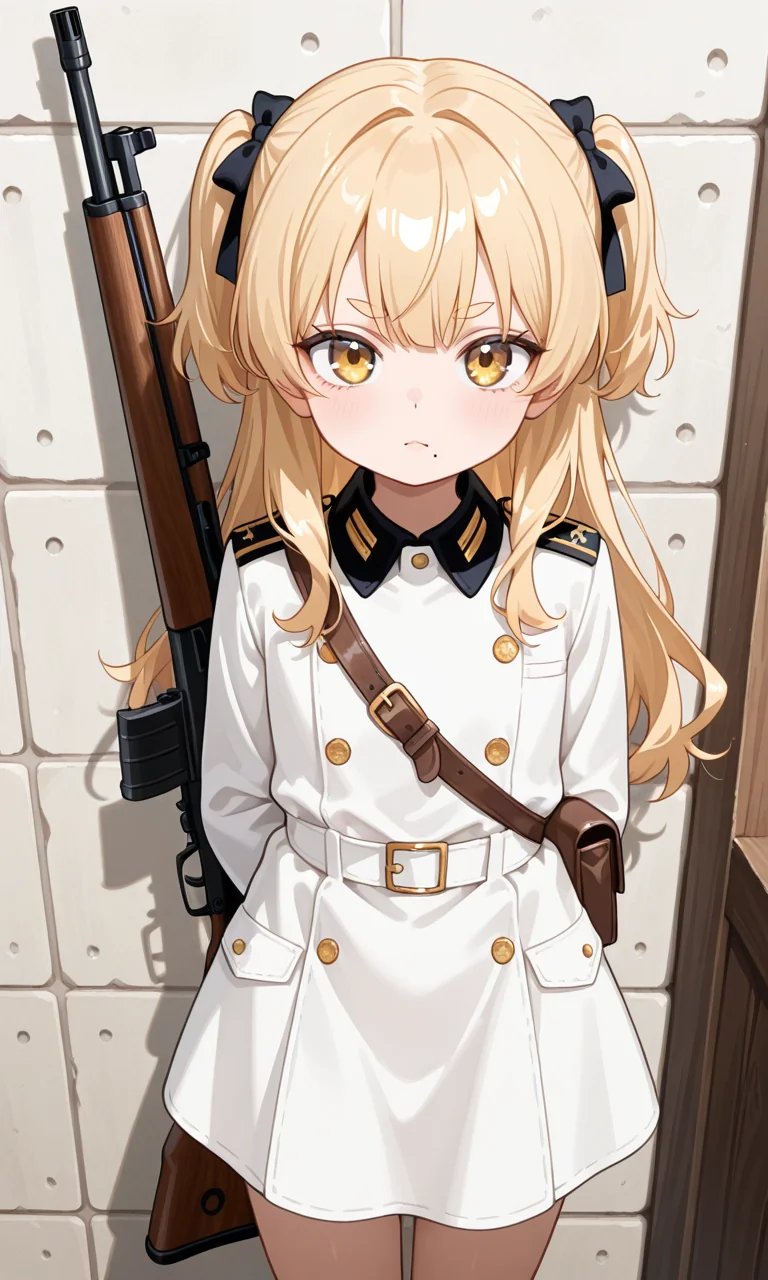
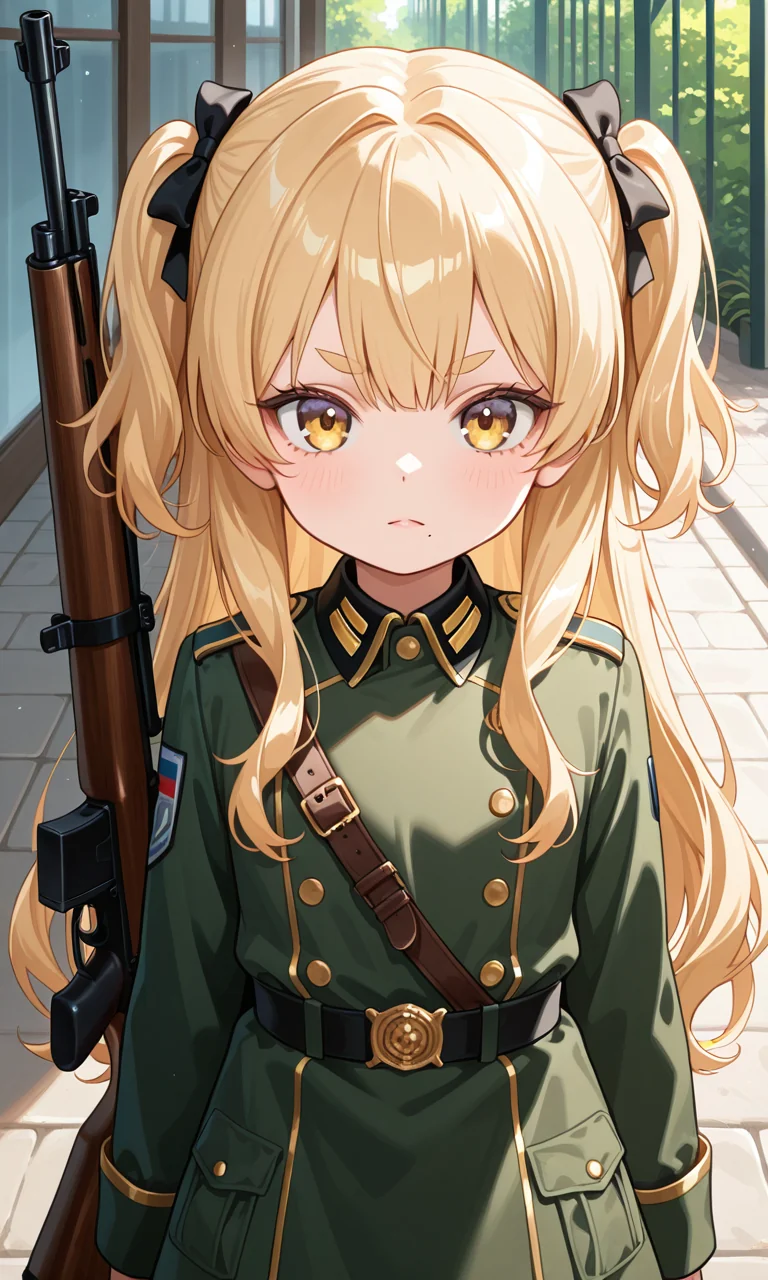
There it is… I should’ve just used Japanese from the start… Come to think of it, when you open the generator, the input box has a Japanese placeholder example like “a girl reading a book under a cherry tree”. PixAI has a Japanese subsidiary in Tokyo, so the Japanese pages seem to be run from Japan. It looks like Japanese prompts get converted automatically.
ComfyUI
I’ve written up how to install ComfyUI here.
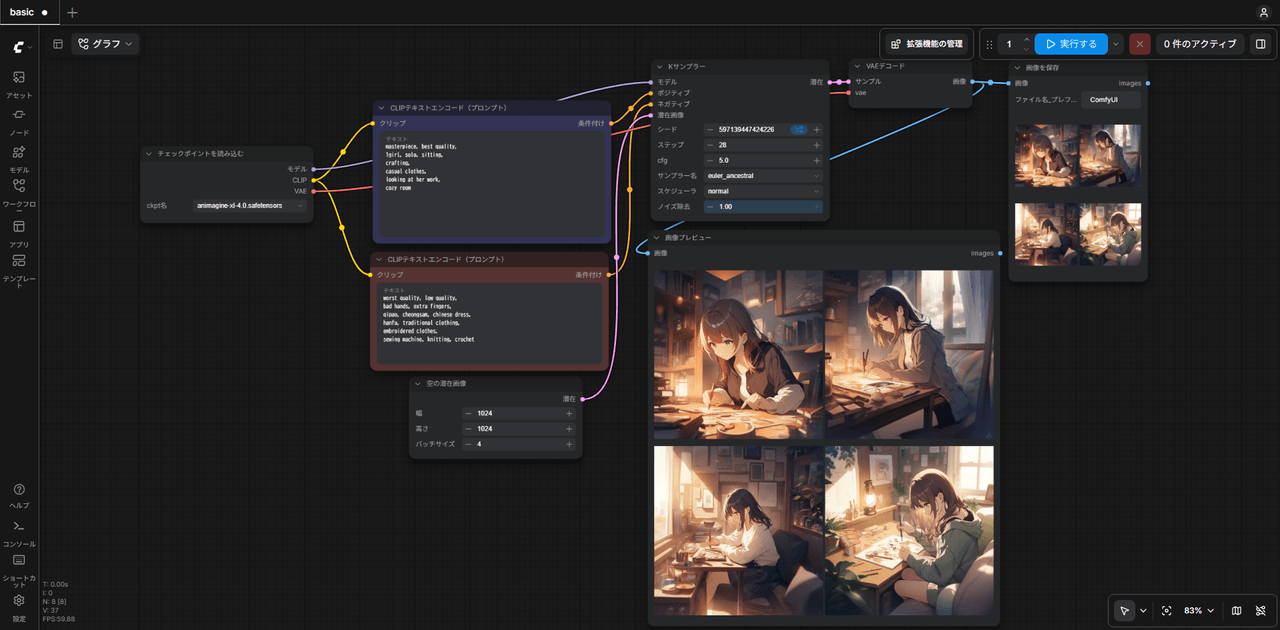 Setting up AI image generation on your own PC Getting ComfyUI running on Windows: two ways to install it, picking a model and checking its license, and how the nodes fit together.
Japanese prompts obviously won’t work here, so I start over from the prompt. The model is WAI-illustrious-SDXL v16. Apparently v17 is out, but I haven’t updated, so I’ll stay on v16 for this note. After some fine-tuning, I ended up with this.
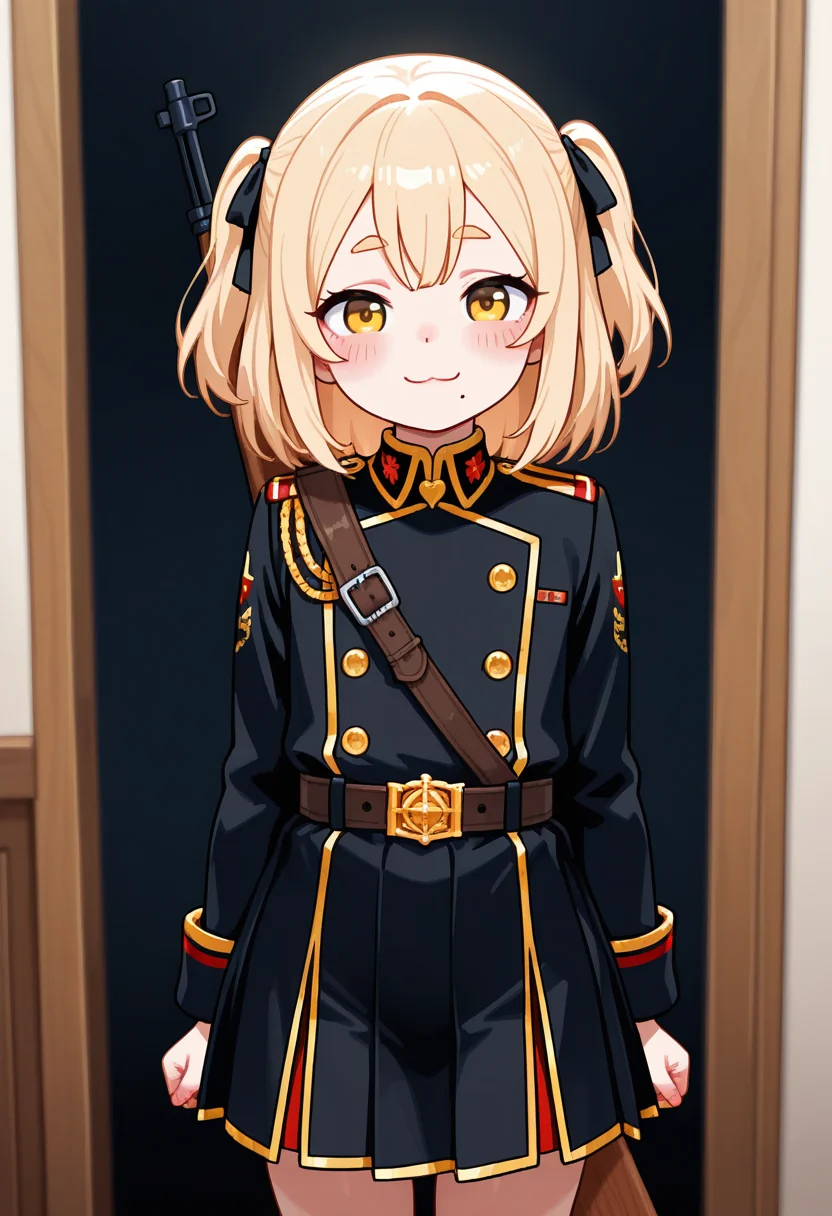
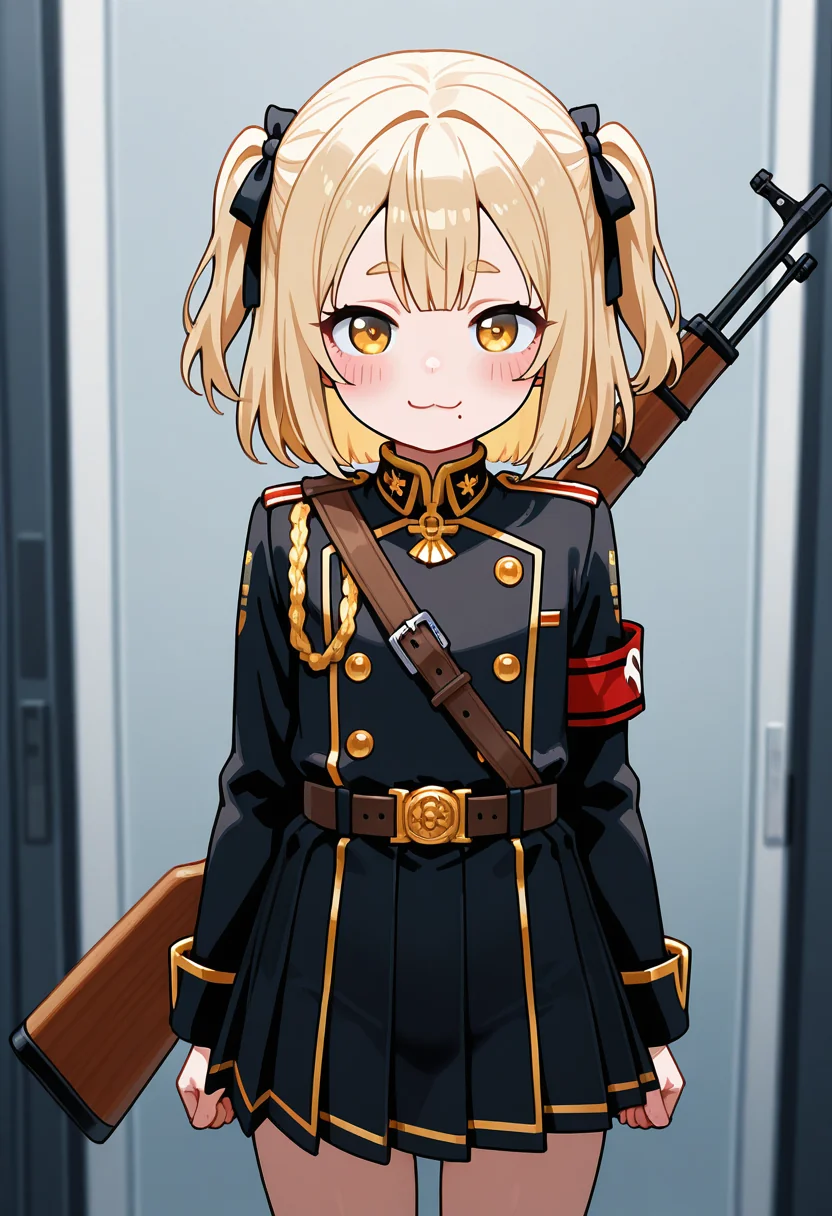
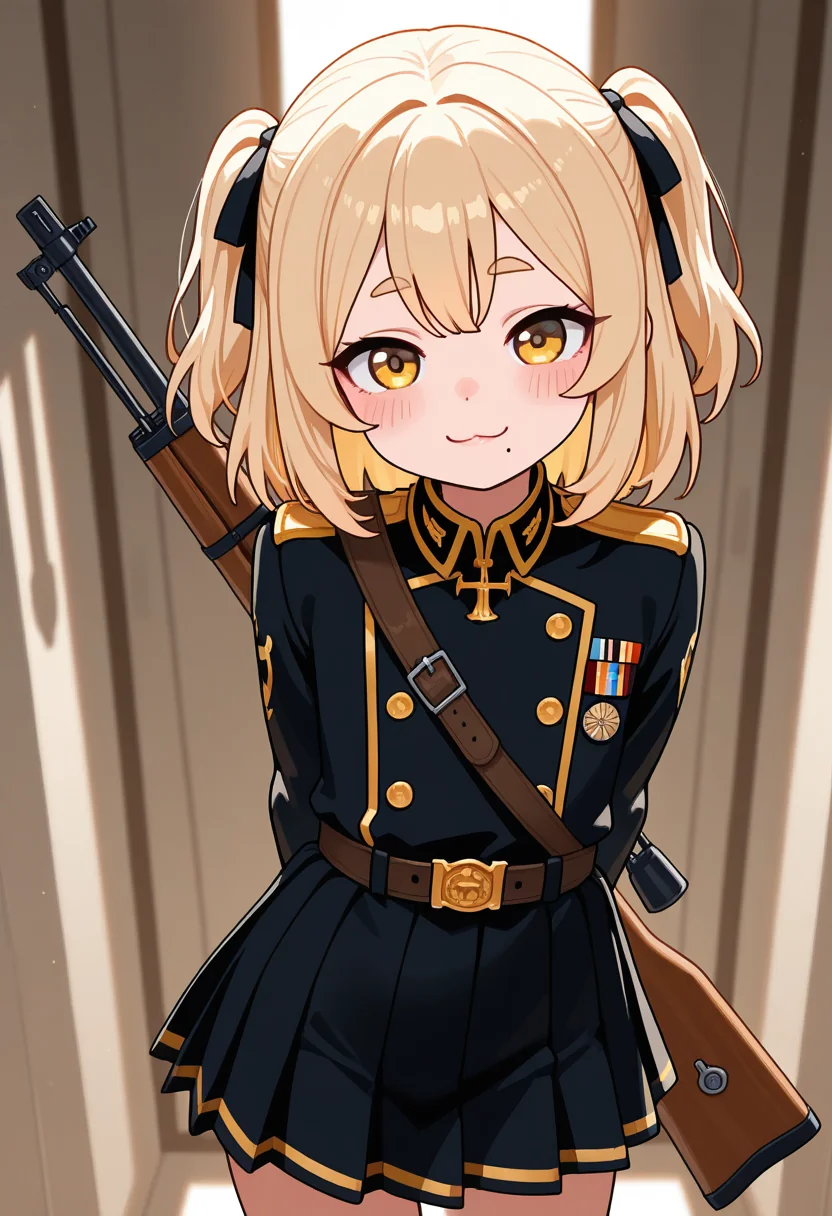
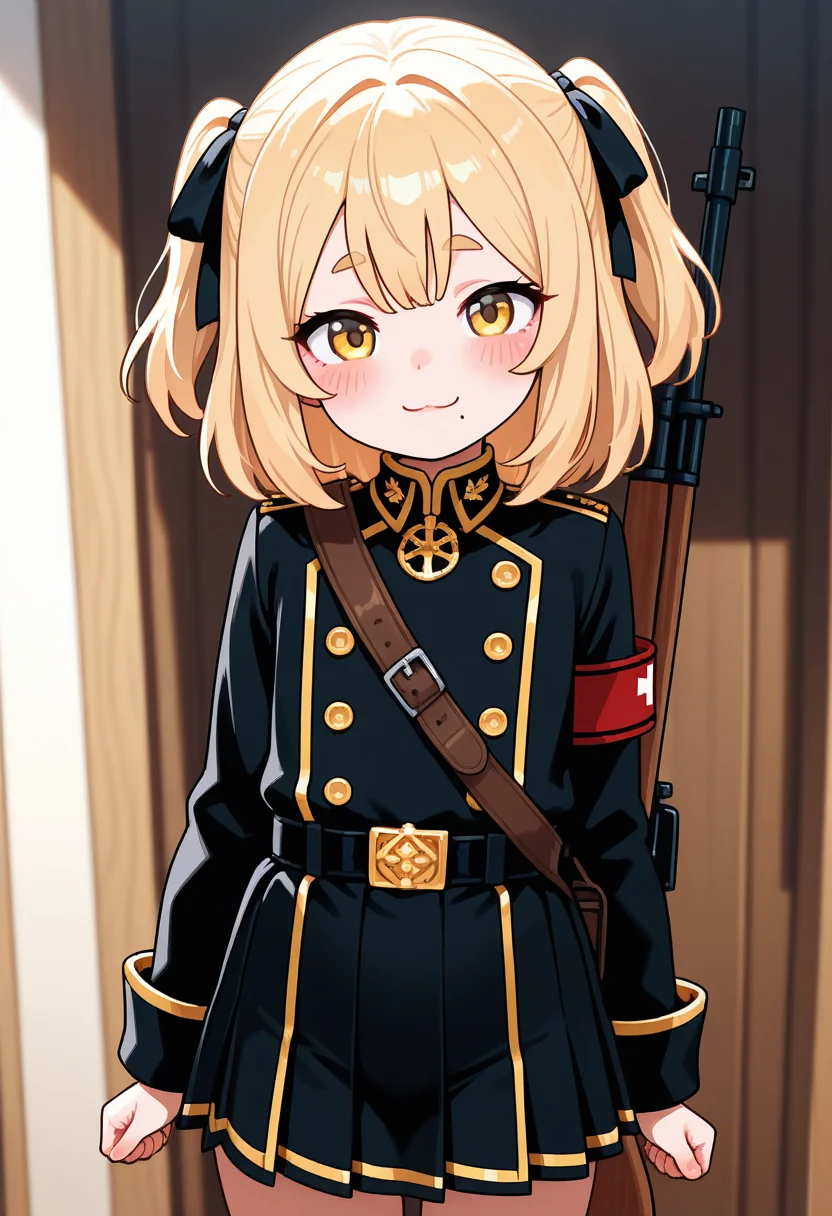
I put sfw in so it doesn’t turn into an adult image. Without a hair length, half-up twin tails come out long, so I specified medium hair. Getting too specific would stray from the point, so I’ll stop here for now.
I think PixAI’s Japanese prompt would also have given something similar if I’d specified hair length and expression.
Character design summary
| AI | What was good | What bothered me |
|---|---|---|
| ChatGPT | Outputs cute images even from loose instructions | Half-up twin tails and the mole aren’t stable. Refuses under its content policy if you give an age. Hits the daily image generation limit quickly |
| Gemini | Doesn’t refuse when you give an age. Keeps the mole in place | Not as cute as ChatGPT. Half-up twin tails don’t get through. Not much different even with a prompt written by ChatGPT. JPG, so the image is rough when you zoom in |
| Grok | With a prompt written by ChatGPT, run on grok.com with quality chosen, the quality goes up and half-up twin tails appeared | The feel of the outfit changes every time, even with the same instructions. Maro eyebrows and baby face don’t work. Hits the daily image generation limit quickly |
| PixAI | A Japanese prompt gave almost exactly what I asked for | With English prompts, it took several rewrites to get half-up twin tails and maro eyebrows. The mole position can’t be controlled. Free, but uses points |
| ComfyUI | Half-up twin tails came out once I specified medium hair | Japanese prompts don’t work, so you have to fine-tune English prompts |
Regenerating from an image
I pass the reference image and generate an avatar for streaming.
ChatGPT
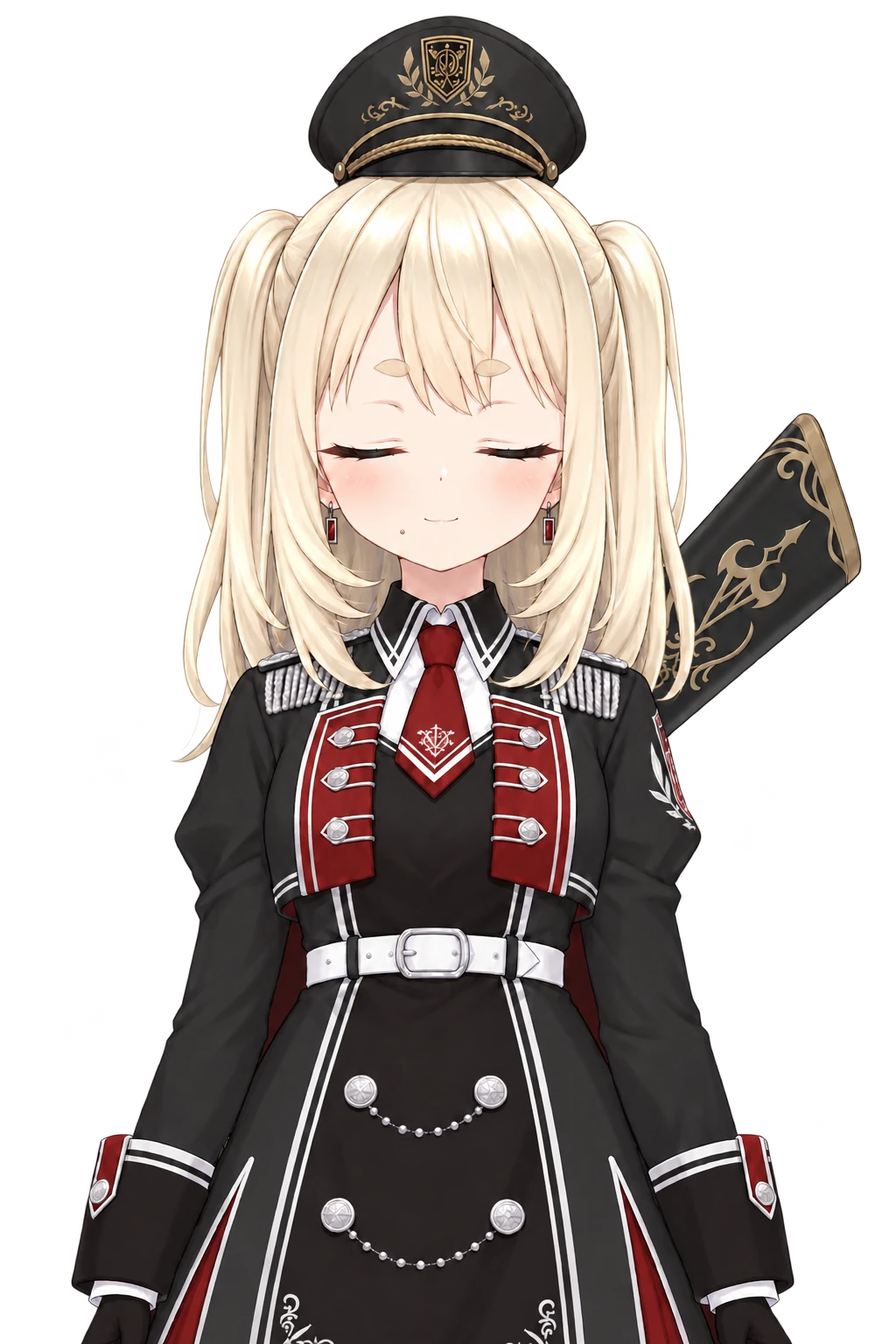
Using this girl as the model, please output main art for a PNGTuber. Match the hairstyle, eye color, outfit, and mole position to the image, and make it a cute anime-style illustration. Show her from the waist up, facing forward, with her eyes open and mouth closed, and her hands down in a natural position. Don’t add any text, and make the background white.
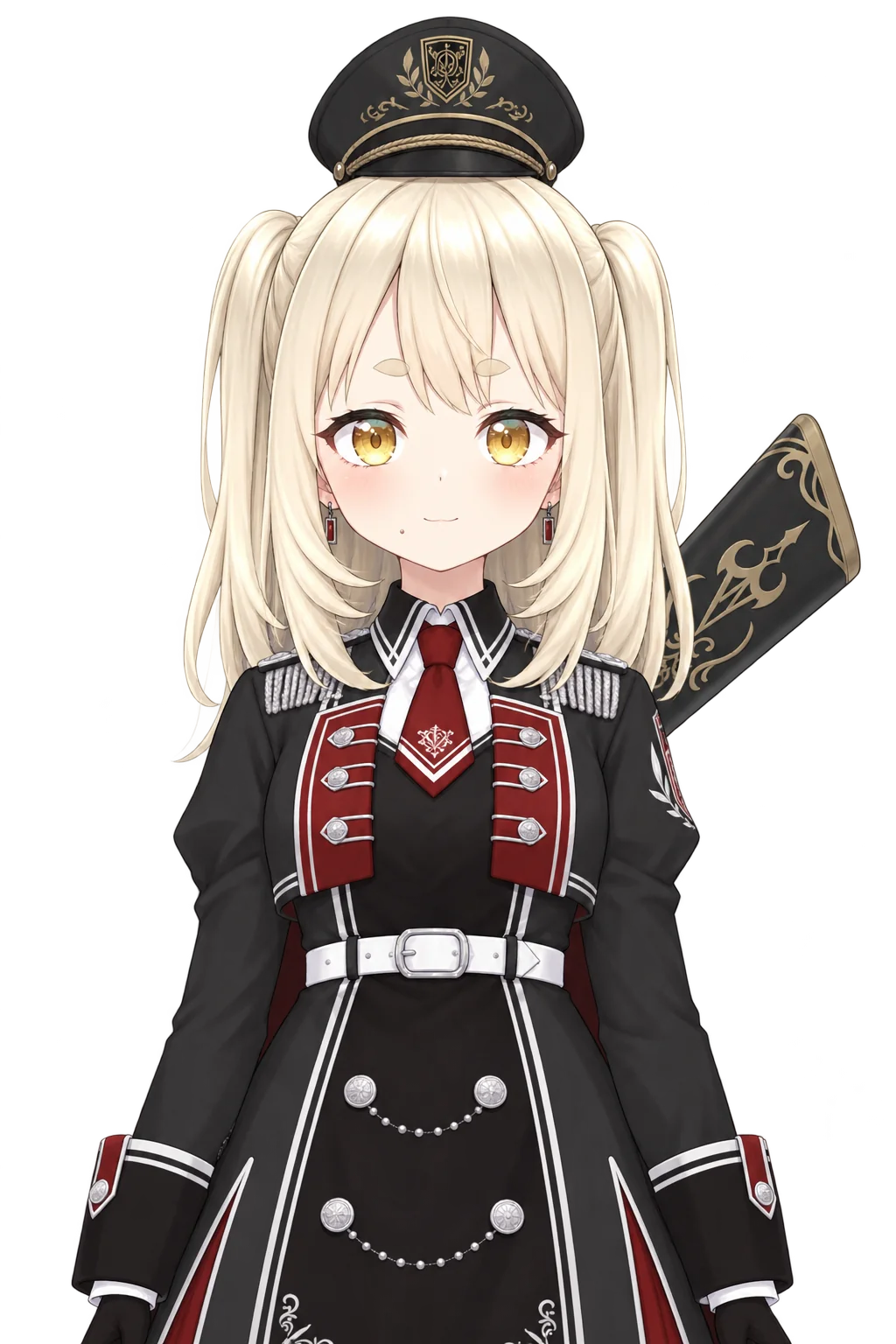
I asked for a white background, and it came out transparent. Wait, did an update make transparent images better? It used to make images all jagged when the background was transparent, but this came out pretty nicely. If it does the variants the same way, I won’t have to remove the background by hand.
Gemini
I give it the same instructions as ChatGPT along with the image.
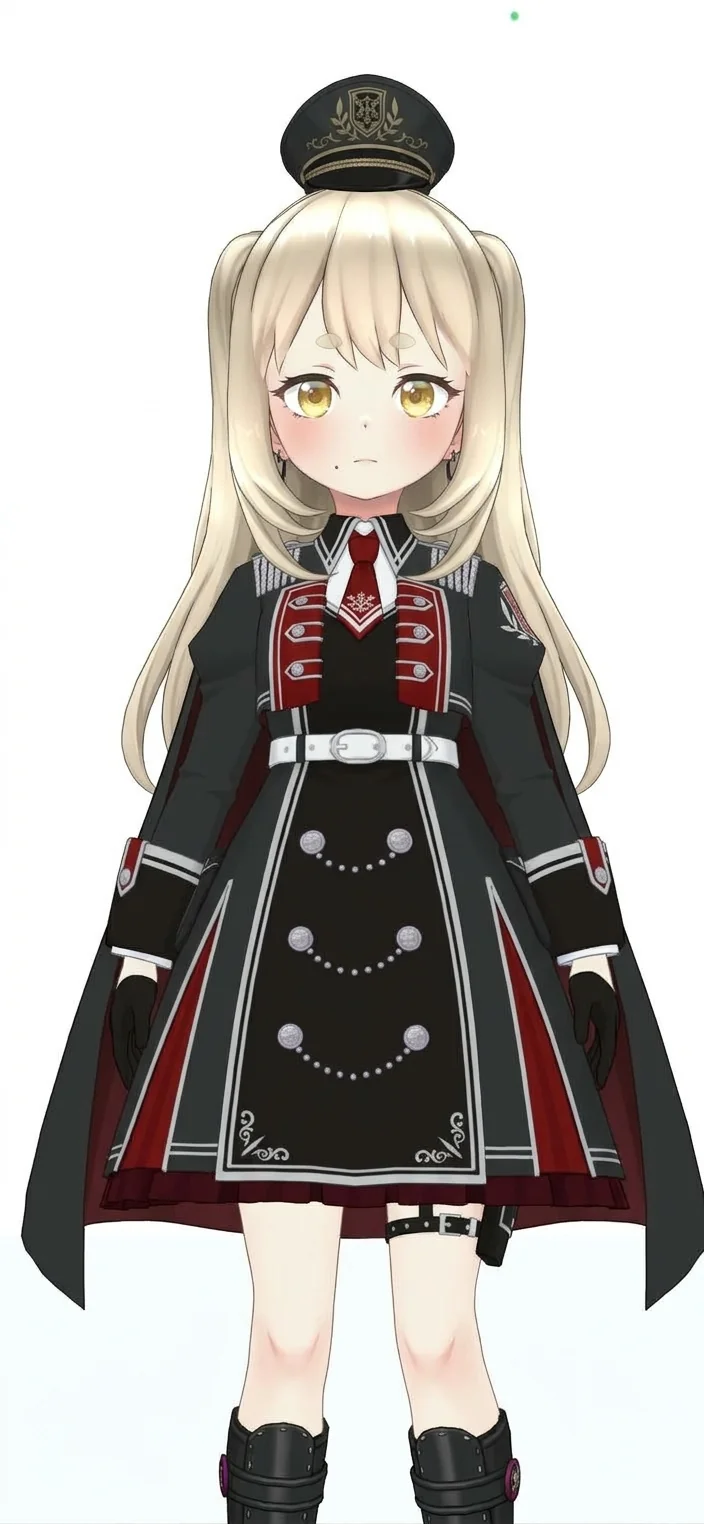
That’s no good at all. Apart from making the hair longer and removing the rifle, it’s almost unchanged. The same instructions as ChatGPT won’t do, so I change them a little.
Using this girl as the model, please output main art for a PNGTuber. The image is a 3D model, so don’t use its look as is. Use only its features as a reference and redraw it as a 2D anime illustration. Make it a cute illustration with line art and Japanese anime-style coloring. Match the hairstyle, eye color, outfit, and mole position to the image. Show her from the waist up, facing forward, with her eyes open and mouth closed, and her hands down in a natural position. Don’t add any text, and make the background white.
Using this girl as the model, please output main art for a PNGTuber. The image is a 3D model, so don’t use its look as is. Use only its features as a reference and redraw it as a 2D illustration. Not anime cel shading, but a cute, detailed illustration like pixiv art or social game character art. Draw the eyes in detail with highlights and gradients, and give the hair and clothes soft shading. Match the hairstyle, eye color, outfit, and mole position to the image. Show her from the waist up, facing forward, with her eyes open and mouth closed, and her hands down in a natural position. Don’t add any text, and make the background white.
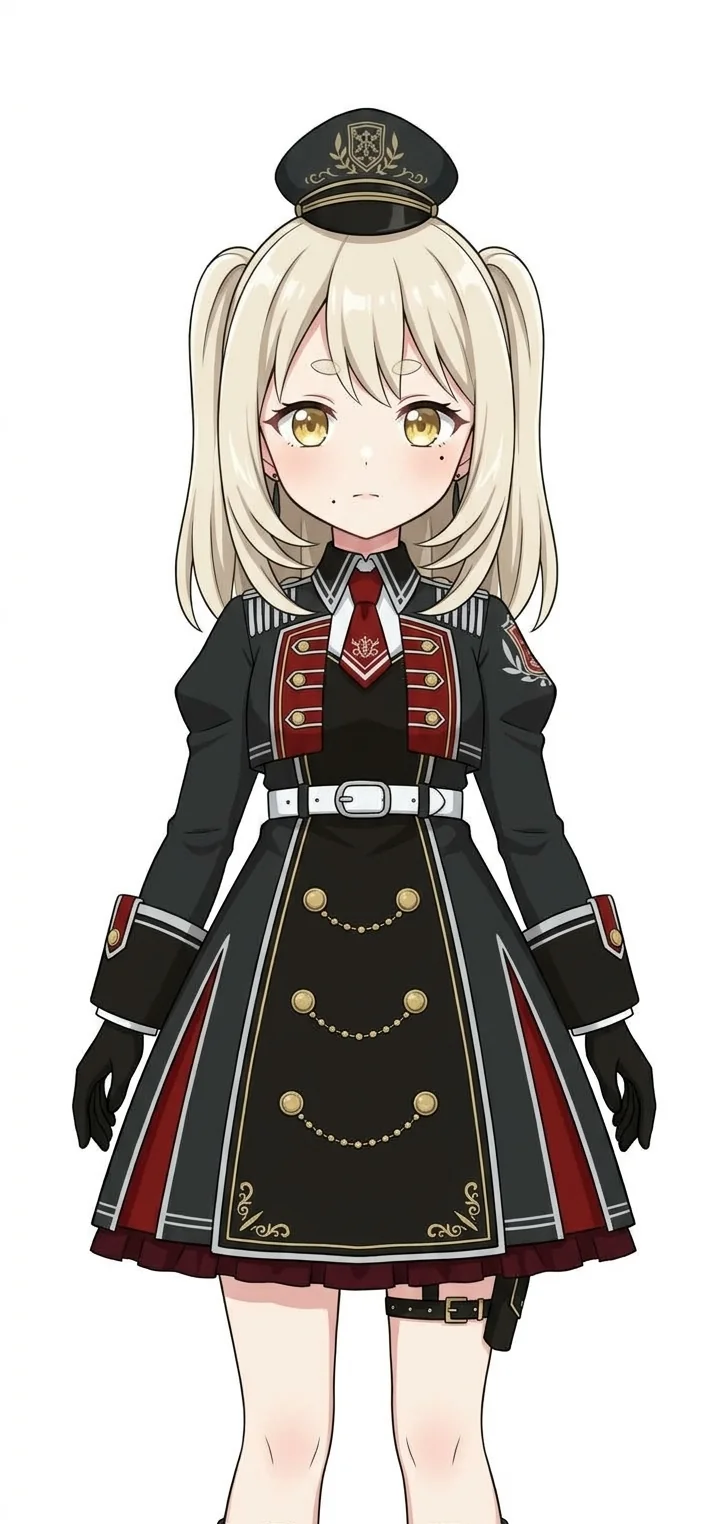
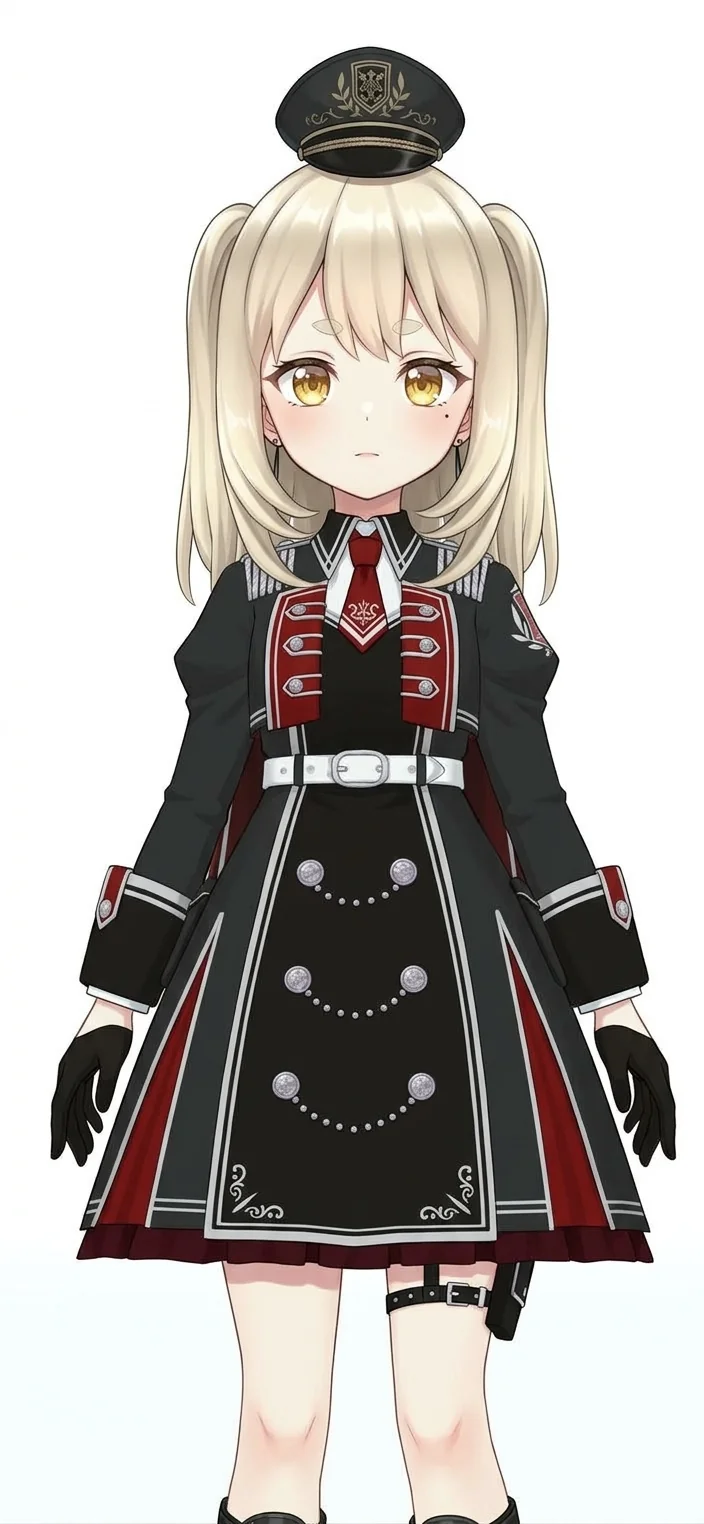
Better than the first one, but the mole multiplies or moves. The rifle is gone too. Maybe for Gemini the rifle doesn’t count as one of the “features”… I can’t call it bad in the sense that it’s faithful to the reference image, but I can’t shake the feeling that this isn’t what I wanted.
Grok
I give Grok the same instructions as ChatGPT too. By this point I’d already hit the image generation limit, and it still didn’t work the next day, so I tried Grok on X instead. This is just my impression, but it hits the limit sooner than ChatGPT.
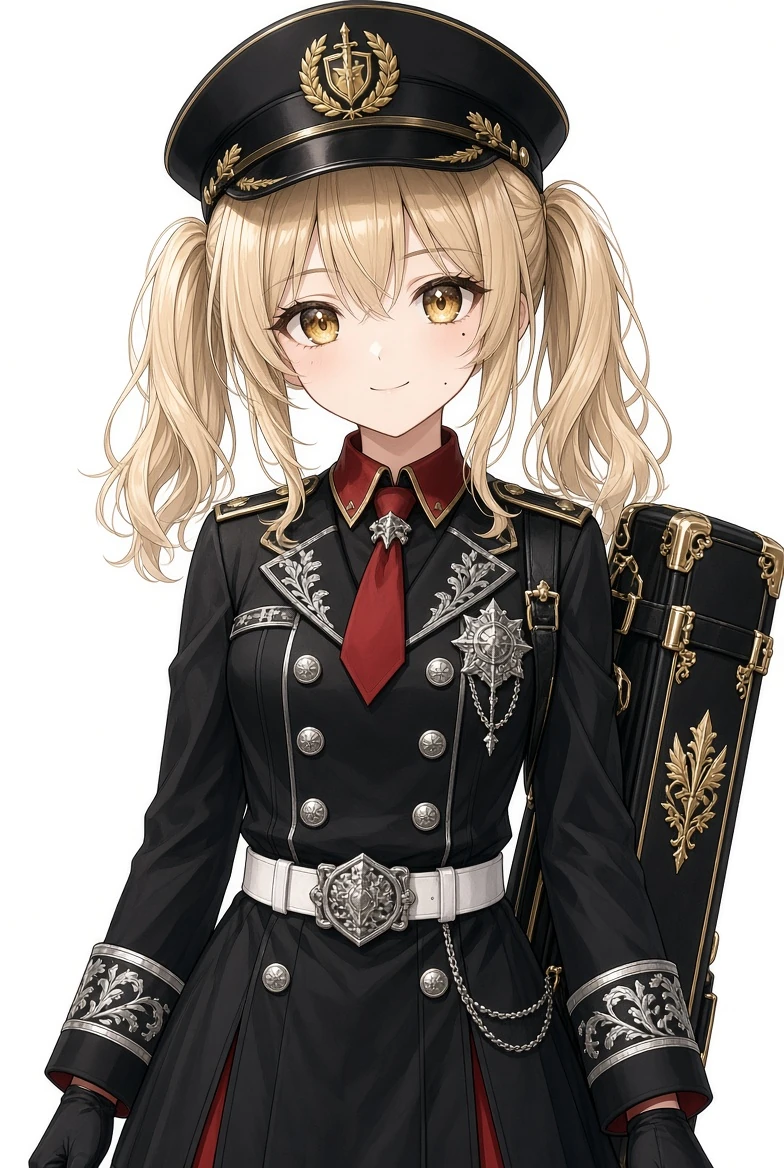
Even though I passed a full-body image, it kept to the waist-up instruction. Even with a reference image, it still didn’t give half-up twin tails, and the mole’s position and number and the outfit all changed, but the decorations are finely detailed and it came out looking rich. If you zoom in, some parts fall apart, but for fine metal decorations and embroidery, I think it’s by far the most beautiful. Not bad in its own way, is it?
PixAI
Now that I know Japanese prompts work, I put Japanese in the positive prompt. The model is still Haruka v2. No LoRA.
子ども、金髪、ツーサイドアップ、金色の目、麻呂眉、口元右にほくろ、黒の軍帽、黒の軍服ワンピース、赤いネクタイ、白いベルト、黒の手袋、背中にライフル、腰から上、正面、こちらを見ている、口を閉じた微笑み、腕を下ろしている、白背景
In English: child, blonde hair, two side up, golden eyes, maro eyebrows, a mole to the right of the mouth, black military cap, black military-style dress, red tie, white belt, black gloves, a rifle on her back, waist up, facing forward, looking at the viewer, closed-mouth smile, arms down, white background.
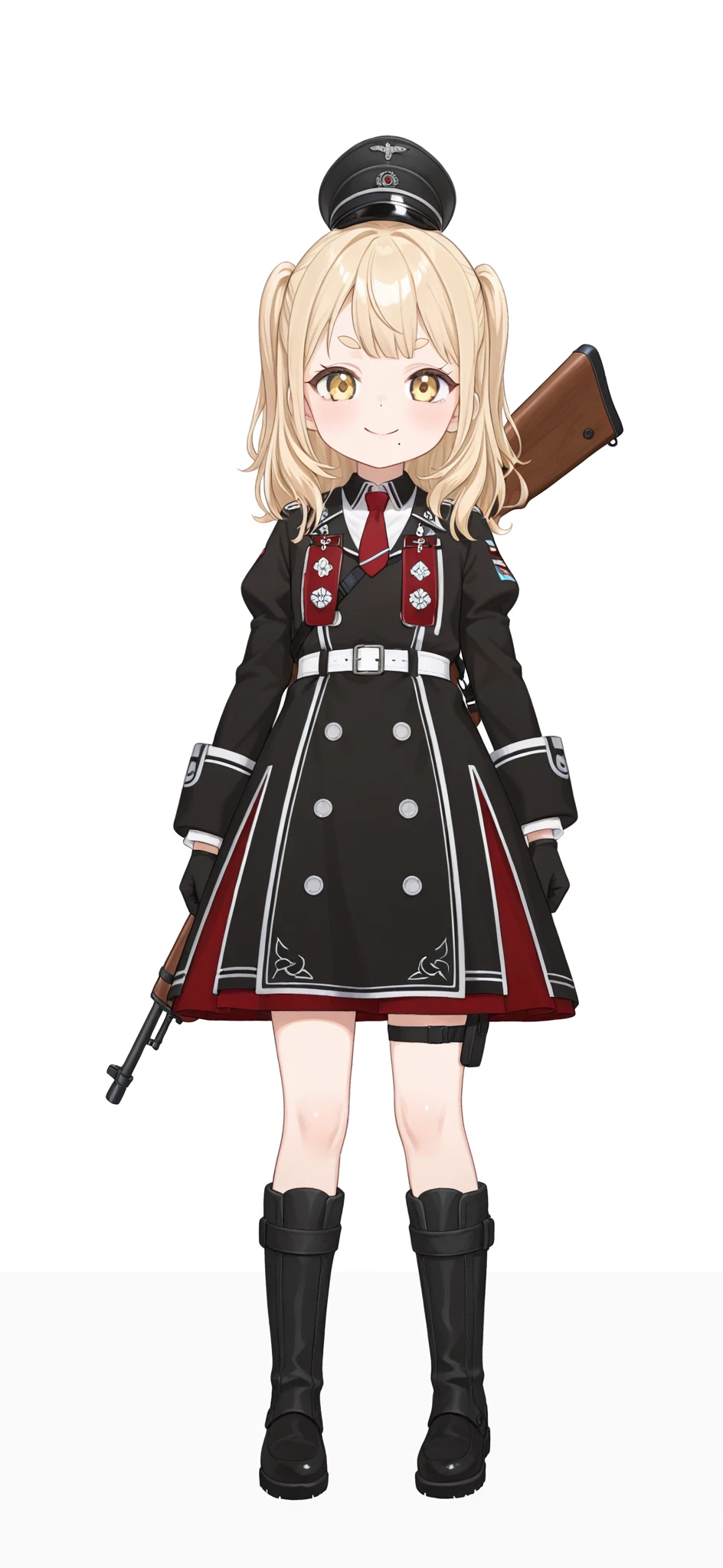
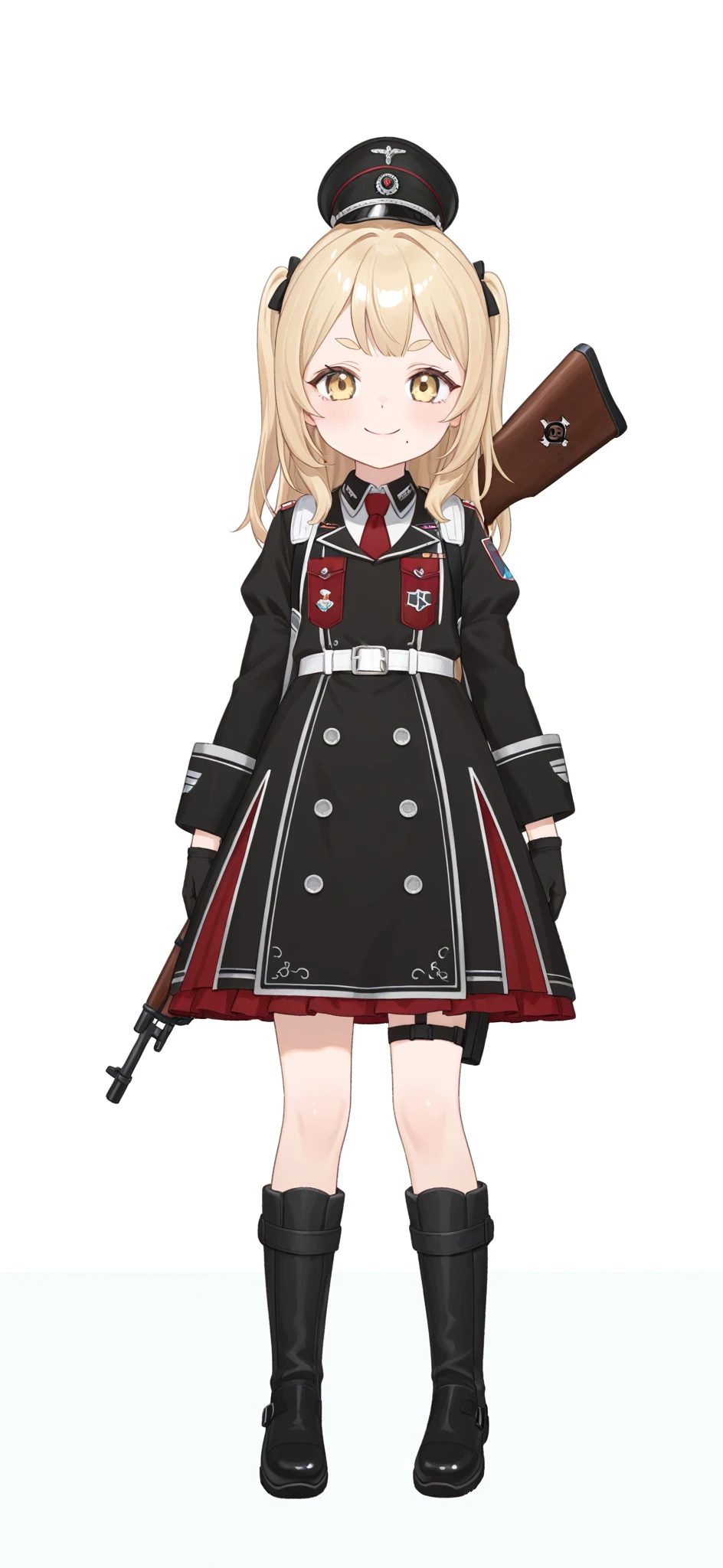
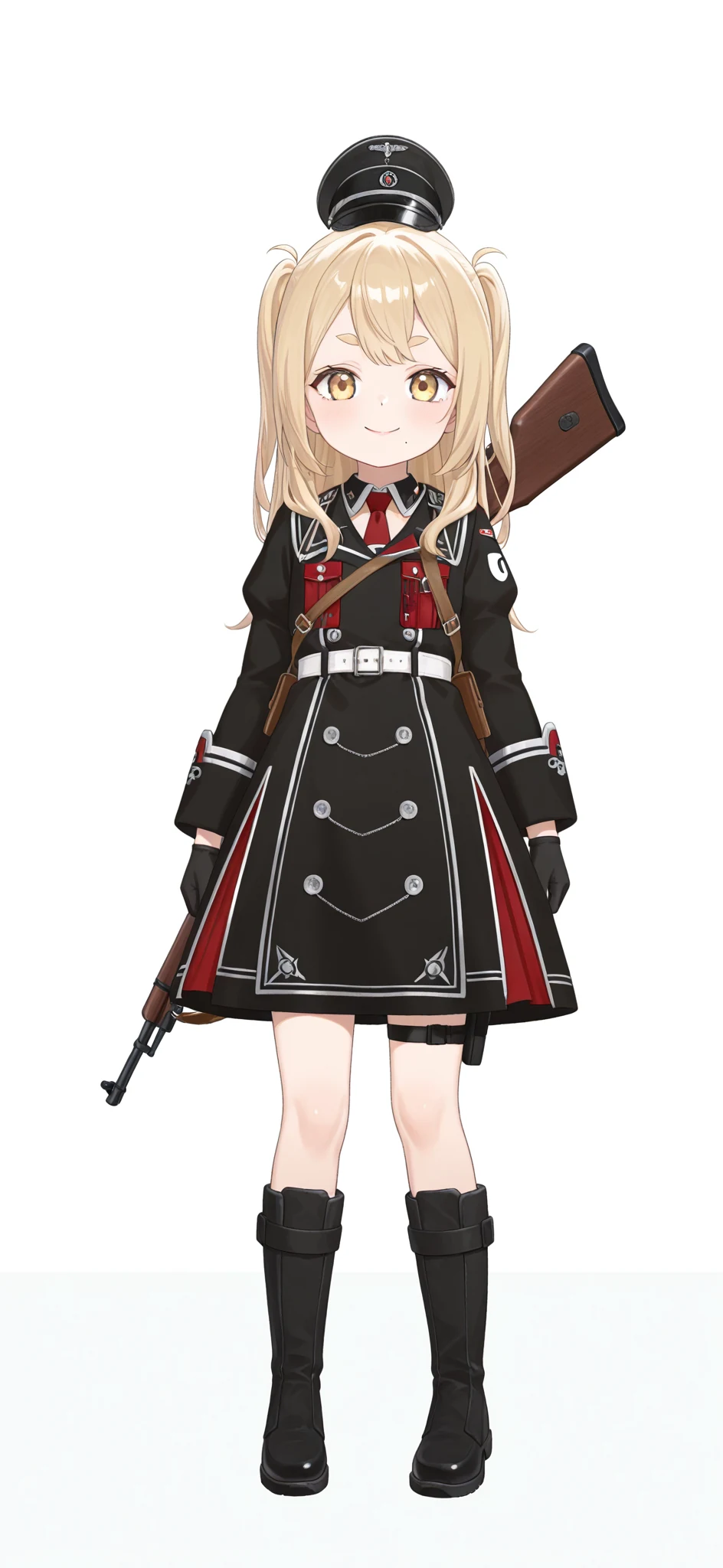
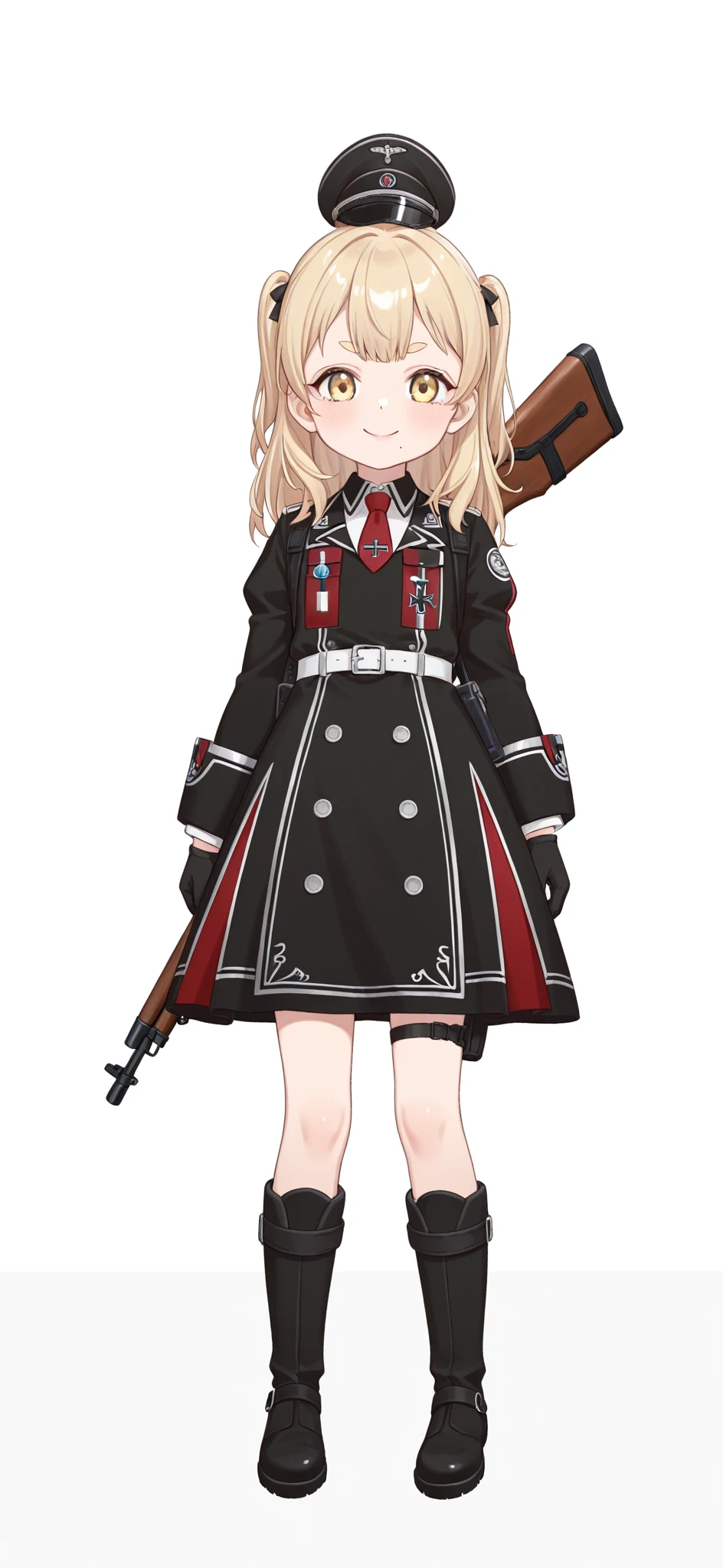
The reference image is full body, so putting waist up in the prompt gets ignored. I cropped it at the height of the skirt and output again with the same prompt.
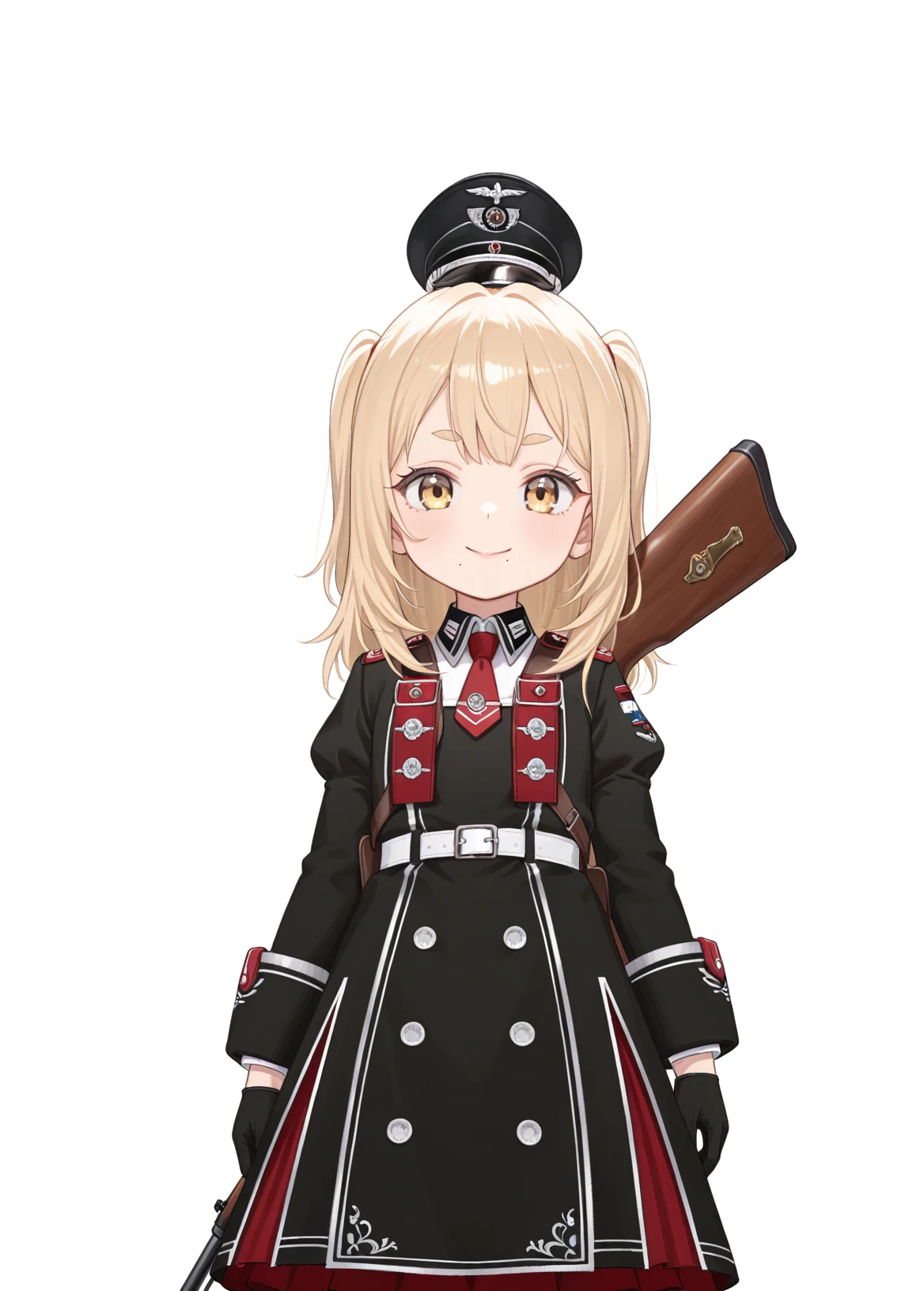
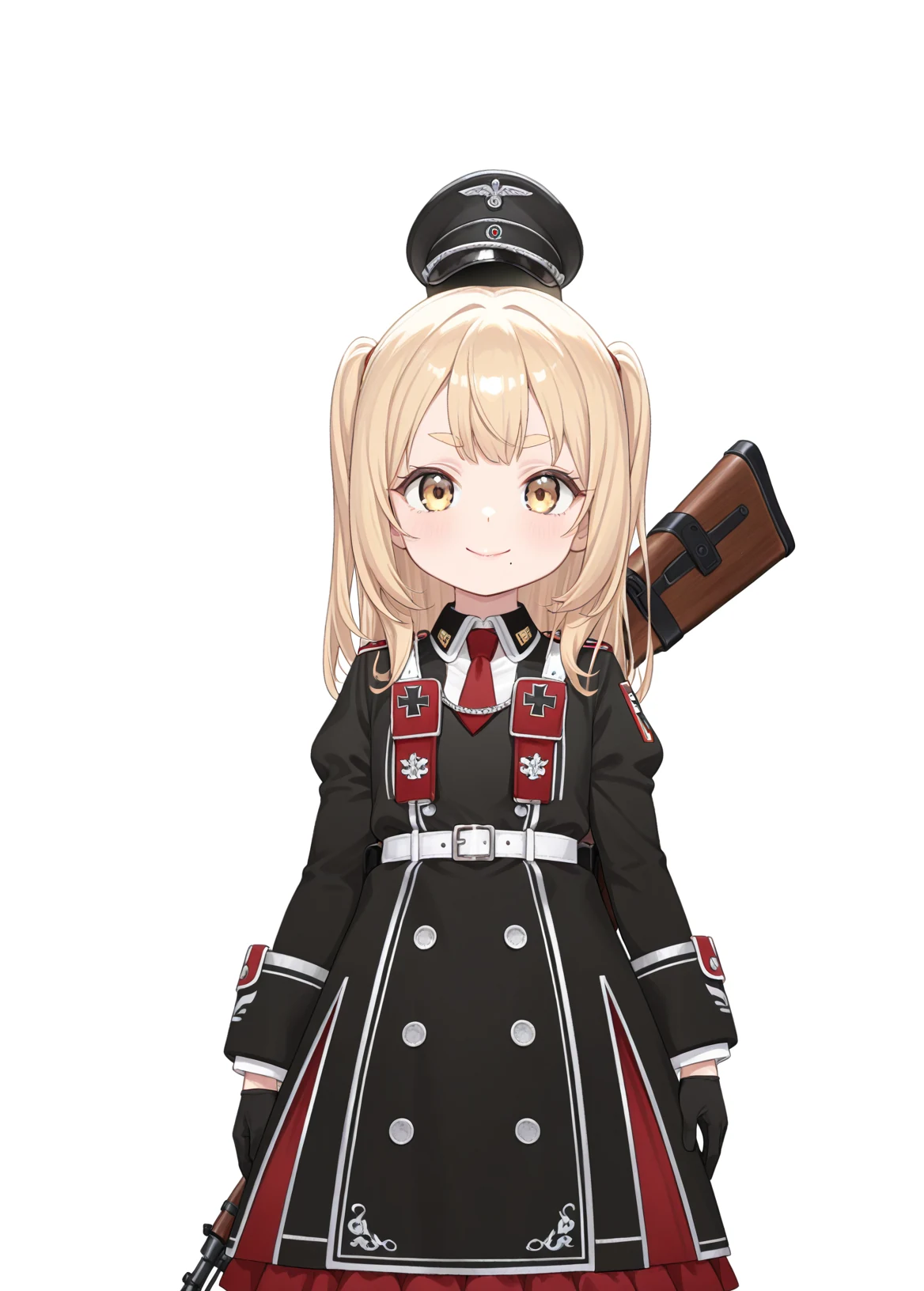
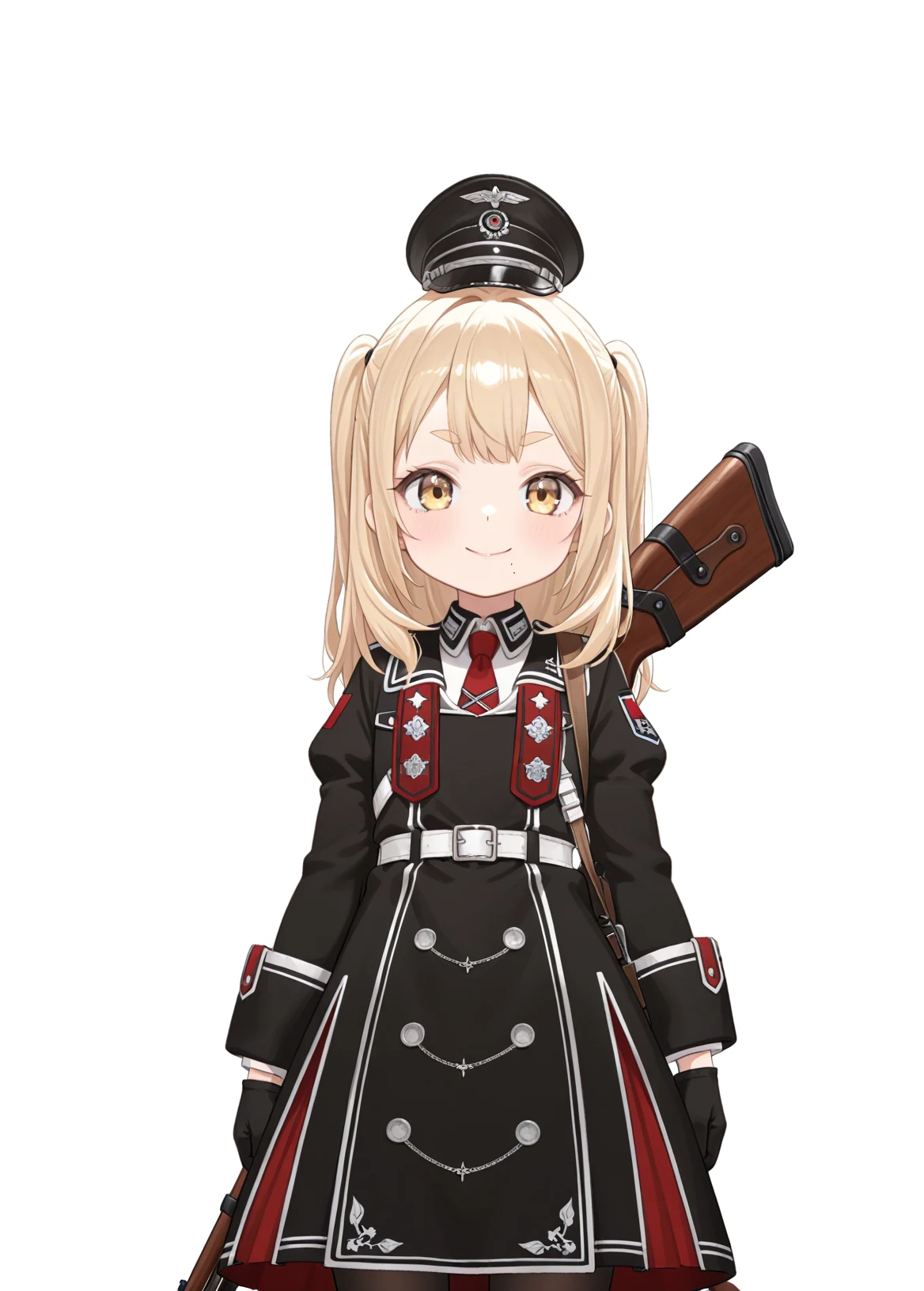
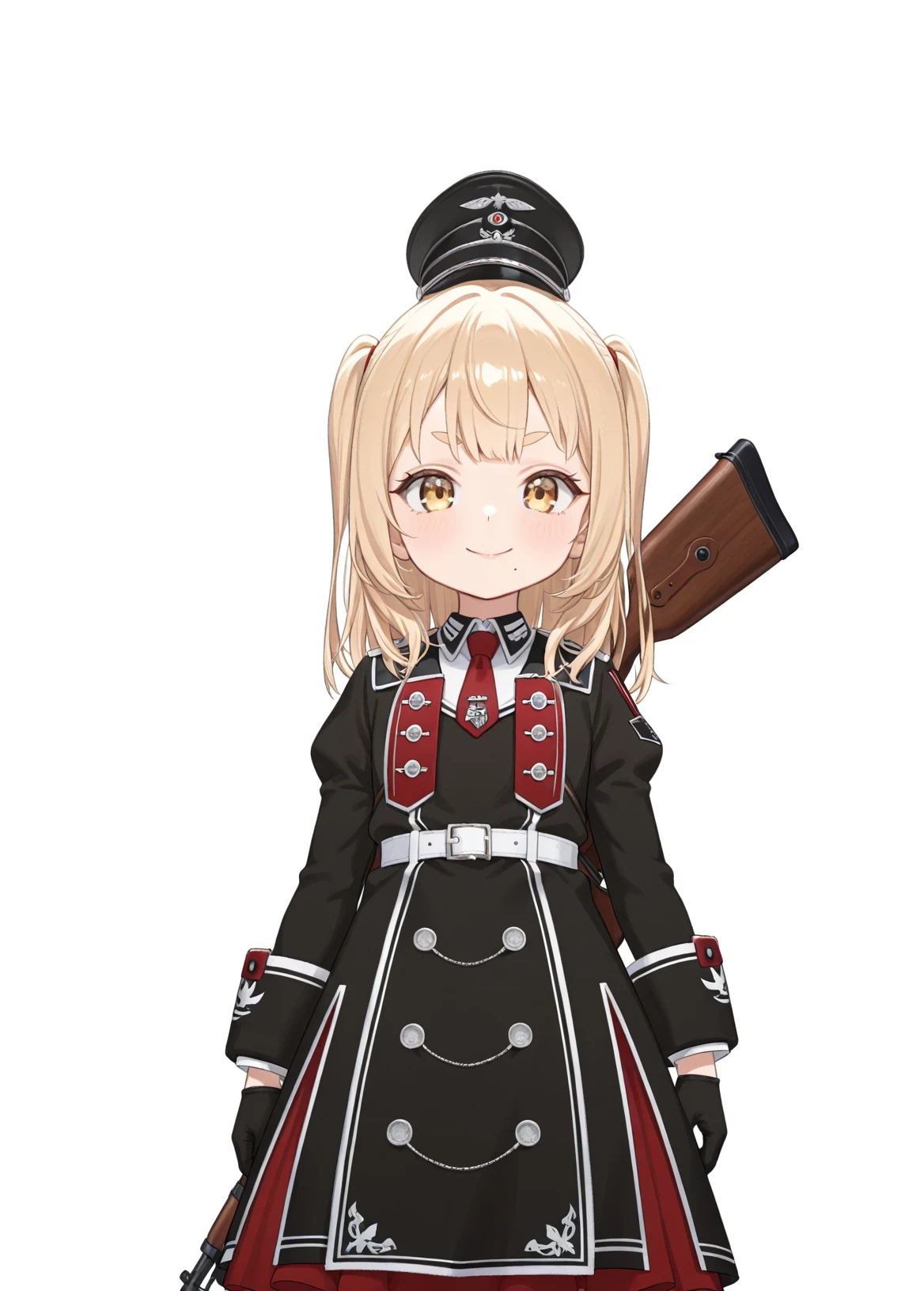
An eagle insignia is drawn on the cap, and the second one even has an Iron Cross on the chest. The fourth full-body one had an Iron Cross too. A design that evokes a Nazi German uniform could cause trouble if you stream with it, so I add a negative prompt. A Japanese negative prompt didn’t seem to work, so I rewrite it in English.
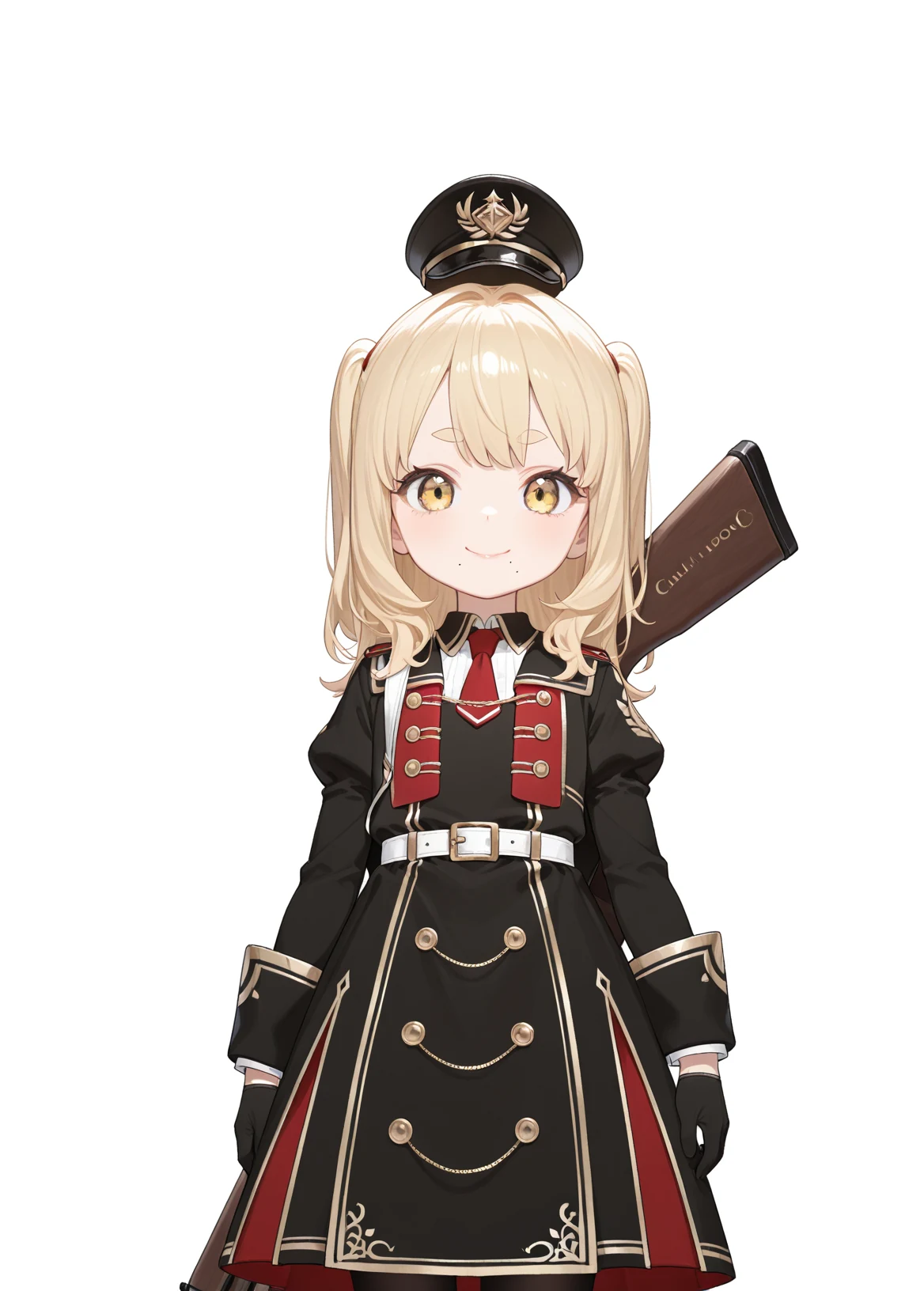
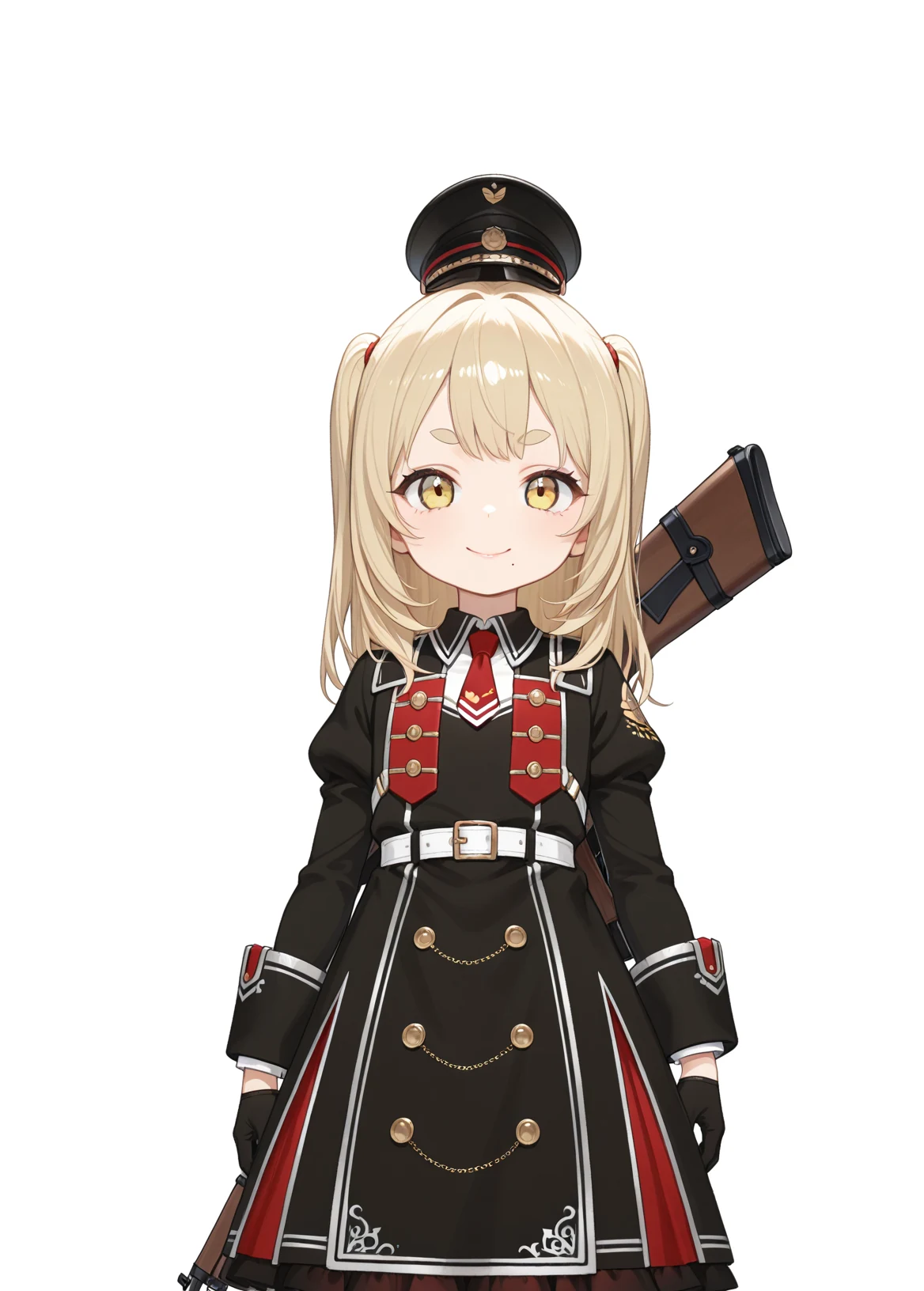
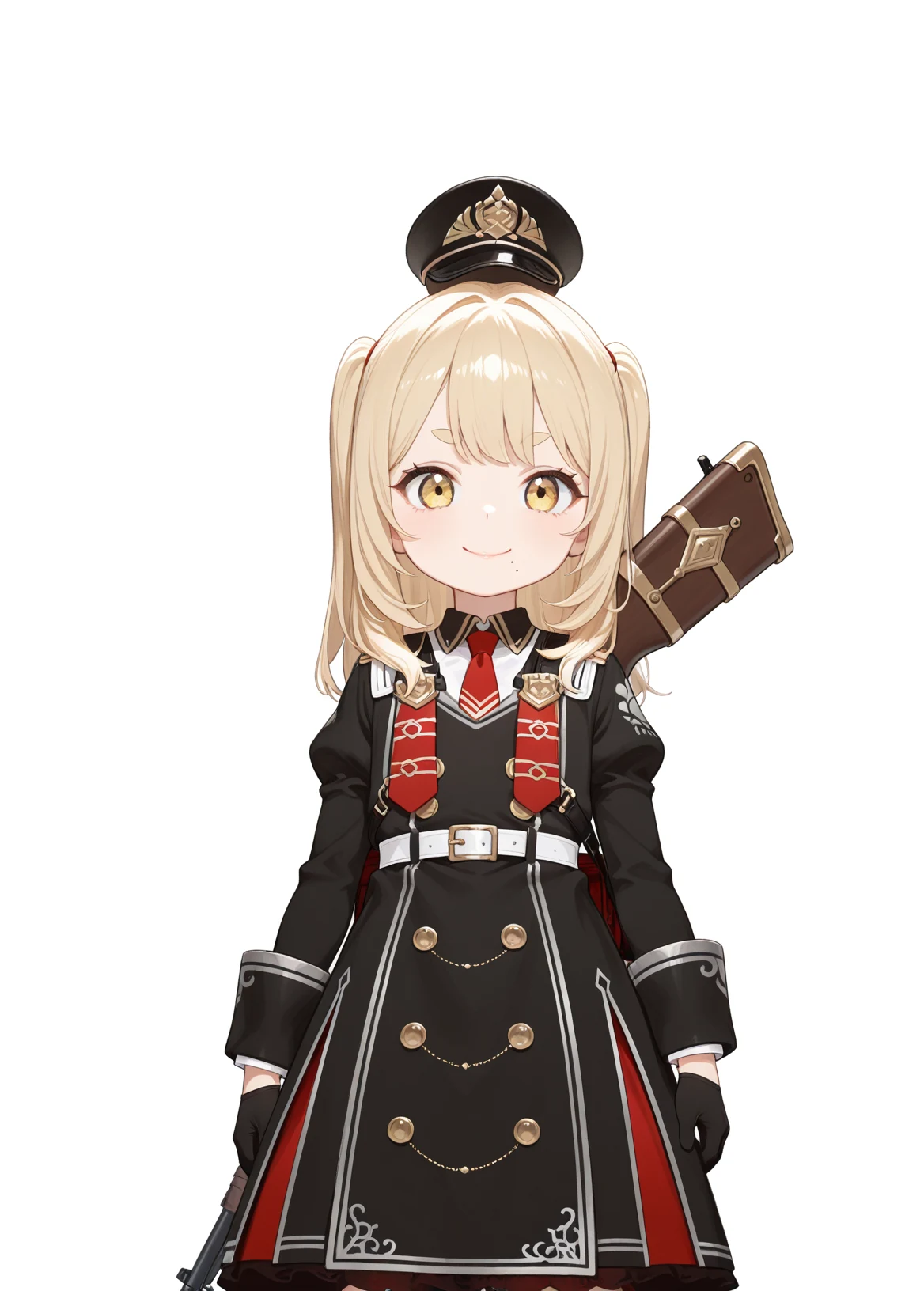
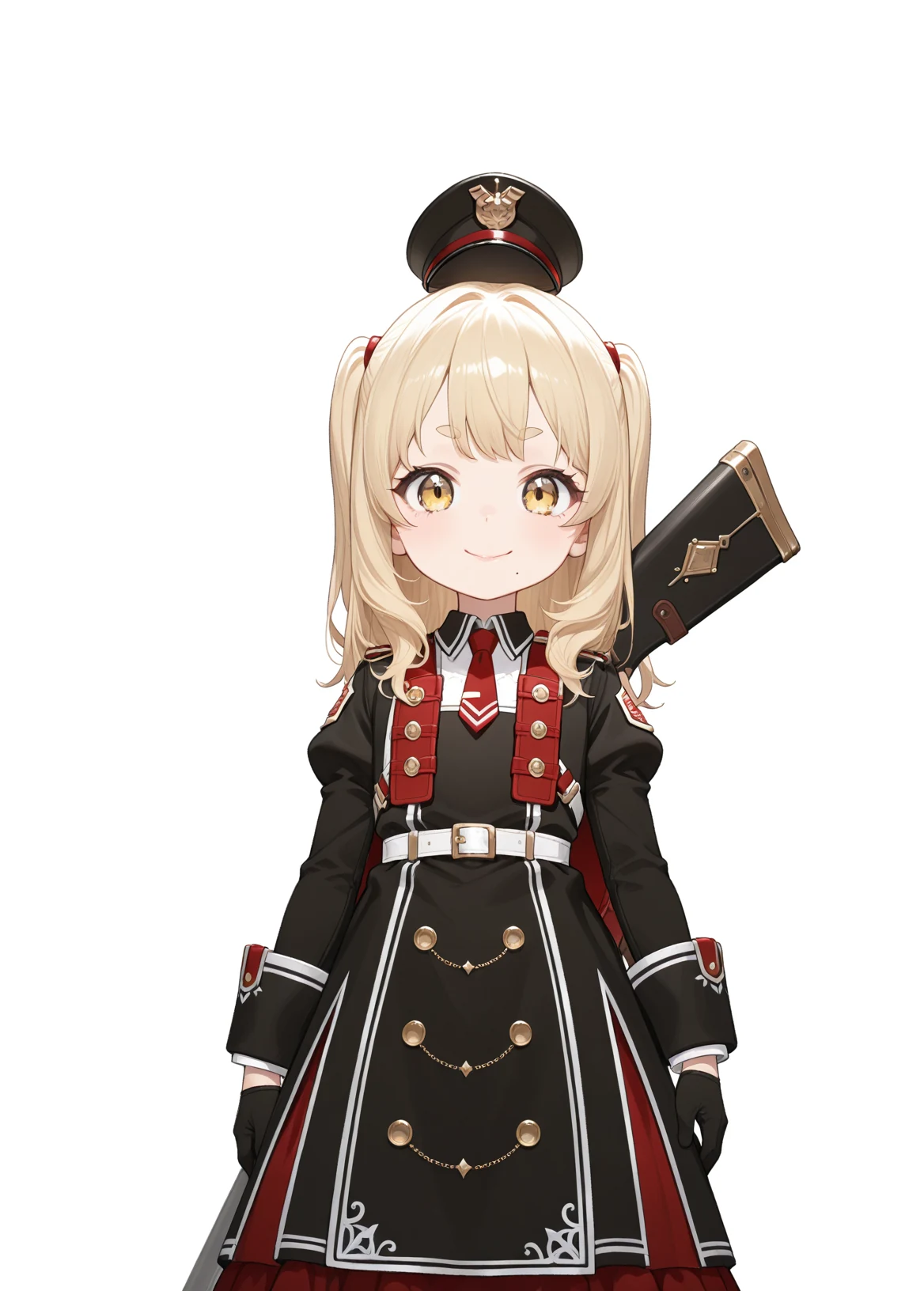
The mole isn’t stable, but it output a mostly cuter version of the reference image. All the caps look like they’re floating, though. The fine details feel sloppy, so adding negative prompts about drawing quality or adding a LoRA would probably make it better.
ComfyUI
As before, the model is WAI-illustrious-SDXL v16. Passing an image means changing the workflow, but that’s beside the point here, so I’ll skip it. For the image, I use the cropped one I gave PixAI.
I raised the denoise parameter step by step from 0.5 to 0.8 and output each. The lower the denoise, the closer it stays to the reference image.
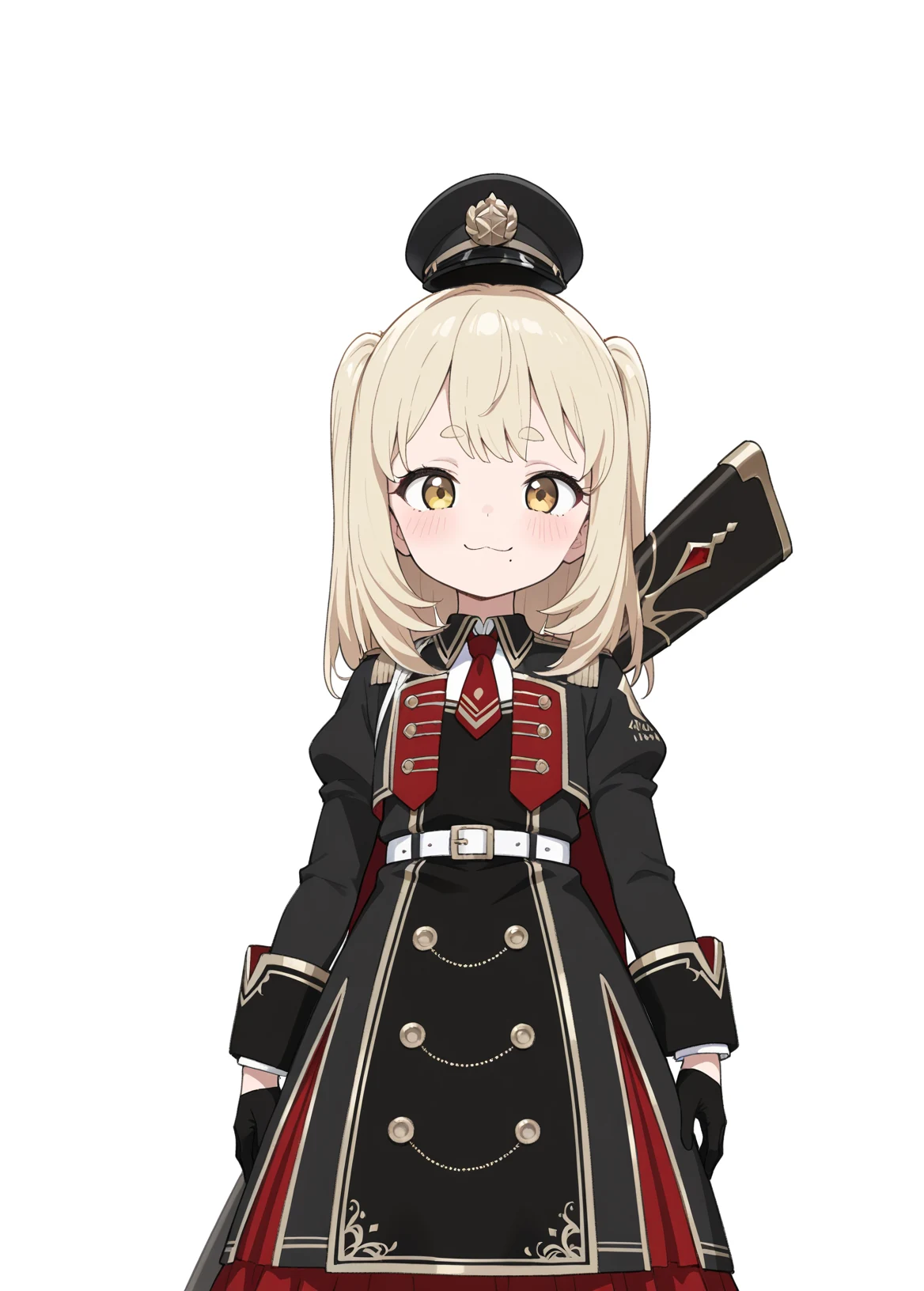
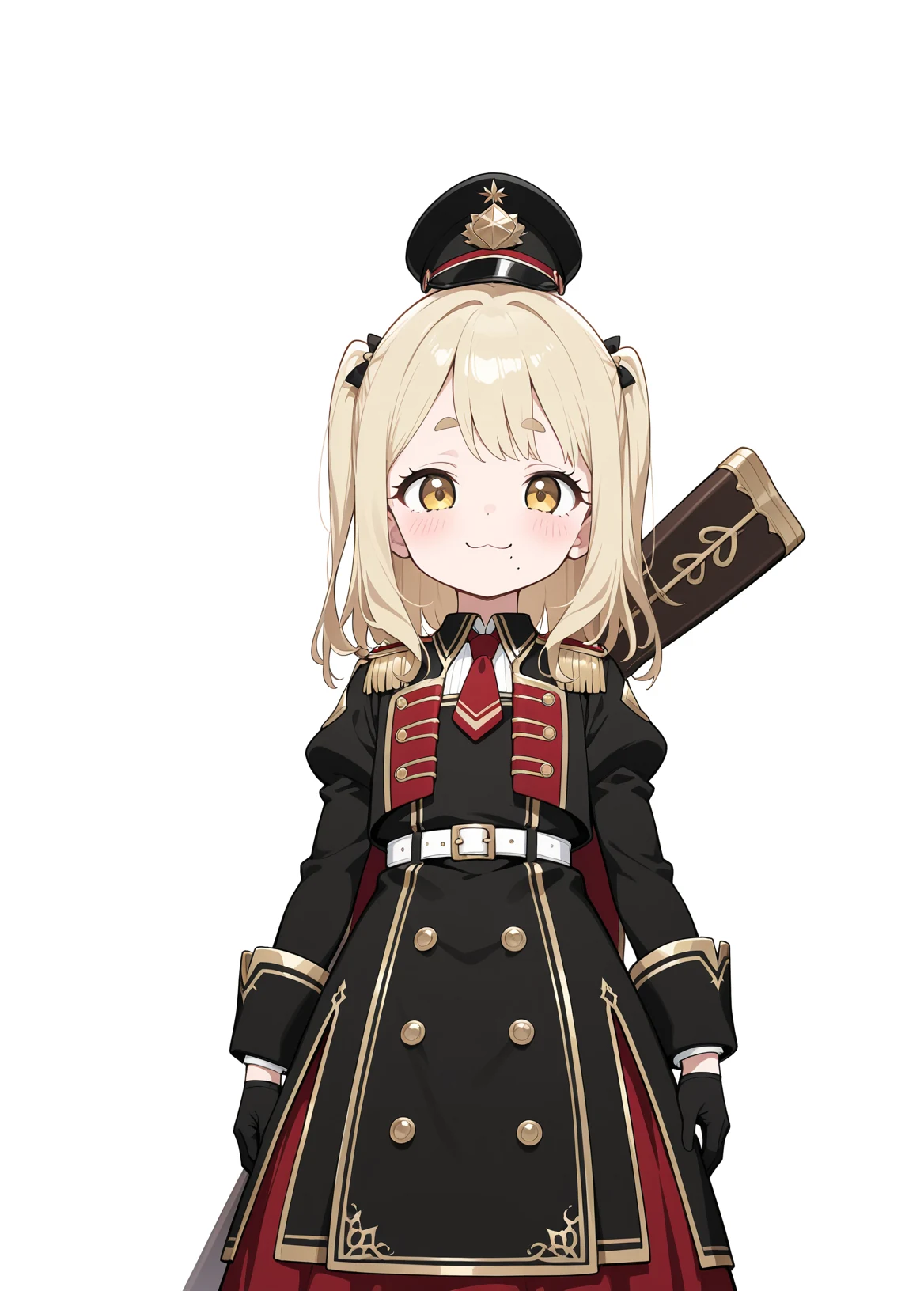
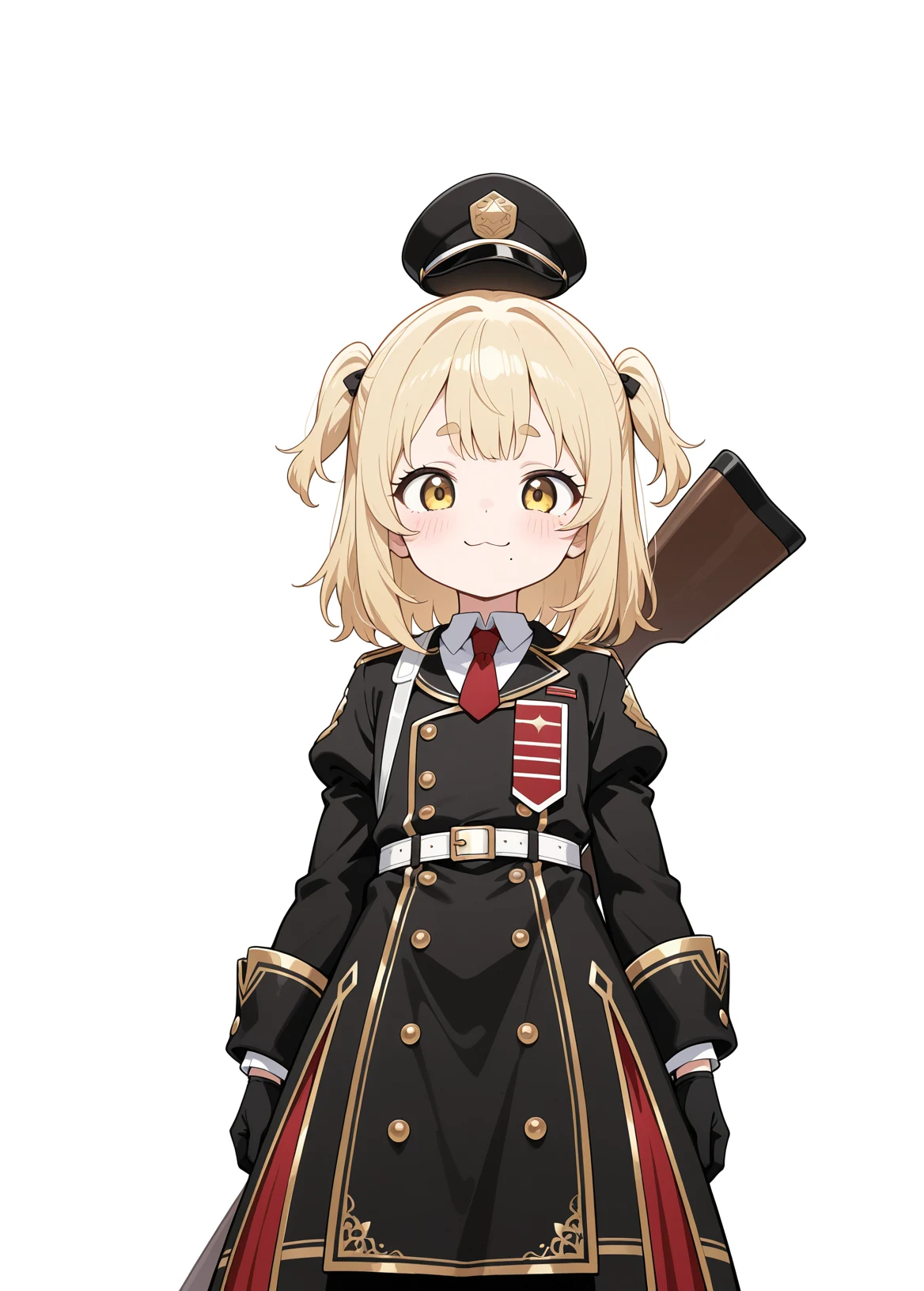
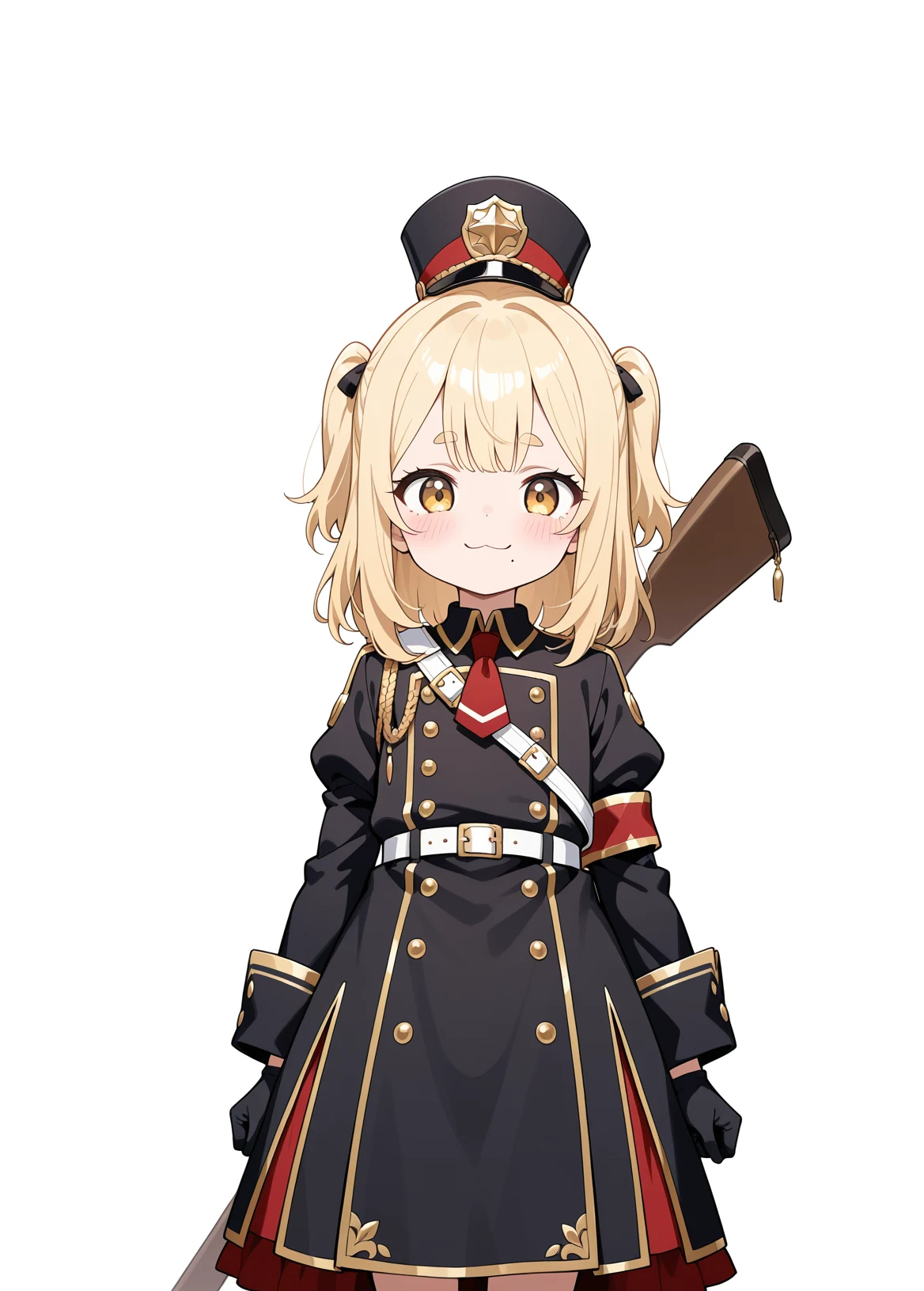
The cap floats a little, but it’s cute. At denoise 0.5, even the way the hair overlaps the gun matches the reference image.
Regenerating from an image summary
| AI | What was good | What bothered me |
|---|---|---|
| ChatGPT | Output a nice image with the background already transparent | Came out transparent even though I asked for a white background |
| Gemini | Faithful to the reference image | With the same instructions, it barely changed the 3D look apart from making the hair longer and removing the rifle. Even when told to redraw in 2D, the mole moves around and the rifle disappears |
| Grok | Kept to the waist-up instruction even with a full-body image. Fine detail in the metal decorations and embroidery | My impression is that it hits the image generation limit sooner than ChatGPT. No half-up twin tails. The mole’s position and number and the outfit change |
| PixAI | Output a mostly cuter version of the reference image | With a full-body reference image, the waist-up instruction is ignored, so you need to crop it. Drew an eagle insignia and an Iron Cross, and the Japanese negative prompt didn’t work. The mole isn’t stable |
| ComfyUI | Cute. At denoise 0.5, even the way the hair overlaps the gun matches the reference image | Passing an image means changing the workflow. The cap floats a little |
Variant images
First I have to pick the image to work from. The ones that keep the reference image’s features and are also cute are ComfyUI at denoise 0.5 and ChatGPT. With ComfyUI, the slightly tilted face bothers me, and with ChatGPT, the transparent background looks like it’ll be a problem. I use the ChatGPT image as the base, partly as an experiment to see whether each AI can handle a transparent image.
In Peraravatar+, variant images are swapped in for the original image, so if anything is off, the whole body seems to move the moment the expression changes. Ideally, the variants come out at the same size and in the same position.
A typical PNGTuber needs four images: eyes open with the mouth closed, eyes open with the mouth open, eyes closed with the mouth closed, and eyes closed with the mouth open. This time I want to see whether it can edit just part of the same image, so I try to get the original image with only the eyes closed.
ChatGPT
Close the eyes in this image. Don’t change anything other than the eyes at all.
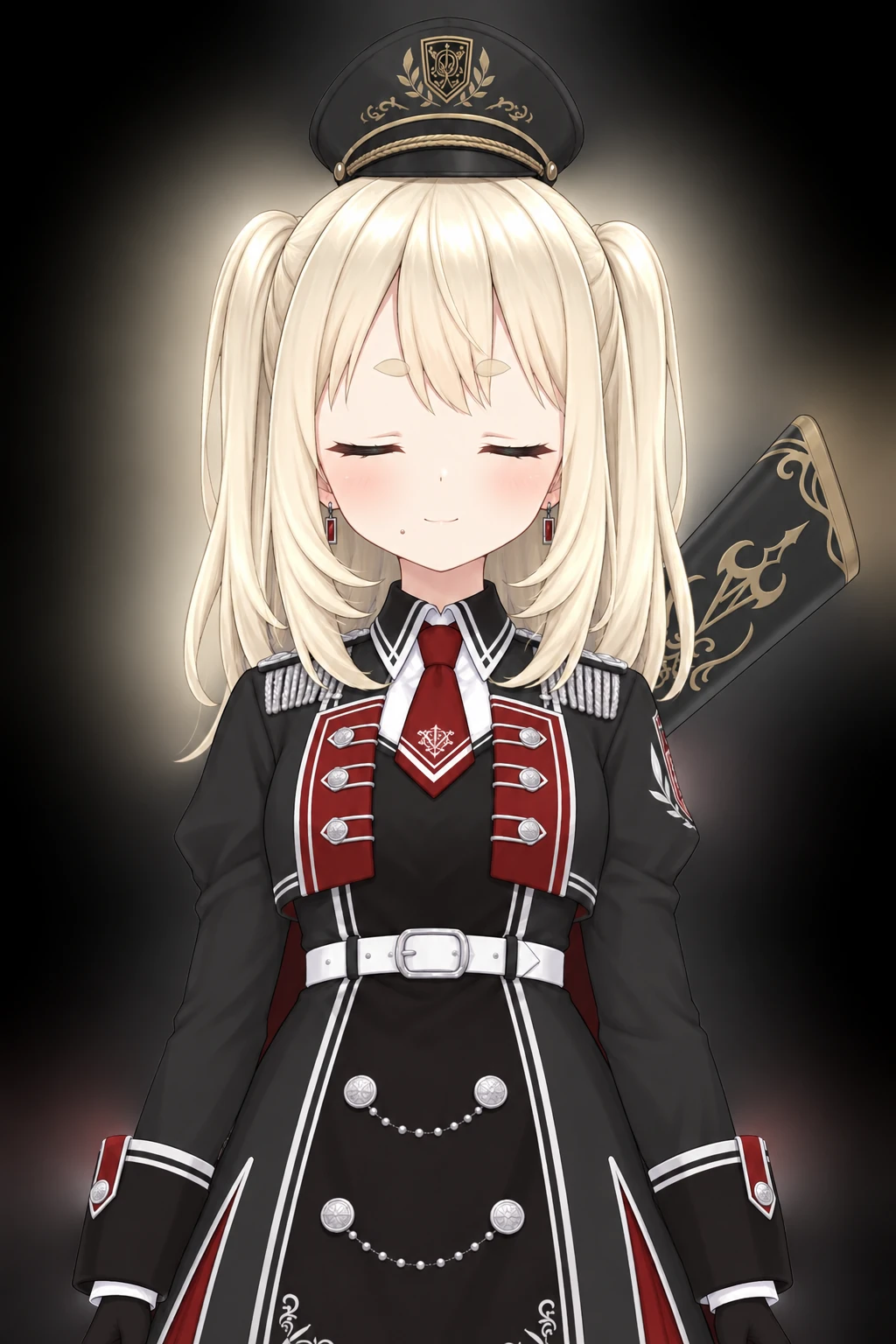
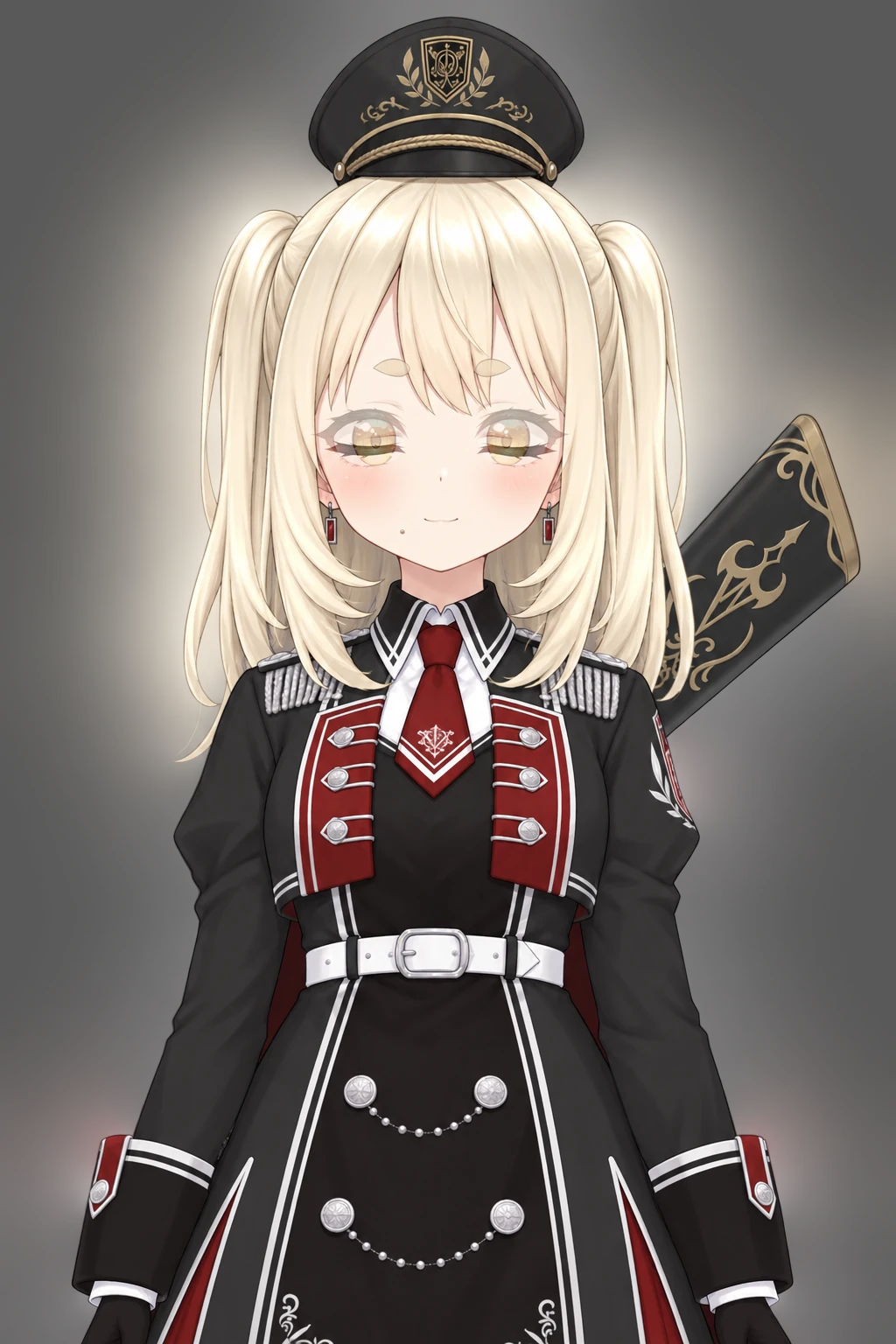
And there’s the downside of transparency already. The transparent background was read as black, and the colors used for the shading are smeared hazily around her. It looks like only the eyes were closed, but if you check the details, the pattern on the tie and the detail on the buttons have changed.
Just to be sure, I made the background white and tried again.
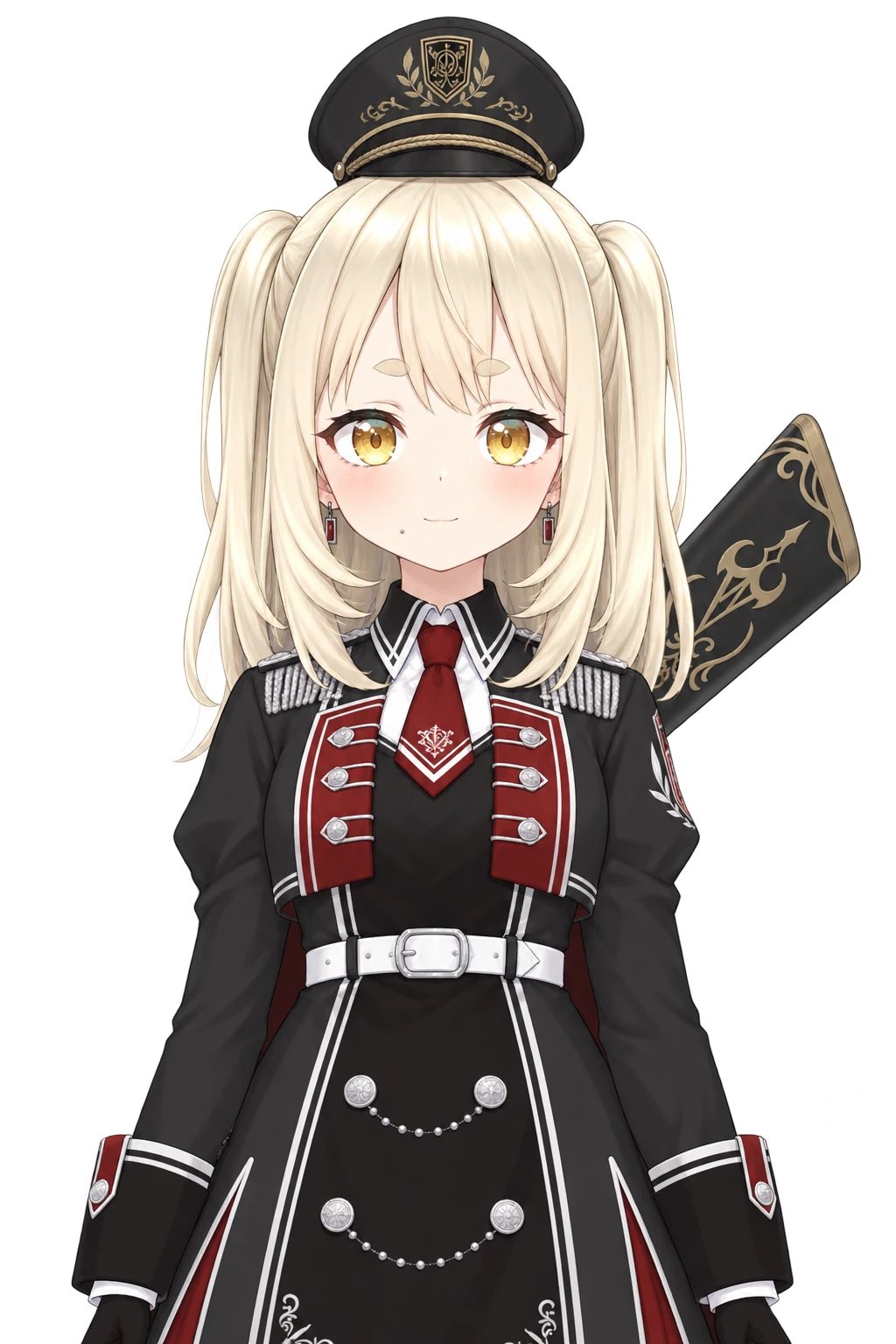
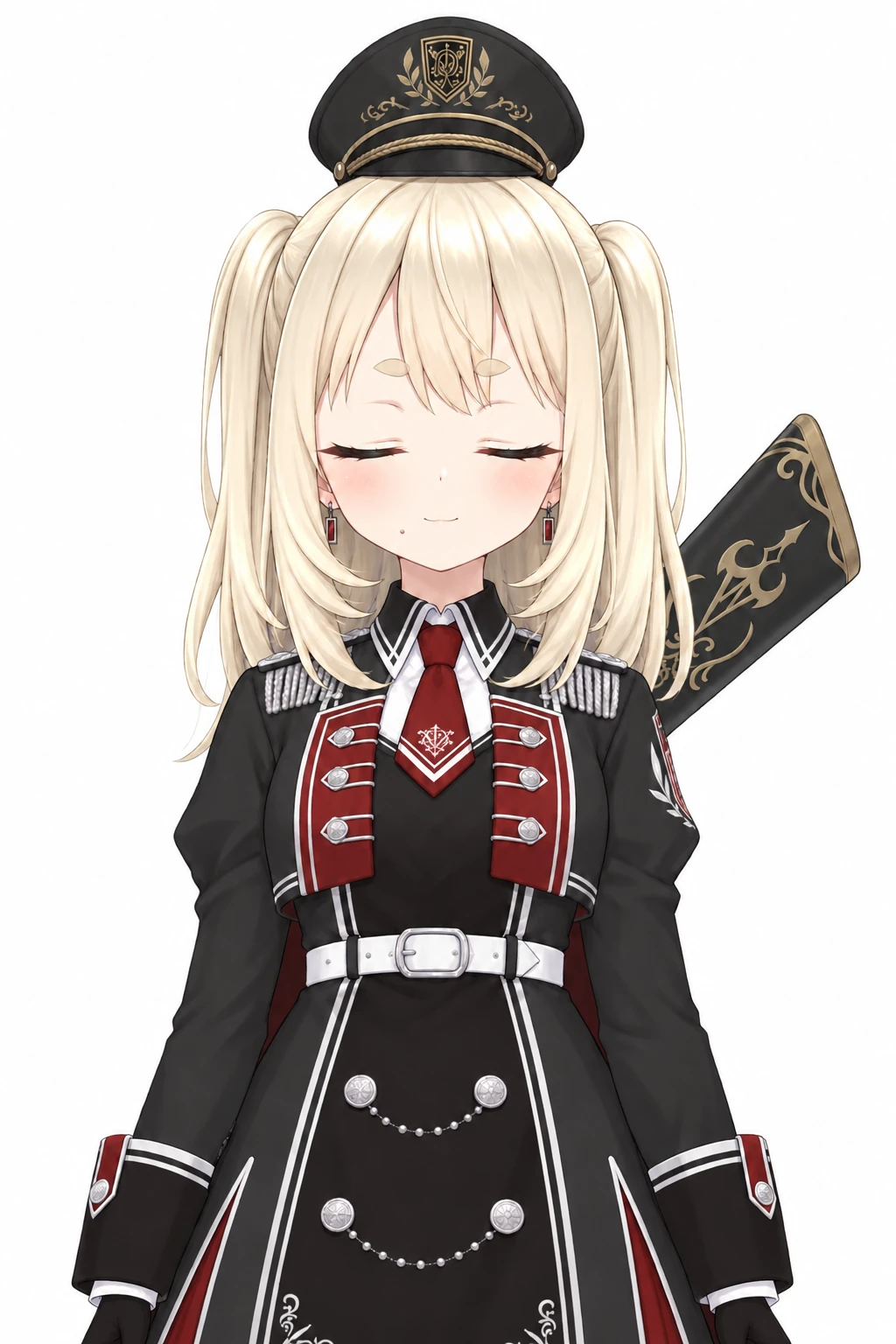
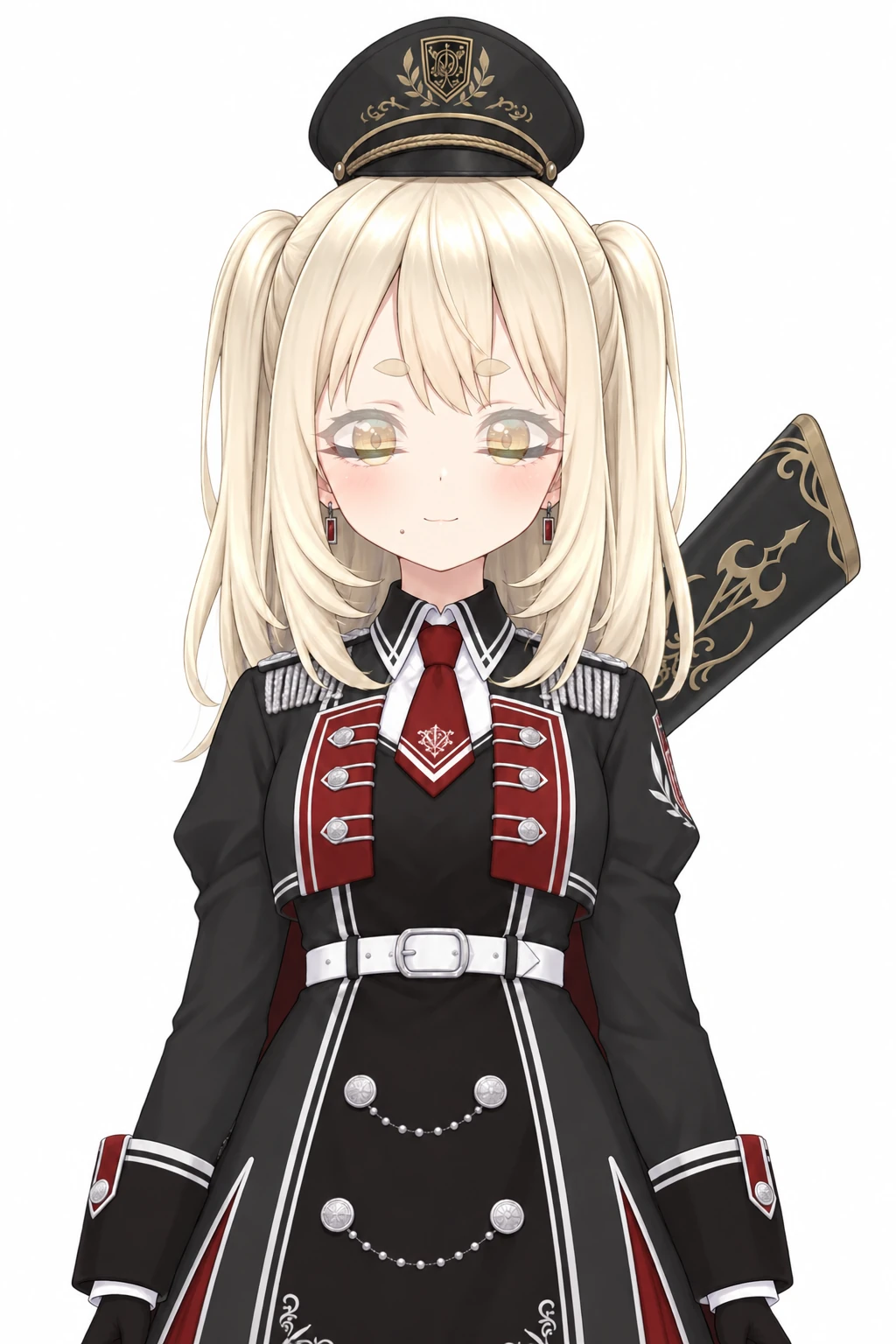
Because of how image generation works, it redraws the whole image every time, so getting exactly the same image is probably hard. But the differences are small enough that you won’t notice unless you look closely, so if you don’t mind small things, this should be plenty. I do mind, so in this case I cut out just the eyes in a painting app and lay them over the original image to make a separate image.
Gemini
I give it the same instructions as ChatGPT along with the image.
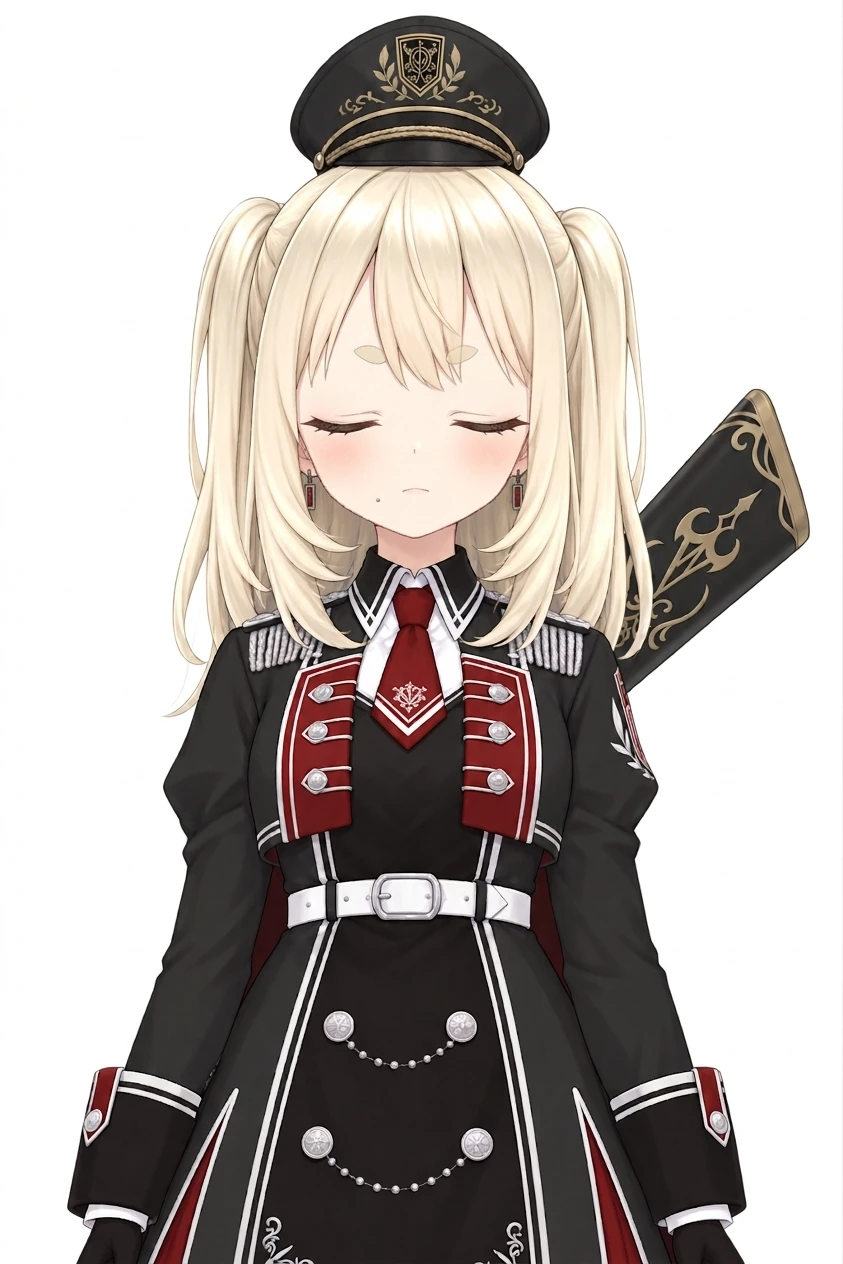
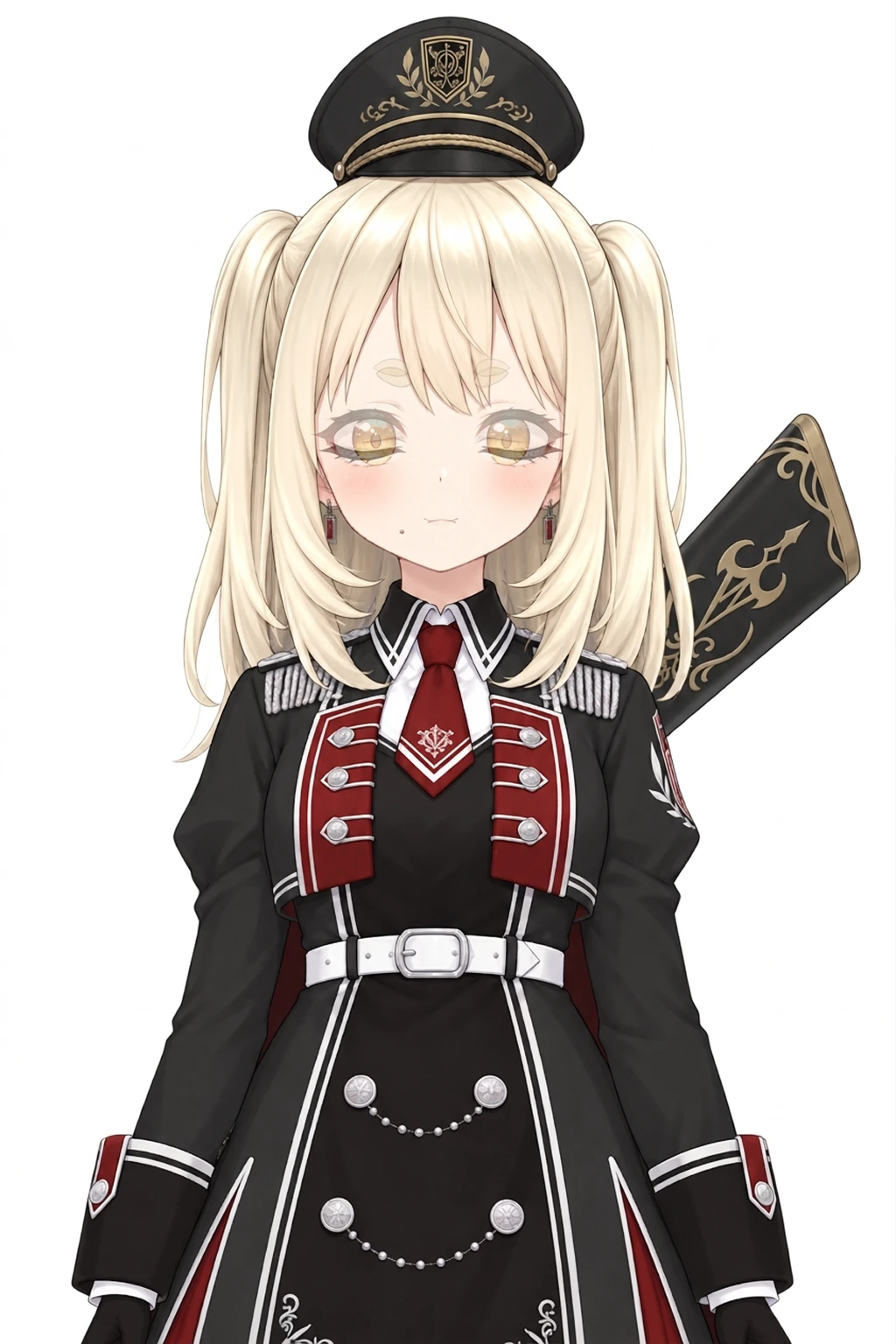
Transparent or white, the result was the same. Looking at just that, you might think Gemini is the clever one, but Gemini can only handle JPG in the first place, so it doesn’t see the transparency at all. My guess is that the truth is “transparent areas automatically get filled with white or black”.
The image size is 843 × 1264, a size smaller than the original image’s 1024 × 1536, and the format is JPG. The aspect ratio is the same, so I enlarge it and lay it over the original to check. I told it not to change anything other than the eyes at all, but the whole face changed. The eyebrows lowered, the eyes closed, the mouth went into a straight line, and even the ears moved up. As a change of expression it may be right, but it didn’t follow the instructions. Eyebrows lowering along with the eyes closing is fine with me, but the mouth changing is a bit much. If you’re someone with the special condition of closing your mouth every time you blink, you’ll be happy with this.
As with ChatGPT, laying them over each other shows the details of the clothes have changed too.
Grok
I give it the same instructions as ChatGPT along with the image.
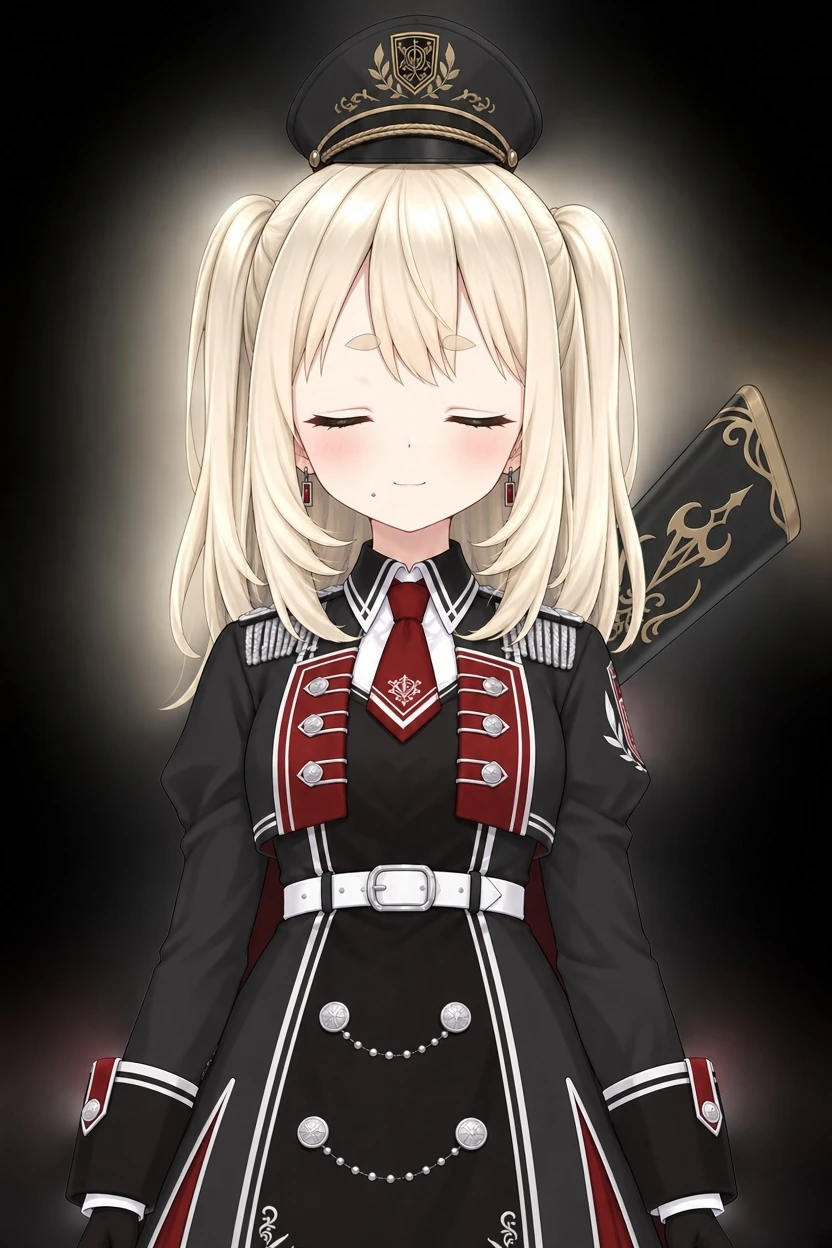
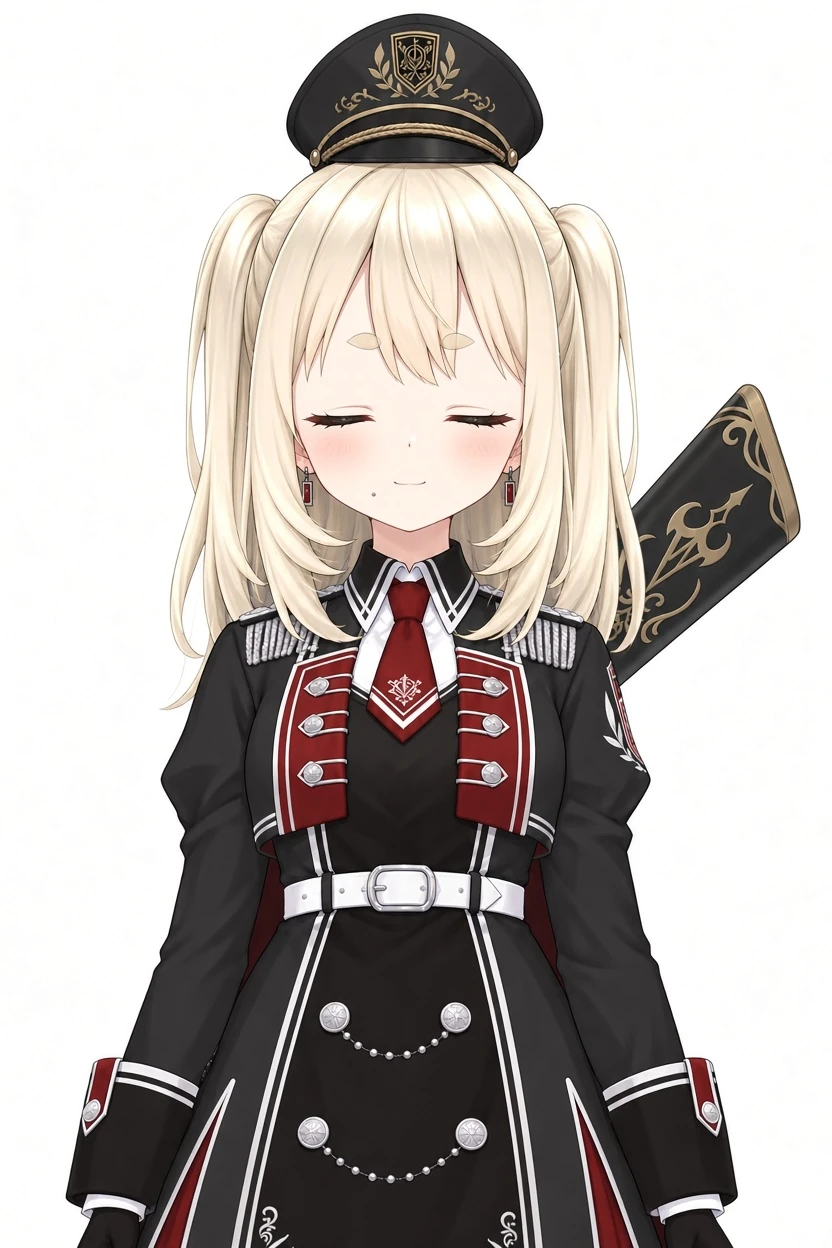
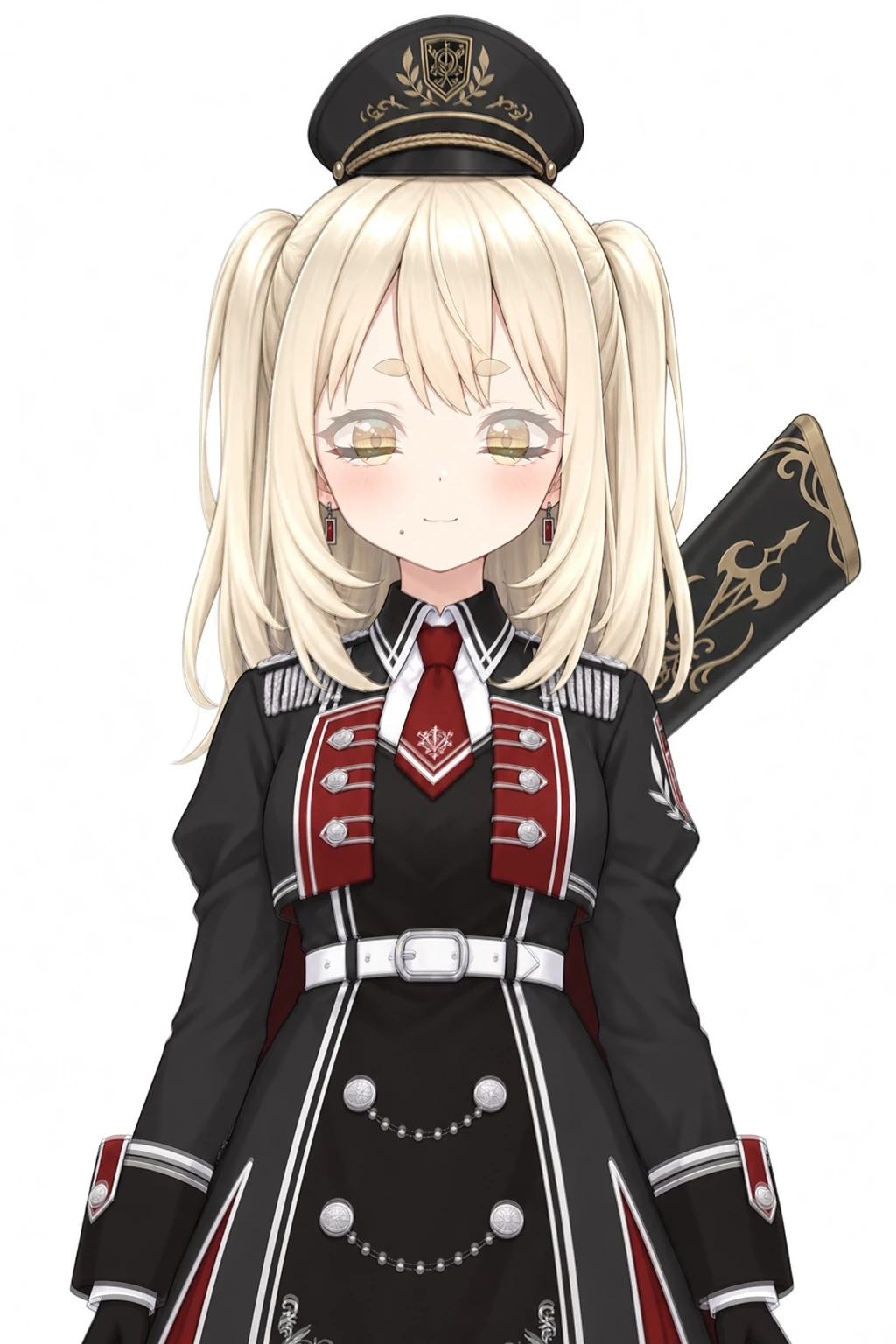
When I passed the transparent image, the color got smeared hazily over a black background, just like ChatGPT. It doesn’t seem to handle transparency. Like Gemini, the image size also came out a size smaller than the original’s 1024 × 1536, at 832 × 1248. The drawing position is also off from the original image, so it shifts by about 2px every time it switches.
Shifting position on every blink is really not acceptable…
PixAI
PixAI has a feature called “repaint”, which lets you redraw just part of an image. ChatGPT, Gemini, and Grok redraw the whole thing every time you give an instruction, so putting this up for comparison isn’t quite fair, but what matters this time is figuring out “the best way to make expression variants when preparing images for a PNGTuber”, so I’ll set the details aside for now.
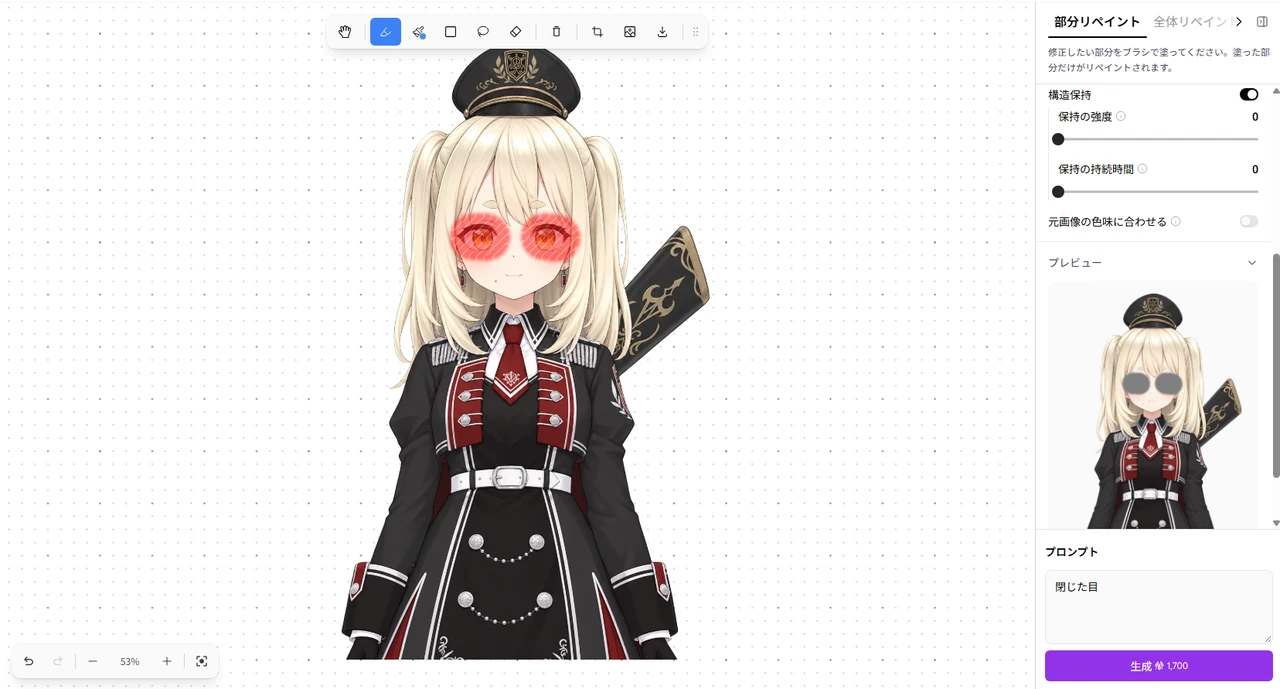
This time I masked only the eyes and left the eyebrows out. If you include the eyebrows, I think it would also lower them a little along with the eyes. The other parameters are left at their defaults. The prompt is “closed eyes” in Japanese.
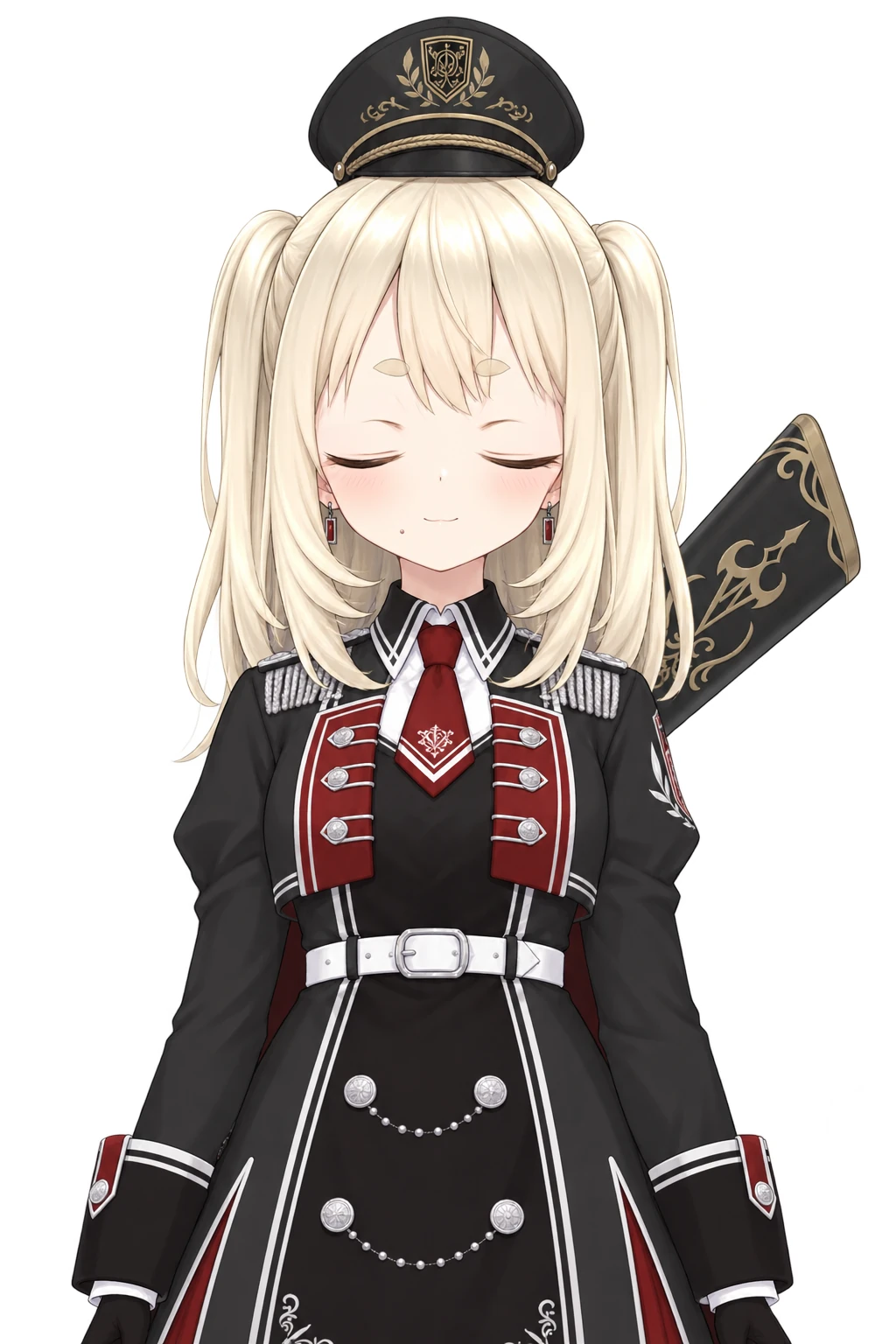
That’s the answer, right there. Well, that’s exactly what the feature is for, so of course it works… The background became white automatically. AIs made for image generation have this feature, so if you can master it, I think you can make every expression variant this way. You can upload and repaint images that weren’t made in PixAI too, so as long as you have one piece of main art you love, you can make her cry or laugh. That said, if you don’t give it the original prompt, the art style can change when repainting, so masking a large area and repainting takes some know-how. I haven’t mastered it yet, and when I got carried away and tried to change the pose, I created a monster. It’s hard… Mastering this one will take a bit of studying.
ComfyUI
With ComfyUI, I use inpainting to mask and redraw only the eyes. The model is WAI-illustrious-SDXL v16 as before. It does the same thing as PixAI’s repaint. I’ll leave the workflow out.
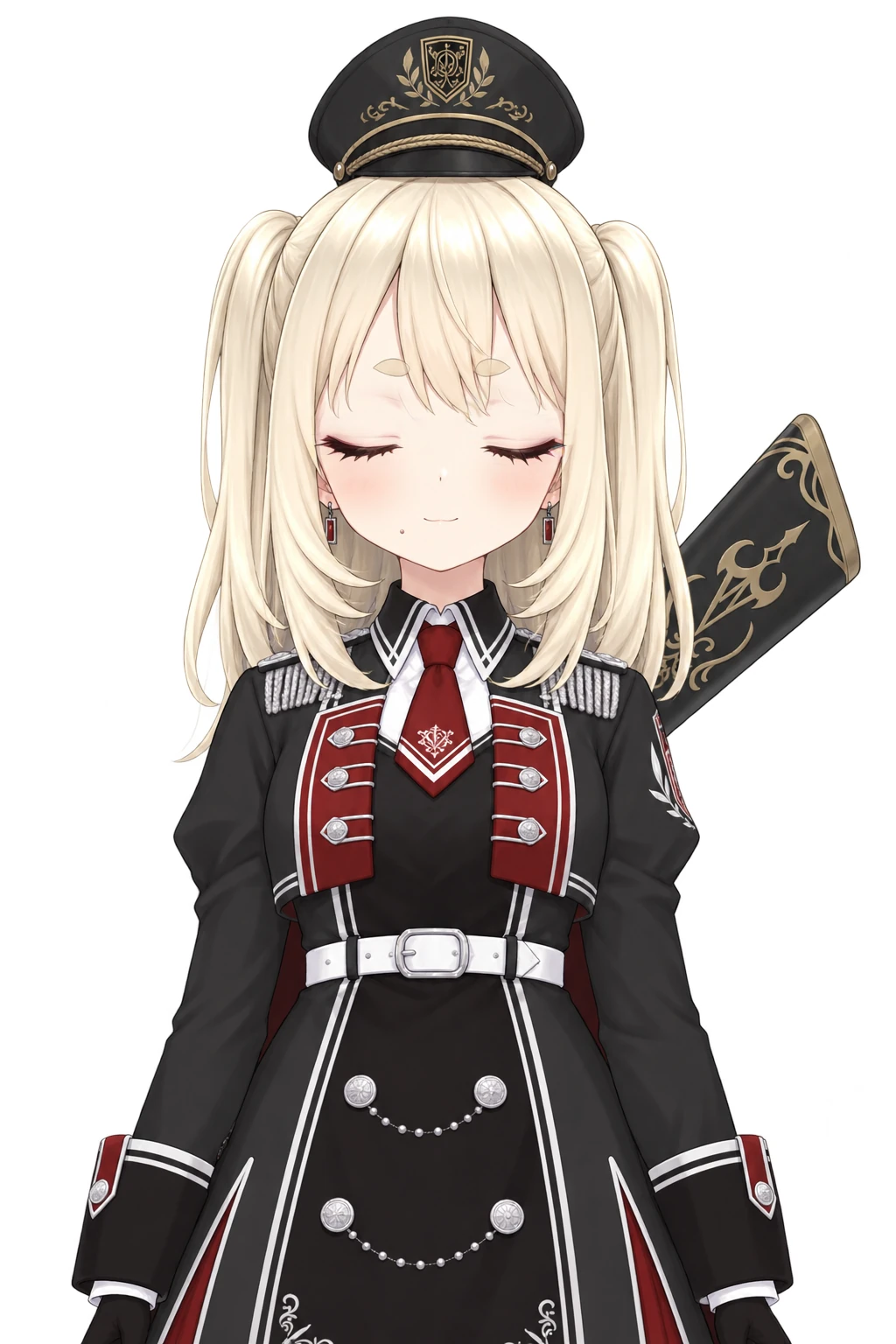
It looks fine at a glance, but the parts that overlap the eyes, like the bangs, have broken down. Even getting this image with the iffy bangs took quite a while. ComfyUI can output all sorts of things freely, but fine-tuning the parameters and prompts until you get the output you want is a lot of work. If you’re going to spend that much effort, it’s definitely faster to draw it in yourself in a painting app.
Variant images summary
| AI | What was good | What bothered me |
|---|---|---|
| ChatGPT | Almost everything other than the eyes was kept | With a transparent image, the background is read as black and color gets smeared hazily. It redraws the whole image every time, so details like the tie pattern and the buttons change |
| Gemini | As a change of expression, it may be right | Can only handle JPG, so it doesn’t see transparency. The image size shrinks to 843 × 1264. The whole face changes: the eyebrows lower, the mouth becomes a straight line, and the ears move up. The details of the clothes change too |
| Grok | — | With a transparent image, color gets smeared hazily over a black background. The image size shrinks to 832 × 1248. The drawing position shifts by about 2px |
| PixAI | Repaint redraws only the eyes. You can also upload and repaint images not made in PixAI | Without the original prompt, the art style can change, and masking a large area and repainting takes some know-how |
| ComfyUI | Inpainting redraws only the eyes | The parts that overlap the eyes, like the bangs, break down. Fine-tuning the parameters and prompts until you get the output you want is a lot of work |
Background removal
Images output with a white background need the background removed before you use them in a PNGTuber. ChatGPT and Grok both have a feature that removes the background of an image they output.
ChatGPT
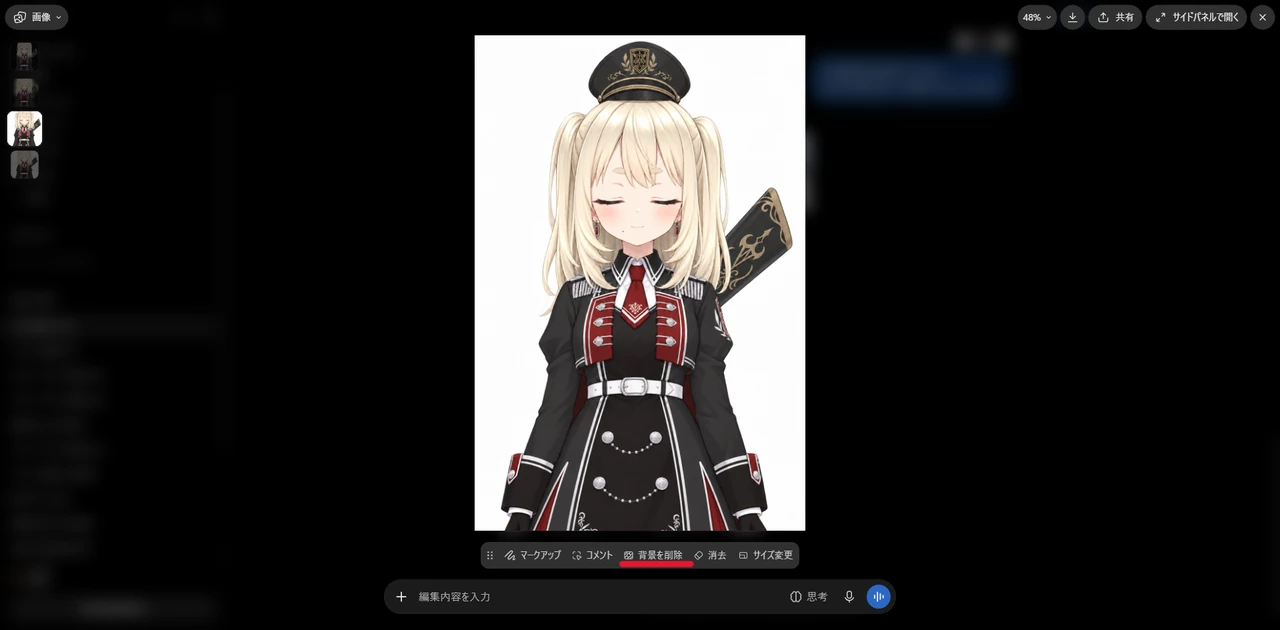
In ChatGPT, clicking an image shows an image editing menu at the bottom, and it includes “Remove background”. “So I don’t need to remove it myself in a painting app!” you might think, right? But this counts as generating one image, so free users end up spending their precious image generations on it. If you pay and have generations to spare and want to remove the background quickly, this is fine. But someone like me, who says “ChatGPT resets soon, so I can wait” while saving every last generation for other images, and who’s also comfortable with a painting app, is better off removing the background myself.
Grok
As with ChatGPT, clicking an image opens an editing screen.
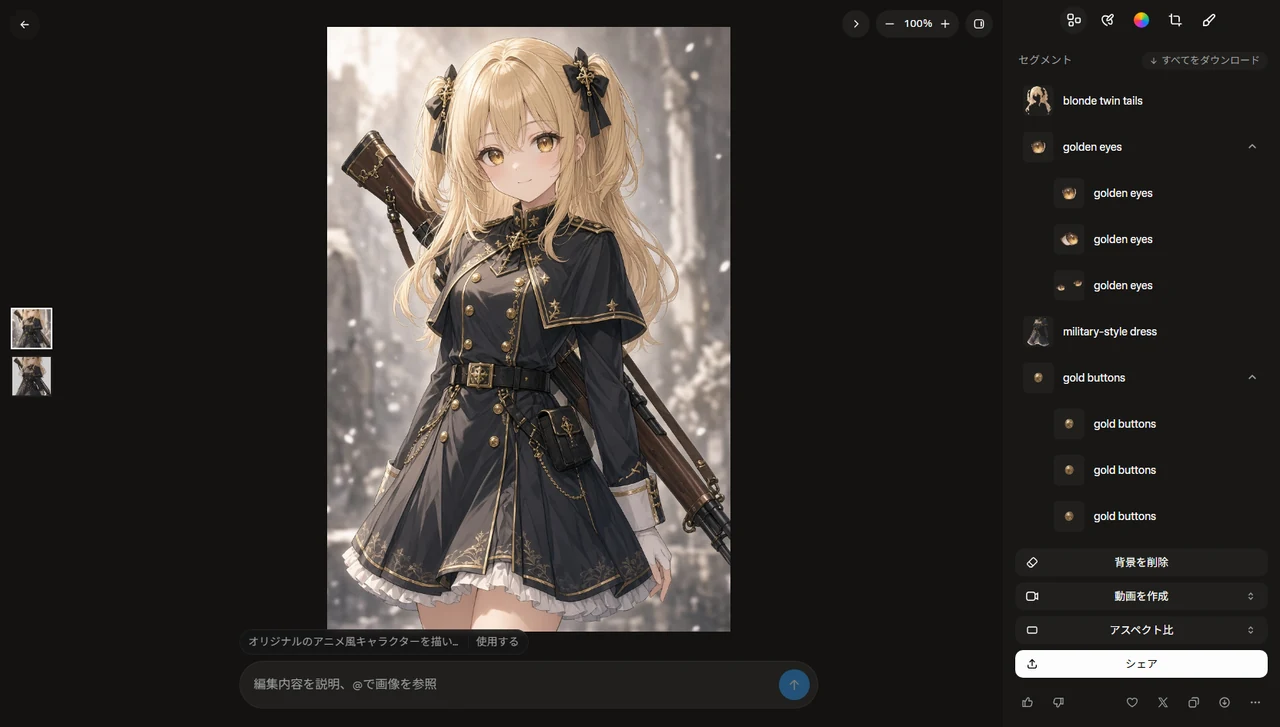
Near the bottom of the menu on the right there’s “Remove background”. Click it and it removes the background. This probably uses up image generations too.
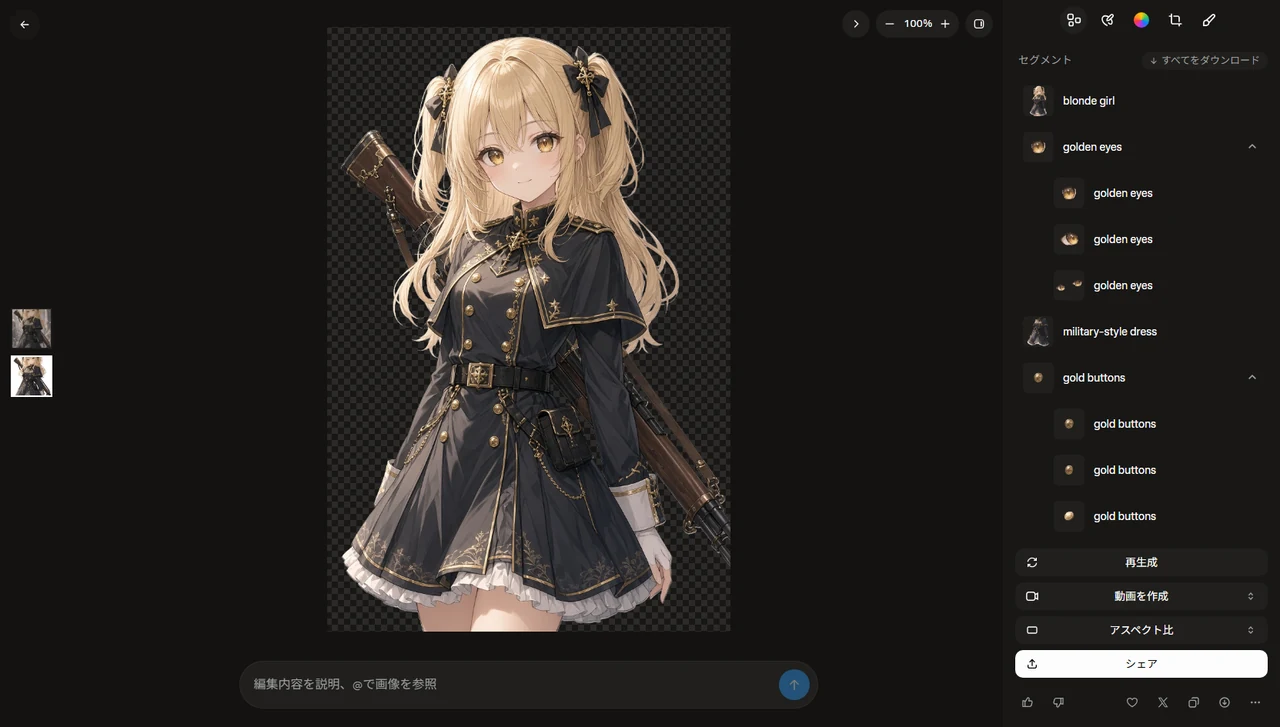
Huh? Is Grok actually really good? From the segments, you can also regenerate and download each part of the image, so it seems to have exactly the features a PNGTuber needs.
But that’s as far as the free plan goes. Regenerating parts and turning images into video showed a sign-up screen for a paid plan. If you want to make a PNGTuber for free, you end up preparing every part other than the first one separately anyway, so it’s not much different from using any other AI. Poor Grok had nothing to be praised for in the variant comparison, but partial regeneration in the paid plan seems to be basically the same feature as PixAI’s repaint, so I think it would make preparing PNGTuber assets much easier. This time I kept to the free tier, so there wasn’t much to praise, but I felt that with a paid plan it could be the strongest.
Removing the background in a painting app
When removing the background with AI doesn’t come out clean, or when you don’t want to use up image generations, remove the background yourself. I covered how in an earlier note.
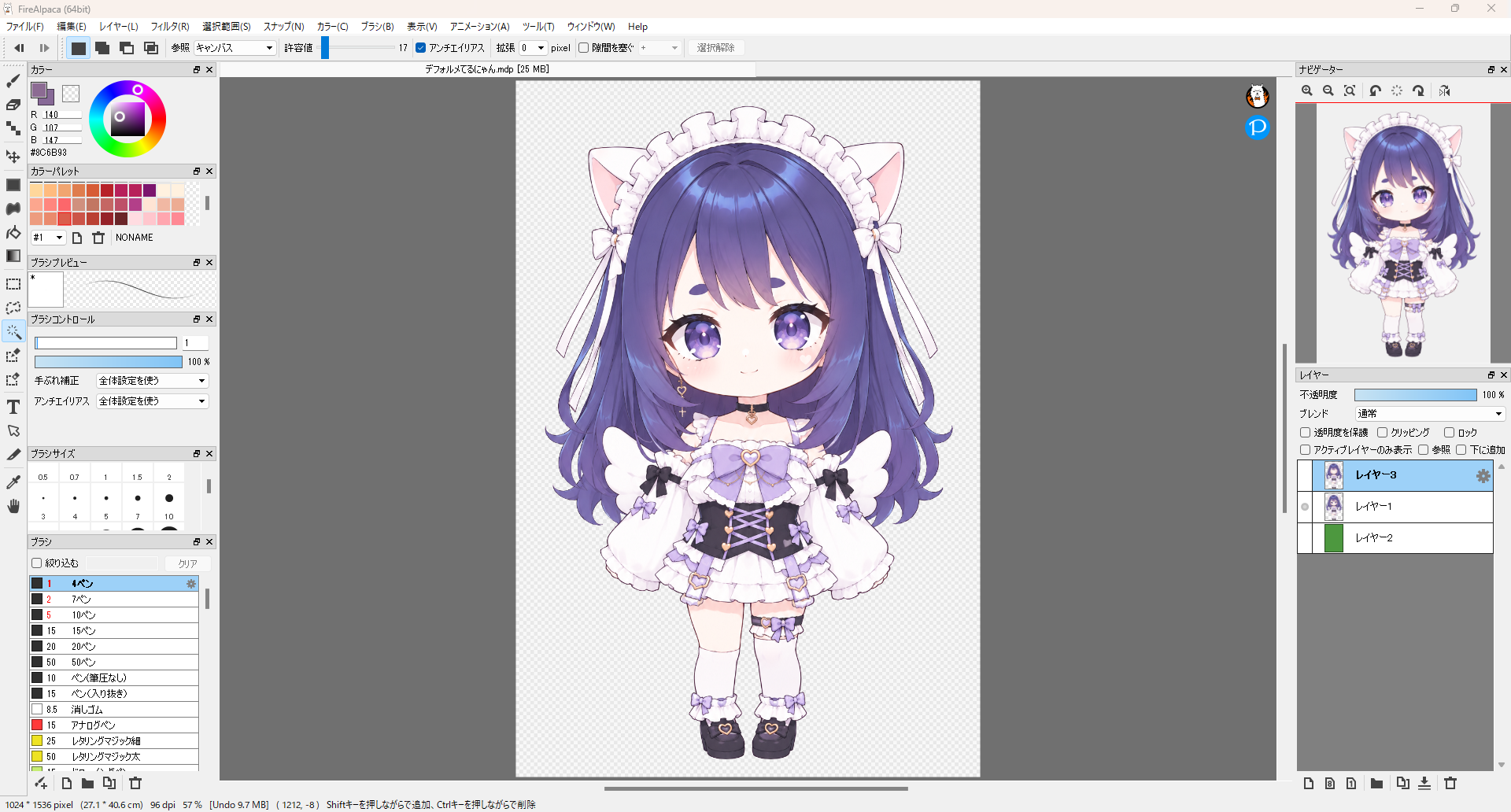 Editing artwork in FireAlpaca with just a mouse You can edit artwork with just a mouse. Removing the background, smoothing jagged lines, and erasing the eyes and mouth in FireAlpaca.
Summary
It’s partly a matter of taste, but here’s how I rate them.
| AI | Character design | Regenerating from an image | Variant images |
|---|---|---|---|
| ChatGPT | ○ | ○ | △ |
| Gemini | × | × | △ |
| Grok | △ | △ | × |
| PixAI | ○ | △ | ○ |
| ComfyUI | ○ | ○ | △ |
I think I’m going easy on ChatGPT because I’m used to it. It’s just easy. It often outputs a nice image without long instructions… Give it an image and say “make it in an art style like this” and you get back something that looks the part, so I think it’s the one where the back-and-forth feels the most like working with a person.
I’m not used to Gemini, and I think better instructions would get better images out of it. But if I’m going to put in that effort, I feel I’d get better images by spending it on learning PixAI or ComfyUI, so it’s hard to rate. Going through it again, it felt a bit meh, but the Surprised, Happy, and Crying expressions of the avatar bouncing around at the bottom left of the Peraravatar+ documentation were output with Gemini. In the sense that it keeps the original image’s proportions (the character’s height and face size) while making images with different poses and expressions, I think it’s very good. If only it output PNG.
I’d hardly ever used Grok, so this was the first time I learned what features it has. If I’d paid and mastered it, I might have given Grok full marks. Around me, people talk about ChatGPT and Gemini, but Grok never comes up, which seems like a waste.
For now, the asset-making process I’ve landed on for Peraravatar+ is:
- Have ChatGPT or PixAI output a nice avatar from loose instructions
- Fix broken spots and jagged lines in a painting app
- Have ChatGPT output versions with the eyes closed or the mouth open, and cut out only the parts you need (draw them yourself when it doesn’t work)
- Combine the parts in a painting app and adjust them so nothing breaks
- Have Gemini generate images where not just the expression, such as Surprised, Happy, or Crying, but also the pose changes
- Touch up Gemini’s output in a painting app, remove the background, and save it as PNG
Take it easy where you can, and do the fine work by hand.
Once your assets are ready, you can bring them to life as a PNGTuber in Peraravatar+. To swap in variant images one at a time, choose “Prepare each image”; to layer eye and mouth parts, choose “Build from one image”. See the Peraravatar+ documentation for details. I go through layering parts and making them move in this note.
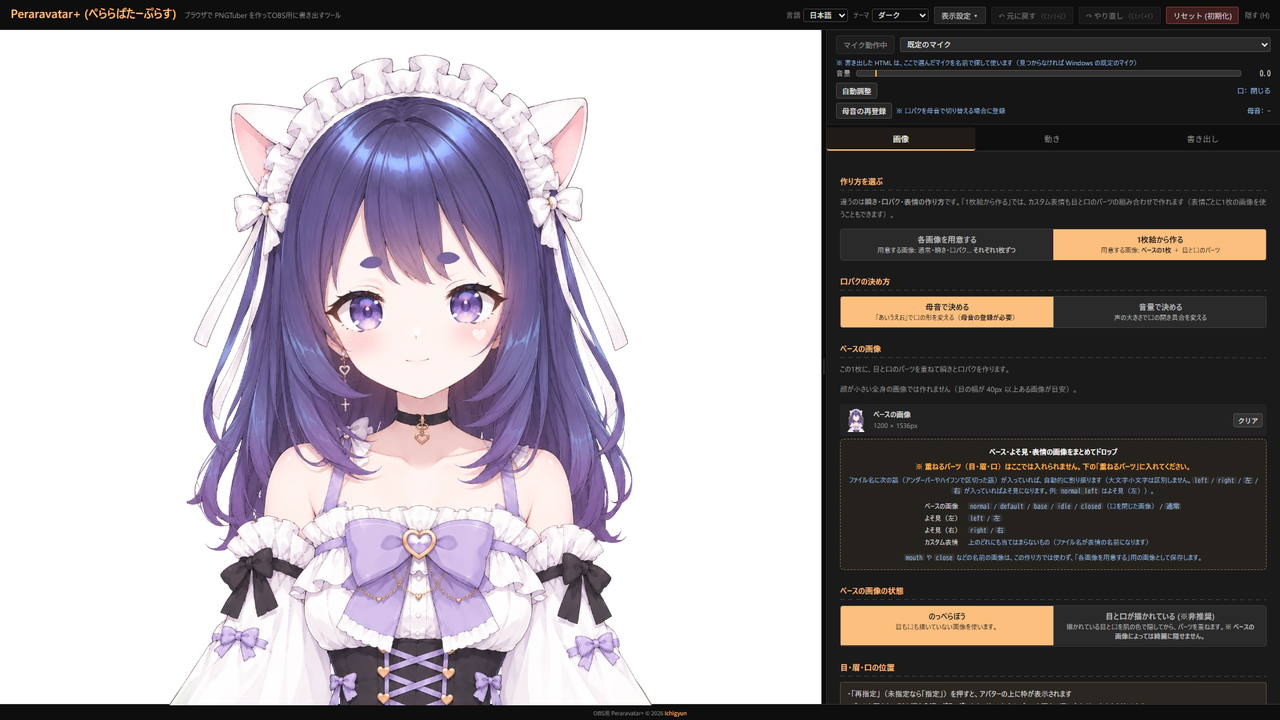 Making a streaming avatar with Peraravatar+ Making a streaming avatar with the Peraravatar+ PNGTuber: a blank-face base from one AI image, presets for a quick start, your own eye and mouth parts, and a bouncing chest and swinging accessories.
 Contact
Bug reports & Feature requests
Use the form for "it doesn't work" or "I wish it could…". Easiest channel for me to triage.
Contact form ▶
Business & Other inquiries
For work requests and other inquiries, please email me.
Email ▶
Feedback & Cheers
An anonymous one-liner channel. Even just "I'm using it" makes me happy.
Marshmallow ▶