Launching all your streaming tools at once with a batch file
10 min read
Does starting all your streaming tools feel like a chore? Have you ever forgotten to start one of them and found your comment reader or auto-translation wasn't working? With a single batch file, you can start every tool you need with one double-click.

When you stream, you often use several tools together: OBS Studio, plus a tool that reads comments aloud, a tool that translates them, and Streamer.bot, which I used in the previous article.
 Switching a PNGTuber's expression on Twitch notifications How to make a PNGTuber built with Peraravatar+ automatically switch to a chosen custom expression when you get a Twitch follow.
That’s where a “batch file” comes in. A batch file is a file where you write down, from top to bottom, what you want your PC to do (here, start your tools). When you double-click it, the tools start in the order you wrote them.
Who this is for
- People who don’t know what batch processing is
- People using Windows (Mac uses
.commandfiles and Linux uses shell scripts, which work differently)
With articles like this, some people drop off early, thinking “This looks hard. I’ll just keep doing things the way I am…” But don’t give up. Just give it a try. Don’t run away 🫵
What you need
- The tools you use for streaming (already installed)
- Notepad (comes with Windows by default)
To find Notepad, open the Start menu and type “Notepad”.
Step 1: Find the path of each tool
In the batch file, you write the “path” of each tool you want to start. A path is like an address that shows where a file is on your PC. For example, OBS Studio’s path is this by default:
C:\Program Files\obs-studio\bin\64bit\obs64.exeThis means “obs64.exe inside the 64bit folder, inside the bin folder, inside the obs-studio folder, inside the Program Files folder on the C drive”. Folders are separated with \.
Where a tool is installed differs from person to person, so find the path on your own PC. Open Notepad, then repeat these steps for each tool you want to start.
- Right-click the tool’s icon on your desktop and choose “Properties”. If it isn’t on your desktop, right-click the tool in the Start menu, choose “Open file location”, then right-click the tool’s icon in the folder that opens and choose “Properties”
- The “Target” field on the “Shortcut” tab is the tool’s path. Select all of it and copy it
- Paste it into Notepad
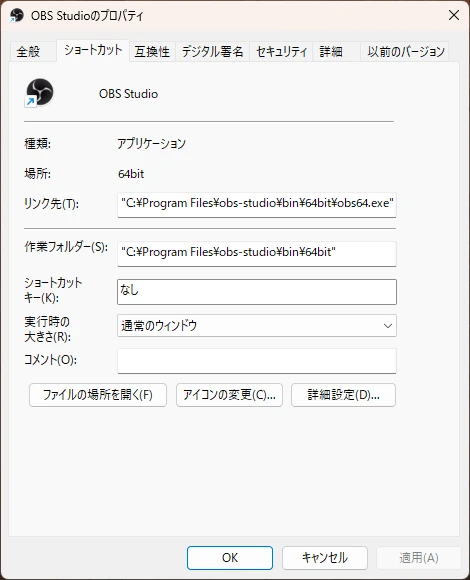
On Japanese Windows, as in the screenshot above, \ is shown as ¥. They are the same character, so you can use what you copied as it is.
Some tools, like Streamer.bot, aren’t installed and are used straight from their folder. For those, open the folder, right-click the tool itself (the file whose type is “Application”) and choose “Copy as path”. On Windows 10, hold Shift while you right-click to see “Copy as path”.
Step 2: Write the batch file
Open a new file in Notepad and paste in this template.
@echo off
start "" "path of the first tool"
start "" "path of the second tool"
Replace path of the first tool and path of the second tool with the paths you found in step 1.
- Put
"before and after each path. If the path you copied already has"around it, paste it as it is without adding more - If you have three or more tools, add more
start "" "path"lines - Leave
@echo offon line 1 as it is
OBS Studio is the one exception. Before its path, write /D and OBS Studio’s folder (the path without the \obs64.exe at the end). Without this, OBS Studio shows an error when it starts. You can find OBS Studio’s folder in the “Start in” field of the properties from step 1.
start "" /D "C:\Program Files\obs-studio\bin\64bit" "C:\Program Files\obs-studio\bin\64bit\obs64.exe"If you use a Peraravatar+ avatar in OBS Studio, also add the launch options --use-fake-ui-for-media-stream --autoplay-policy=no-user-gesture-required to the end of the OBS Studio line. Without them, the browser source can’t use your mic, and the avatar won’t react to your voice. If you followed the Peraravatar+ documentation and added the launch options to the shortcut’s “Target”, they are already included in the target you copied in step 1.
start "" /D "C:\Program Files\obs-studio\bin\64bit" "C:\Program Files\obs-studio\bin\64bit\obs64.exe" --use-fake-ui-for-media-stream --autoplay-policy=no-user-gesture-requiredTo start OBS Studio, CastCraft and Streamer.bot, it looks like this. The Streamer.bot path depends on where you put its folder.
@echo off
start "" /D "C:\Program Files\obs-studio\bin\64bit" "C:\Program Files\obs-studio\bin\64bit\obs64.exe"
start "" "C:\Users\(username)\AppData\Local\Programs\CastCraft\CastCraft.exe"
start "" "C:\Users\(username)\Documents\Streamer.bot-x64-1.0.7\Streamer.bot.exe"
Step 3: Save it
- In Notepad, choose “File” → “Save as”
- Choose “Desktop” as the place to save it
- Set “Save as type” to “All files”
- Set “File name” to
start_streaming.bat - If any path contains Japanese or other non-English characters, set “Encoding” to “ANSI”
- Click “Save”
The .bat at the end of the file name is called the “extension”, and it tells Windows what kind of file it is. Saved as .bat, the file starts your tools as written when you double-click it. If “Save as type” is left as “Text documents”, .txt is added, as in start_streaming.bat.txt, and the file is saved as a plain note.
Windows hides extensions by default, so even if the file was saved as start_streaming.bat.txt, it shows up as start_streaming.bat and you can’t tell the difference. Right-click the saved file and open “Properties”. If “Type of file” says “Windows Batch File (.bat)”, it was saved correctly.
Step 4: Double-click to test it
Double-click the start_streaming.bat you saved on your desktop. If a black window (Command Prompt) appears for a moment and your tools start in the order you wrote them, you’re done. From now on, all you have to do before a stream is double-click this file.
If something doesn’t work, check the following.
- Notepad opens when you double-click it: It was saved as
.txt. Save it again following step 3 - Only some of the tools don’t start: Check that the path of that tool is correct, going through step 1 again
- OBS Studio shows an error: Check that the OBS Studio line has
/Dand the folder - A tool whose path contains non-English characters doesn’t start: Save it again with “Encoding” set to “ANSI”
To edit what you wrote, open start_streaming.bat from “File” → “Open” in Notepad. Choose “All files” and it appears in the list.
Having AI write it
You can also ask an AI to write the batch file for you. How you ask depends on the AI you use.
If you use an AI that can look inside your PC, such as Codex or Claude Code
The AI can search your PC and find the paths itself, so if you ask like this, you can leave the whole job to it, including saving the file.
Make a batch file named start_streaming.bat on my desktop that starts OBS Studio, CastCraft and Streamer.bot, the tools I use for streaming, all at once.If the AI asks for permission before running a command, check what it is going to do before you allow it. If it tries to do anything other than make the batch file, such as deleting files or changing settings, press Esc to stop it and make it explain itself. If you can’t quite tell what it’s doing, ask something like “Explain this so that someone who doesn’t know much about PCs can understand it”, and only allow it once you’re satisfied.
If you use Copilot, ChatGPT, Claude or similar in a browser or an app
The AI can’t look inside your PC, so give it the paths you found in step 1. Copilot comes with Windows 11 by default.
Write a Windows batch file that starts the following tools at once before I stream.
- OBS Studio: C:\Program Files\obs-studio\bin\64bit\obs64.exe
- CastCraft: %USERPROFILE%\AppData\Local\Programs\CastCraft\CastCraft.exe
- Streamer.bot: %USERPROFILE%\Documents\Streamer.bot-x64-1.0.7\Streamer.bot.exe
If you ask without giving the paths, the AI guesses common install locations. If those differ from where the tools are installed on your PC, that batch file won’t start them. Paste what the AI wrote into Notepad and save it the same way as in step 3.
The part after C:\Users\ in a path is your Windows username. If you don’t want to tell the AI, for example because your username is your real name, replace the C:\Users\(username) part with %USERPROFILE% before you send it. Inside a batch file, %USERPROFILE% points to the same place as C:\Users\(username).
Using it safely
A batch file can do more than start tools. It can also run commands that delete files or change settings. Keep the following in mind.
- Check the contents before you use it: Check anything an AI wrote for you before you save it. If it only has
startlines and paths, like the template in step 2, all it does is start tools. If it contains commands you don’t know, such asdel(delete files),rd(delete folders) orreg(change settings), ask the AI what that line does before you use it - Don’t run files from other people as they are: If someone gave you a batch file or you downloaded one from the internet, open it in Notepad and check the contents before you use it
- Don’t use “Run as administrator”: You don’t need to run it as administrator just to start tools. Double-click it as usual
- Watch out for your username: When you give a batch file to someone else, or show your screen on stream or social media, check that the username in the paths isn’t visible
Bonus: Show a to-do list after launch
Even with all your tools started, some of you may still forget what you need to do in each one, like updating your stream info or connecting CastCraft. Now that everything starts in one go, let’s pack in a to-do list too, so you don’t end up stopping mid-stream with an “Oh no, I forgot!” If the batch file shows a list of things to do at the end, you can check them one by one before you go live.
Adding a to-do list to the example from step 2 looks like this.
@echo off
setlocal enabledelayedexpansion
start "" /D "C:\Program Files\obs-studio\bin\64bit" "C:\Program Files\obs-studio\bin\64bit\obs64.exe"
start "" "C:\Users\(username)\AppData\Local\Programs\CastCraft\CastCraft.exe"
start "" "C:\Users\(username)\Documents\Streamer.bot-x64-1.0.7\Streamer.bot.exe"

set "TODO1=Update stream info"
set "TODO2=Connect CastCraft"

set COUNT=0
for /l %%n in (1,1,99) do if defined TODO%%n set COUNT=%%n
set DONE=0

:CHECK
cls
echo Checklist
echo.
for /l %%n in (1,1,%COUNT%) do (
  if %%n leq !DONE! (echo   [OK] !TODO%%n!) else (echo   [  ] !TODO%%n!)
)
echo.
if %DONE% geq %COUNT% exit 0
set /a NEXT=DONE+1
set /p "ANSWER=Press Enter when done: !TODO%NEXT%!"
set DONE=%NEXT%
goto CHECK
After the tools start, Command Prompt shows the list of things to do. Starting from the top, press Enter when each one is done.
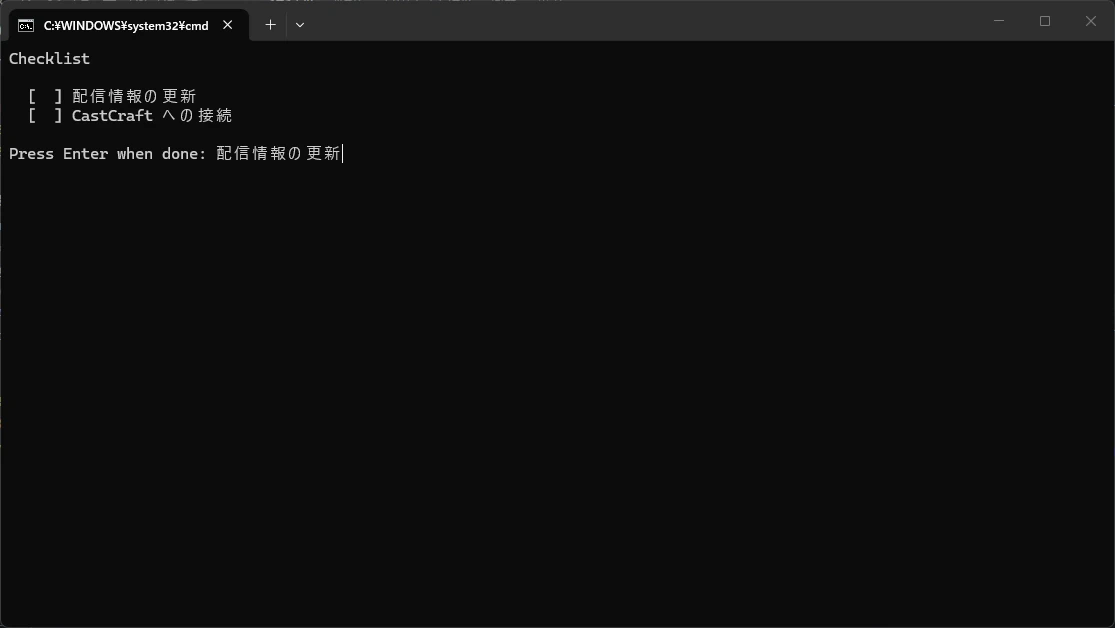
When you press Enter, that item gets [OK] and the list moves on to the next one. When you press Enter on the last item, Command Prompt closes.
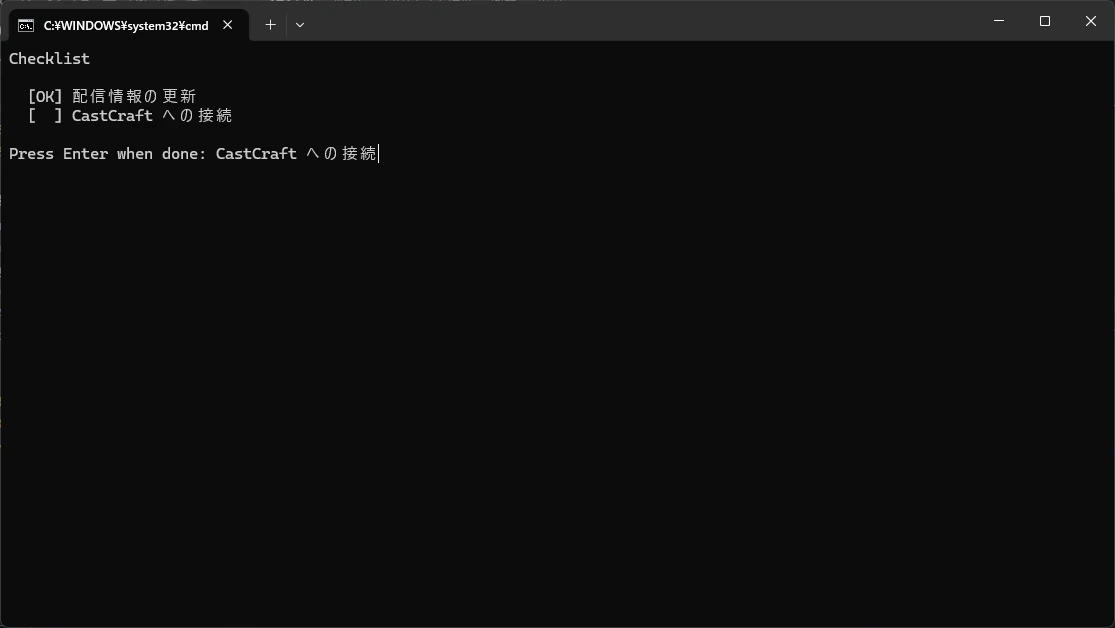
Write your to-do items on the set "TODO1=…" lines.
- To add more items, add lines with the next number, such as
set "TODO3=…" - Leave
setlocal enabledelayedexpansionon line 2 as it is - If you write the items in Japanese or another language with non-English characters, set “Encoding” to “ANSI” when you save in step 3
Summary
- Put your streaming tools in a batch file and they all start with one double-click
- Find each tool’s path in “Target” in the icon’s properties, or with “Copy as path” from the right-click menu
- Replace the paths in the template in Notepad and save it as
.bat. For OBS Studio, also write/Dand its folder - An AI that can look inside your PC, such as Codex or Claude Code, can take care of it all, starting with finding the paths. For an AI in a browser or an app, give it the paths you found yourself
- Check the contents of any batch file an AI wrote or someone gave you
Contact
Bug reports & Feature requests
Use the form for "it doesn't work" or "I wish it could…". Easiest channel for me to triage.
Contact form ▶
Business & Other inquiries
For work requests and other inquiries, please email me.
Email ▶
Feedback & Cheers
An anonymous one-liner channel. Even just "I'm using it" makes me happy.
Marshmallow ▶